Touchscreen Data Logger Quick Start Guide (DicksonOne) Page 5
DicksonOne Account
Log into or create your DicksonOne account at https://www.dicksonone.com/ to get started with:
● Device management
● Adding users
● Creating alarms
● Configuring reports
● And more!
Adding Locations, Users, Alarms and more
To learn more about how to add locations, users, and configure alarms on your DicksonOne account
please visit the knowledge center by going to
https://dicksondata.com/resources/support/dicksonone/.
Configure your Device Settings
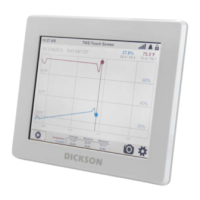
Touch the gear icon in the lower right corner of the screen to configure your device.
NOTE: If your device is connected to DicksonOne, some settings will appear disabled in the device and can only
be configured online from your DicksonOne account. To learn more about configuring your device, visit the
knowledge center by going to https://dicksondata.com/touchscreen-support-articles/
General Settings
Device Name: Name your device something meaningful to your application
Time Format: 12hr or 24hr
Temp Units: Fahrenheit or celsius
When Full: Overwrite or Stop logging
Sample Rate: Select an appropriate sample rate
Date/Time: Set the Date and Time of the Device
Screensaver: Automatically dim the screen after a set amount of time
Brightness: Adjust the brightness of your screen


 To Next Page