Page | 23
Upgrading from WIZARD2 version 1.0.8.X
1) Close the WIZARD2 application
2) Remove USB from the Receiver
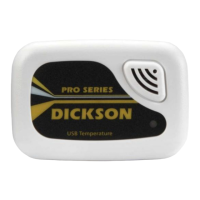
3) Double click on the Broker Service Icon and Stop the Service
4) Close the Broker Service window (the icon should no longer appear in the lower right corner with the other
service application icons)
5) Go to Start (windows icon in lower left corner of display) / Control Panel / Remove (Uninstall) Programs
6) Select Dickson Wizard 2 (x86) or (x64) and uninstall
7) Once complete go to C:\program files\Dickson Data make sure the W2 folder has been removed. If this
folder shows, delete it.
8) Insert CD and begin installation - be sure to select the correct install version for your PC configuration.
The database will remain unchanged with data intact.
9) Update the database:
10) Open the “Start” menu (windows icon in lower left corner of display) and select “All Programs”. Scroll to
find folder “Dickson Data” in the programs list. Open the folder.
a) Database Configuration window will open. Click Setup Database.
b) Setup Database window opens. Click Run.
c) The program will detect that a database exist and will update it.
d) When complete close the window.
11) Once installation is complete, start the service by going to Start (windows icon in lower left corner of
display) / All Programs / Dickson Data and double click on Wizard 2 Service Monitor.
12) Look for the service monitor icon in the lower right hand corner. If it is red, double click on the icon and
start the service. If it is green, the service is running.
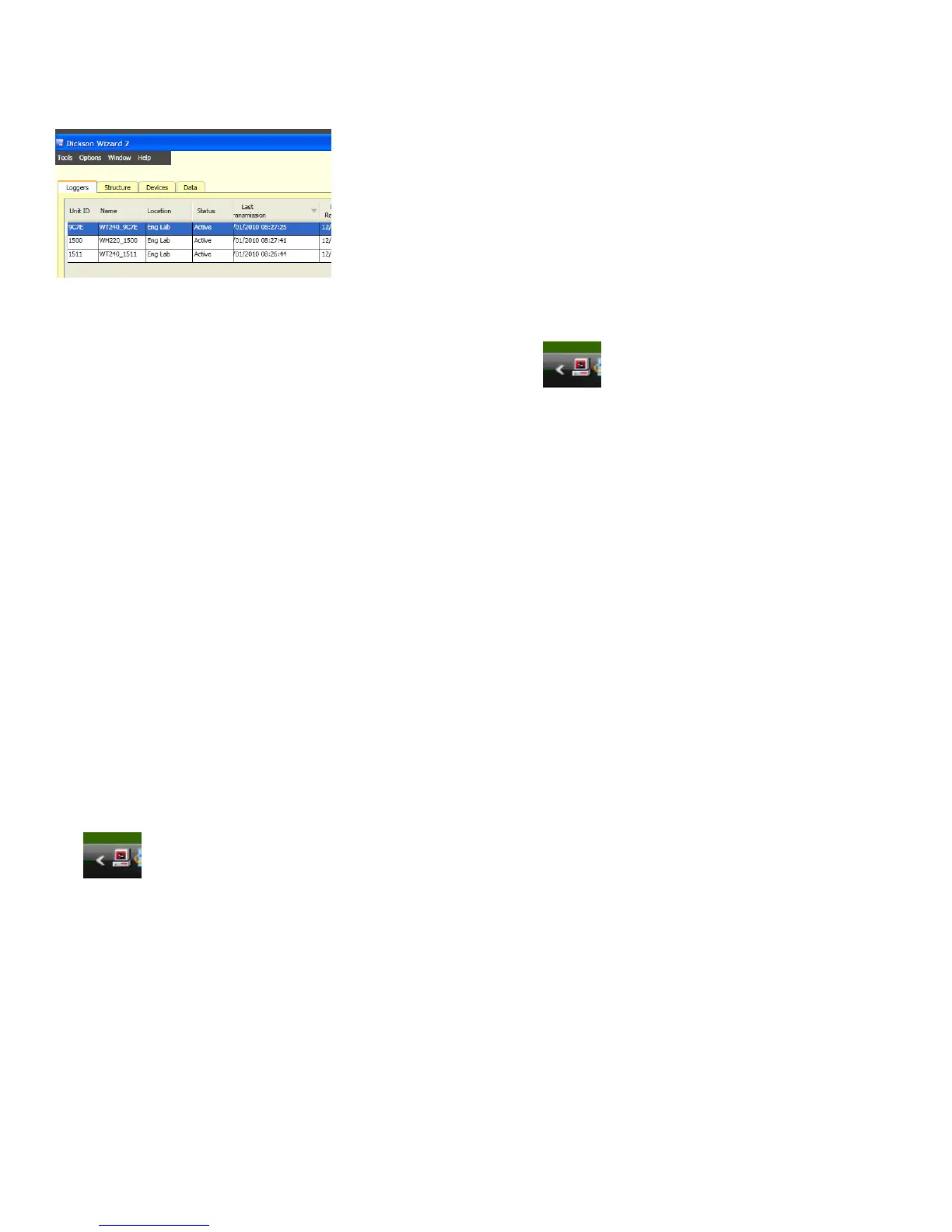
13) Double click on the Wizard2 icon to start the application
NOTE:
If you receive an error message when updating the Database or can not open the WIZARD2 application, the
update did not complete properly. Please repeat the steps starting with #5. If this fails again, please contact
technical support at 800.323.2448.


 To Next Page