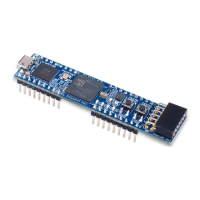
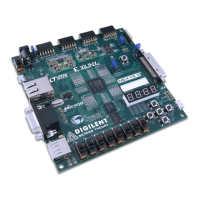
Nexys 3™ FPGA Board Reference Manual
Copyright Digilent, Inc. All rights reserved.
Other product and company names mentioned may be trademarks of their respective owners.
Digilent's Adept software offers a simplified programming interface and many additional features as described
below. The Adept USB port is fully compatible with all Xilinx tools, including the iMPACT programming software.
The Adept features are always available, regardless of how the FPGA was programmed.
1.1 Adept System
Digilent's Adept high-speed USB2 system can be used to program the FPGA and PCM devices, run automated
board tests, add PC-based virtual I/O devices (like buttons, switches, and LEDs) to FPGA designs, and exchange
register-based and file-based data with the FPGA. Adept automatically recognizes the Nexys 3 board and presents
a graphical interface with tabs for each of these applications. Adept also includes public APIs/DLLs so that users
can write applications to exchange data with the Nexys 3 board at up to 38Mbytes/sec. The Adept application, an
SDK, and reference materials are freely downloadable from the Digilent website.
1.2 Programming Interface
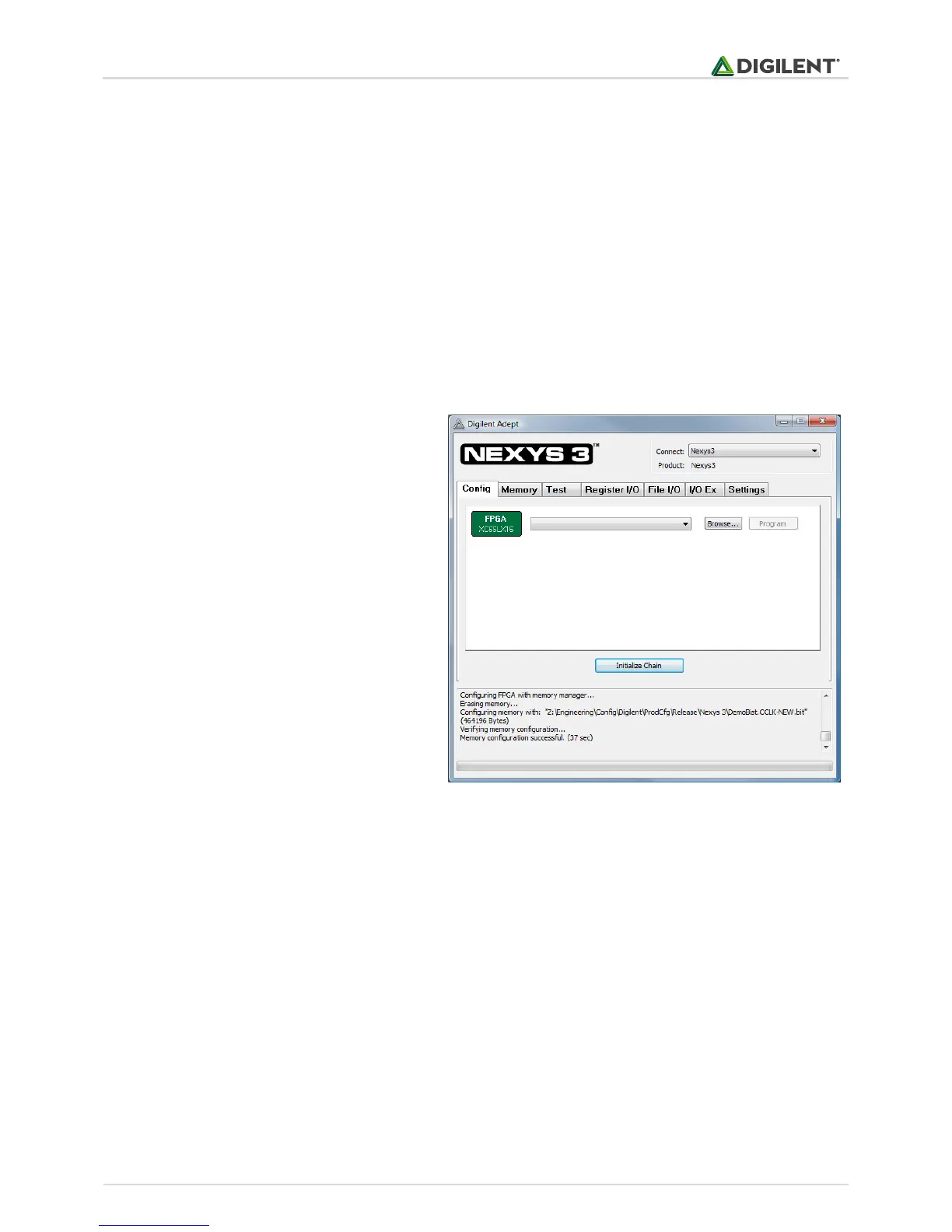
To program the Nexys 3 board using Adept, first
set up the board and initialize the software:
plug in and attach the power supply
plug in the USB cable to the PC and to
the USB port on the board
start the Adept software
turn ON Nexys 3's power switch
wait for the FPGA to be recognized.
Use the browse function to associate the desired
.bit file with the FPGA, and click on the Program
button. The configuration file will be sent to the
FPGA, and a dialog box will indicate whether
programming was successful. The configuration
"done" LED will light after the FPGA has been
successfully configured.
Before starting the programming sequence, Adept ensures that any selected configuration file contains the correct
FPGA ID code – this prevents incorrect .bit files from being sent to the FPGA.
In addition to the navigation bar and browse and program buttons, the Config interface provides an Initialize Chain
button, console window, and status bar. The Initialize Chain button is useful if USB communications with the board
have been interrupted. The console window displays current status, and the status bar shows real-time progress
when downloading a configuration file.
1.3 Memory Interface
The Memory tab allows .bin, .bit, and .mcs configuration files to be transferred to the on-board BPI (parallel) or SPI
(serial) PCM devices for subsequent FPGA programming, and allows user data files to be transferred to/from the
PCM devices or RAM memories at user-specified addresses. The target memory is selected by clicking one of the
three radio buttons in the upper-right corner.


 To Next Page