ii.) To install the driver component and the MyDSC download manager click
on the option called “Install DC Driver”. You will be given a second screen
where you will again need to click on the option called “Install DC Driver”.
This will prompt the InstallShield to begin the installation process. On the next
installation screen given, click on Next and the installation will continue
immediately installing the application as required.
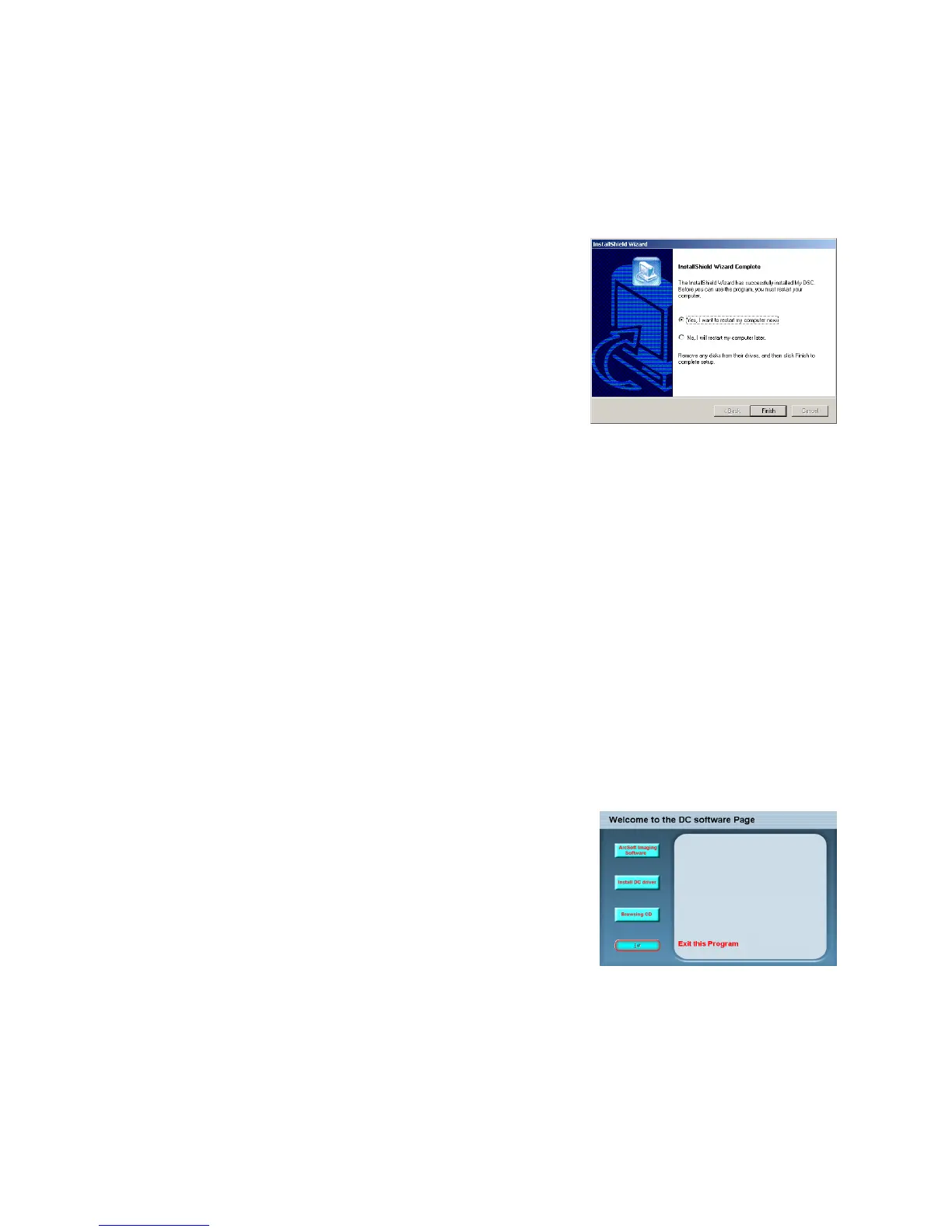
iii.) Once this has finished you will be asked to
Restart your PC as shown in the picture on the
right. Choose “Yes, I want to restart my PC now”
ensuring all programs that may be running are
closed and any information saved. (Please Note:
During the installation of any software it is
advisable that you do not have any applications
running in the background as this may interfere
with the installation process.)
iv.) Once the PC has restarted you should be able to plug your camera in and
Windows will detect the new Hardware. We advise that you first connect the
camera to a rear USB port and not through a Hub or front USB port. Once
connected the camera should turn on automatically and make a small beep
to indicate this. Windows will detect new hardware. Allowing Windows to
search for the appropriate drivers will install the device as required.
v.) Once the camera is detected and you run the MyDSC application from
Start>Programs>MyDSC>MyDSC you will be able to access the images on
the camera by clicking on the Pink Camera Icon at the bottom of the MyDSC
download manager.
c. Windows XP
i.) Please insert the Installation CD supplied. If it
does not auto run please click on your Windows
Start button and then on the Run option. In the
Open dialog box please type in D:\autorun.exe
(where D is the drive letter of the CD-ROM drive
you are using.) then click on OK. You should then
be shown the menu pictured right.
ii.) To install the driver component and the MyDSC download manager click
on the option called “Install DC Driver”. You will be given a second screen
where you will again need to click on the option called “Install DC Driver”.
This will prompt the InstallShield to begin the installation process. On the next
installation screen given click on Next and the installation will continue
immediately installing the application as required.


 To Next Page
 Loading...