Page 11
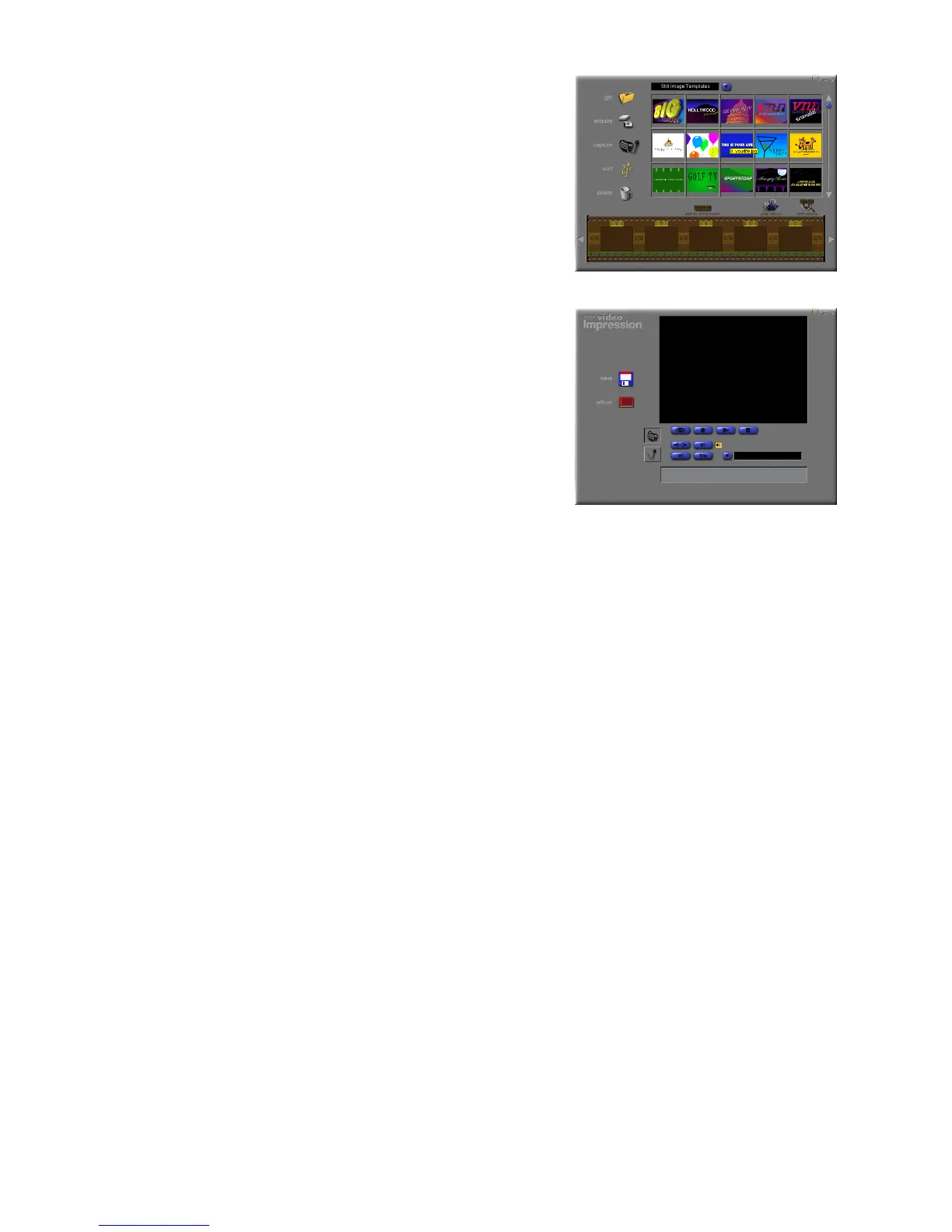
Document Addition
Allows you to add additional files to your
timeline. To go back to the Title Screen to Save
or Send the file click on Play Movie
Video Capture
Through Capture, the digital camera can take
the digital video and add it to your timeline.
5. Troubleshooting
If your camera is not performing as dictated in this document or the
installation has not completed for any reason, the following section should
help.
a. The autorun does not allow me to install the applications.
i.) To install the MyDSC application please click on your Windows Start
button and select the Run option. In the Open dialog type in
D:\DRIVER\Setup.exe
ii.) To install the PhotoImpression application click on your Windows Start
button and select the Run option. In the Open dialog type in
D:\PhotoImpression\setup.exe
iii.) To install the VideoImpression application click on your Windows Start
button and select the Run option. In the Open dialog type in
D:\VideoImpression\setup.exe
b. I get a “Has Not Passed Windows Logo Testing” error message.
When Windows XP was under development Microsoft tested all pieces of
hardware and software that were available at the time and made a small
database in the operating system to tell you if the item passed Logo Testing



 To Next Page