Adjust the Brightness and Contrast as required then redownload your images
given the new filter settings.
v.) To save the images, click each picture you wish to keep once, with the left
mouse button. The border should turn Red to indicate the selections. Click on
the Disk Icon to save. Please give the selection of photos a suitable filename.
The application will add a sequential number suffix to the name you gave and
save it in the folder of your choice.
2. PCCam - Live View
i.) With the DigiMax Camera connected via USB you will need to run the
PCCam Application. To access the PCCam Application click on your
Windows Start button and then on Programs (this will
be called “All Programs” in Windows XP). You will be
able to locate an option called MyDSC. Click on
MyDSC then on the PCCam application shortcut.
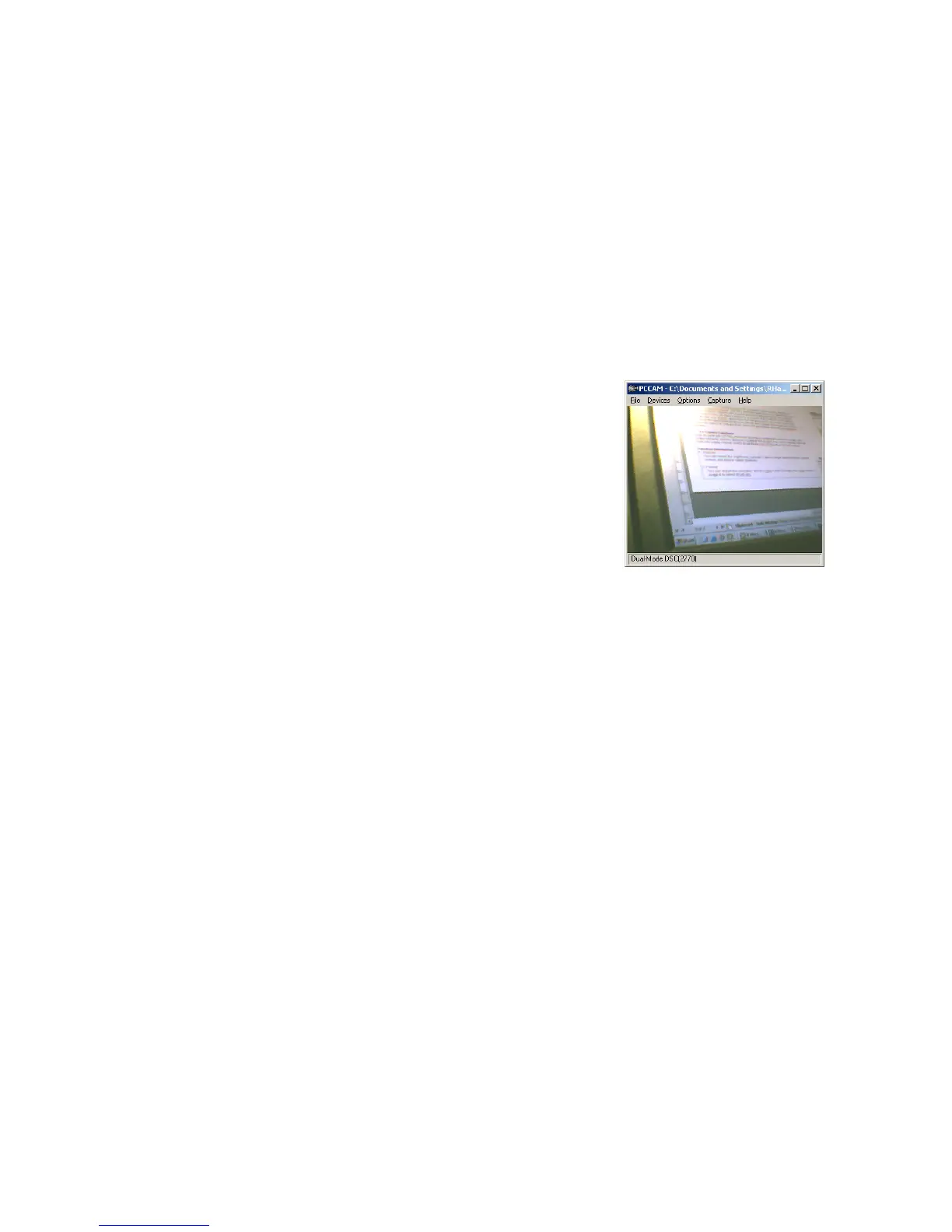
ii.) You can access a Preview of the Live Video mode
through the PCCam application. Click on Options and
ensure that Preview is ticked. You should then
receive a Preview in the PCCam Window.
iii.) The File menu allows you to choose where you can save your file, and
sets how big the file can become before the capture automatically stops.
The Devices menu allows you to select the Audio and Video devices you
wish to use to acquire a capture and create an AVI.
The Options menu allows you to view a preview, and also allows you to set
Audio and Video formats and filters to use in the capture.
The Capture menu allows you to set the capture properties including frame
rates, capture time limits, whether audio is included and when to start and
stop the capture
Additional Software
On the DigiMax Installation CD you will find two free programs from Arcsoft.
a.) Arcsoft PhotoImpression 4.0
b.) Arcsoft VideoImpression 1.6
These products are developed and supported by Arcsoft. Arcsoft can be
contacted on the following e-mail addresses.
support@arcsoft.com (Technical Support)
eurosupport@arcsoft.com (European Technical Support)


 To Next Page
 Loading...