Page 3
Precautions
When you use the USB cable to connect the camera to a computer, it is not
necessary to use the battery because the camera will use the power provided
by the computer through the USB interface. Before you use the PC Camera
function you are required to download all photos in the camera onto your
computer, which will avoid losing the currently stored photos.
Warning
Don't open the battery compartment and remove the batteries, this will cease
power to the camera and will result in the loss of your photos.
1. If you don't use the camera for a long time, please take out the battery as
this may lead to discharge or corrosion;
2. Please do not put the battery near fire or high temperatures as this may
cause the battery to explode.
3. We suggest using AAA size alkaline batteries for best results.
4. Please note that if you leave the battery in the camera it will use the power
to retain the memory. This will result in a battery life of 7 to 10 days.
Continuous use will result in a reduction of battery life.
Automatic Energy Saving Mode
In order to improve the battery life, if the camera is not used in 30 seconds,
the camera will automatically enter the energy saving mode.
Installing the DigiMax
a. Windows 98FE
i.) On Windows 98 FE, before you install the Driver components you will need
to run the file D:\win\DirectX 8.1b Redist Package.EXE (where D is the drive
letter of the CD-ROM drive you are using) from the Installation CD supplied.
ii.) Once the DirectX 8.1b Redist Package.exe file is installed it would be
advisable to download and install the latest version of DirectX 9 from the
Microsoft website. Please visit www.microsoft.com/directx to obtain this
download.
iii.) Once complete you may follow the installation procedure as described for
installation on Windows 98SE, ME and 2000 in section 2.b.
b. Windows 98SE, ME and 2000
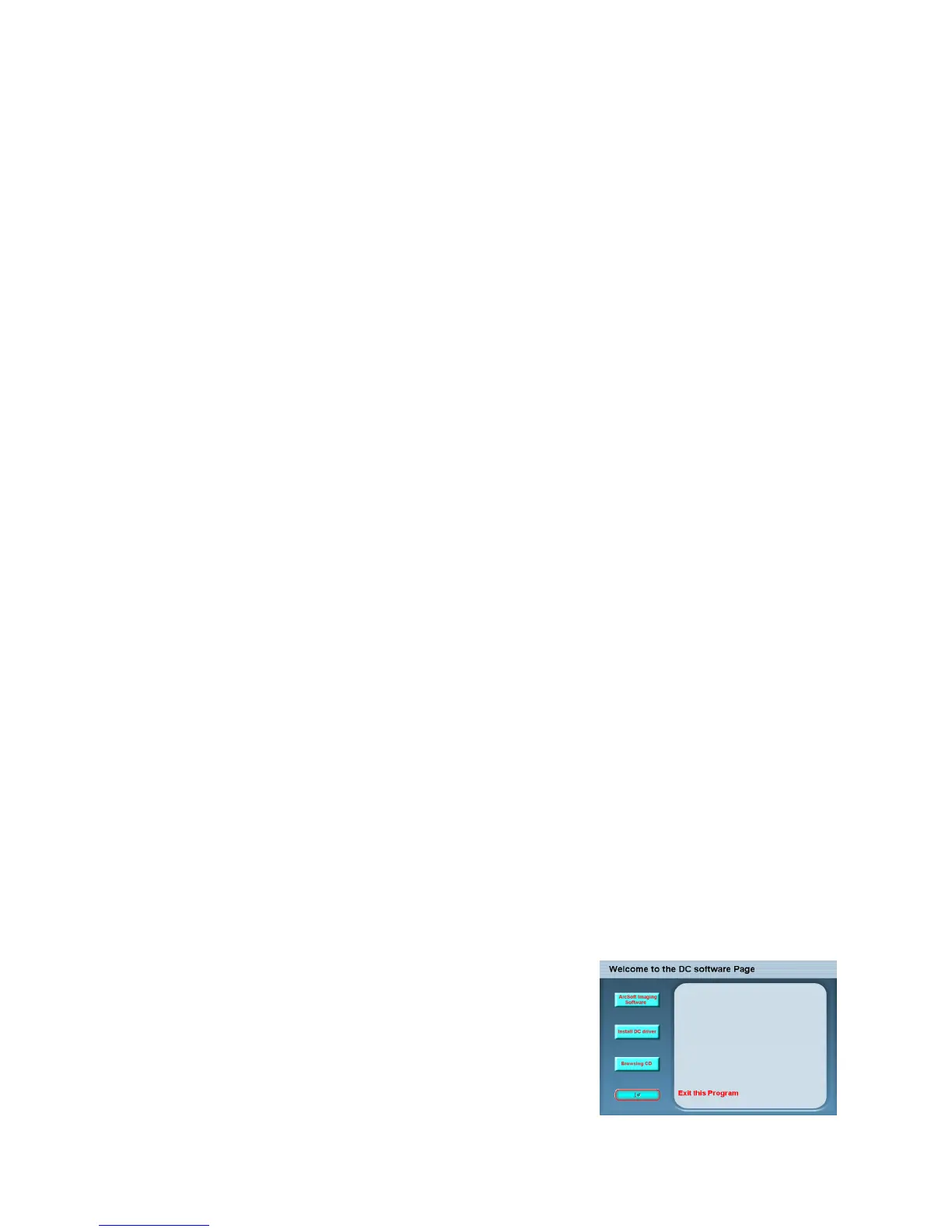
i.) Please insert the Installation CD supplied. If it
does not auto run please click on your Windows
Start button and then on the Run option. In the
Open dialog box please type in D:\autorun.exe
(where D is the drive letter of the CD-ROM drive
you are using.) then click on OK. You should then
be shown the menu pictured right.


 To Next Page
 Loading...