Page 7
Note:
If you don't press the shutter button in 5 seconds, the operation will not
be executed and the digital camera will return to its normal working state.
Take Photos
Please be sure that the power in the battery is enough before you use this
camera to take photos. If you want to take photos, please follow the steps
below;
1. Press function button to turn on the camera and the LCD display will turn
on;
2. Use the viewfinder to determine what you would like to take a photo of;
3. Hold the camera steadily, and press the shutter button to take photos;
4. When you hear the buzzer beep once, this indicates you have taken a
photo, and you can proceed to take further photos. A double beep means
there has been a problem and you may need to take the photo again.
Please ensure you are using it in sufficient light for the sensor to work.
5. When the camera is fully loaded with photos, the LCD will display "00" if
you press shutter button again, the buzzer will give out the continuous
beep to warn you that you can take no more pictures.
Download Photos
When you have taken as many photos as the memory will allow, you can
delete the photos to take more photos if you wish. If you wish to save these
photos before deleting them, you can upload them into your computer for
storage first.
1. MyDSC Download Manager
i.) Use USB cable to connect the camera with your computer and the buzzer
will give out a beep indicating the connection is correct and the device is
powered. To access the MyDSC Download Manager click on your Windows
Start button and then on Programs (this will be called “All Programs” in
Windows XP) you will be able to locate an option called MyDSC. Click on
MyDSC then on the MyDSC application shortcut.
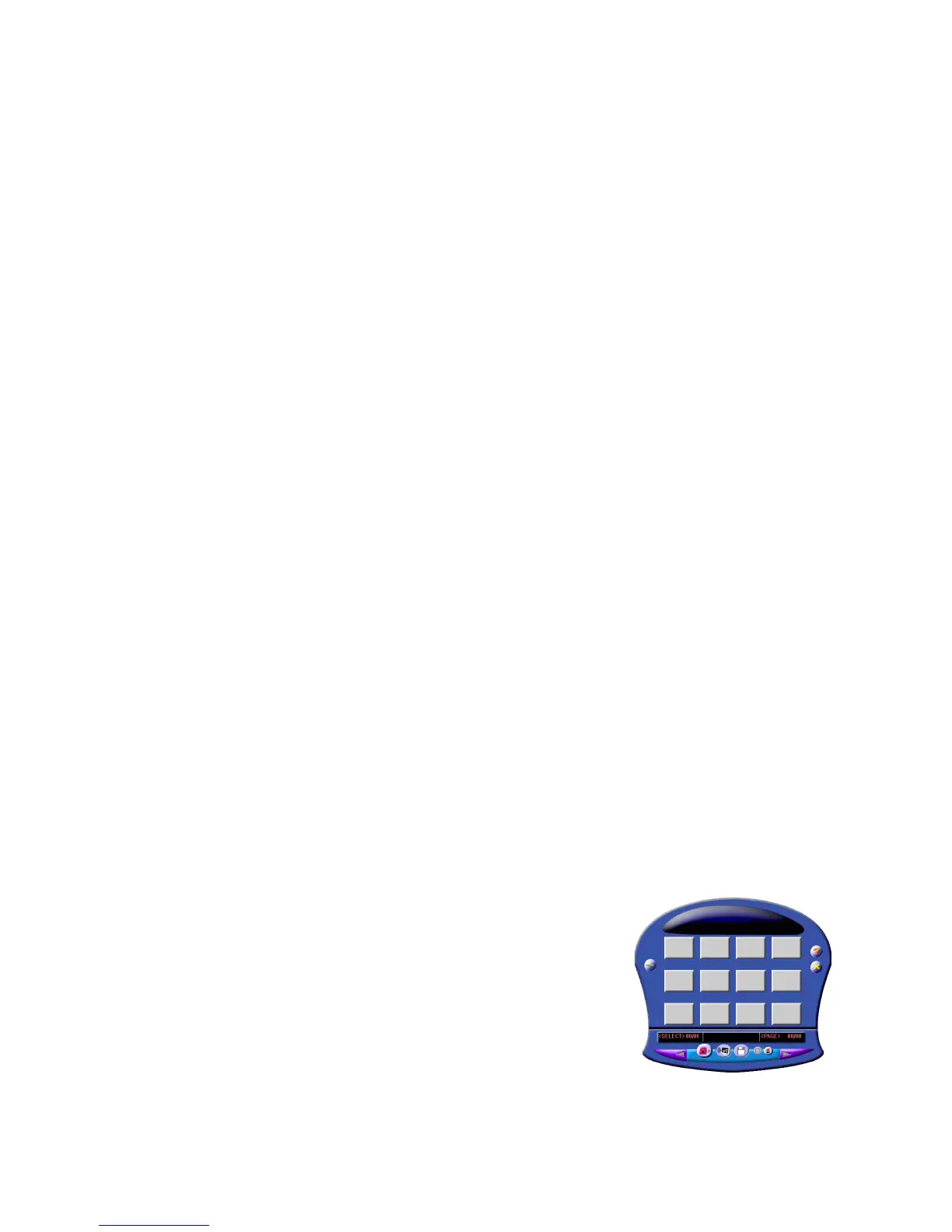
ii.) To download your pictures click on the Pink
Camera Icon which will download your images directly
to the manager preview windows.
iii.) You can Preview your images by Right Clicking on
the image which will open up a preview window. Right
clicking on the preview will zoom in, left clicking will
zoom out. To close the Window click the cross in the
top right hand corner of the screen.
iv.) To adjust the Brightness and Contrast click on the Edit Image button.


 To Next Page
 Loading...