Page 9
Manuals can be downloaded for free from the Arcsoft website once you have
registered with them. Please visit http://www.arcsoft.com/en/club/signup.asp
to register with Club Arcsoft.
Once joined you can visit the following pages to download the free manual
downloads;
PhotoImpression - http://www.arcsoft.com/en/support/downloads/
manual.asp?title=12
VideoImpression - http://www.arcsoft.com/en/support/downloads/
manual.asp?title=17
Photo Editing Software
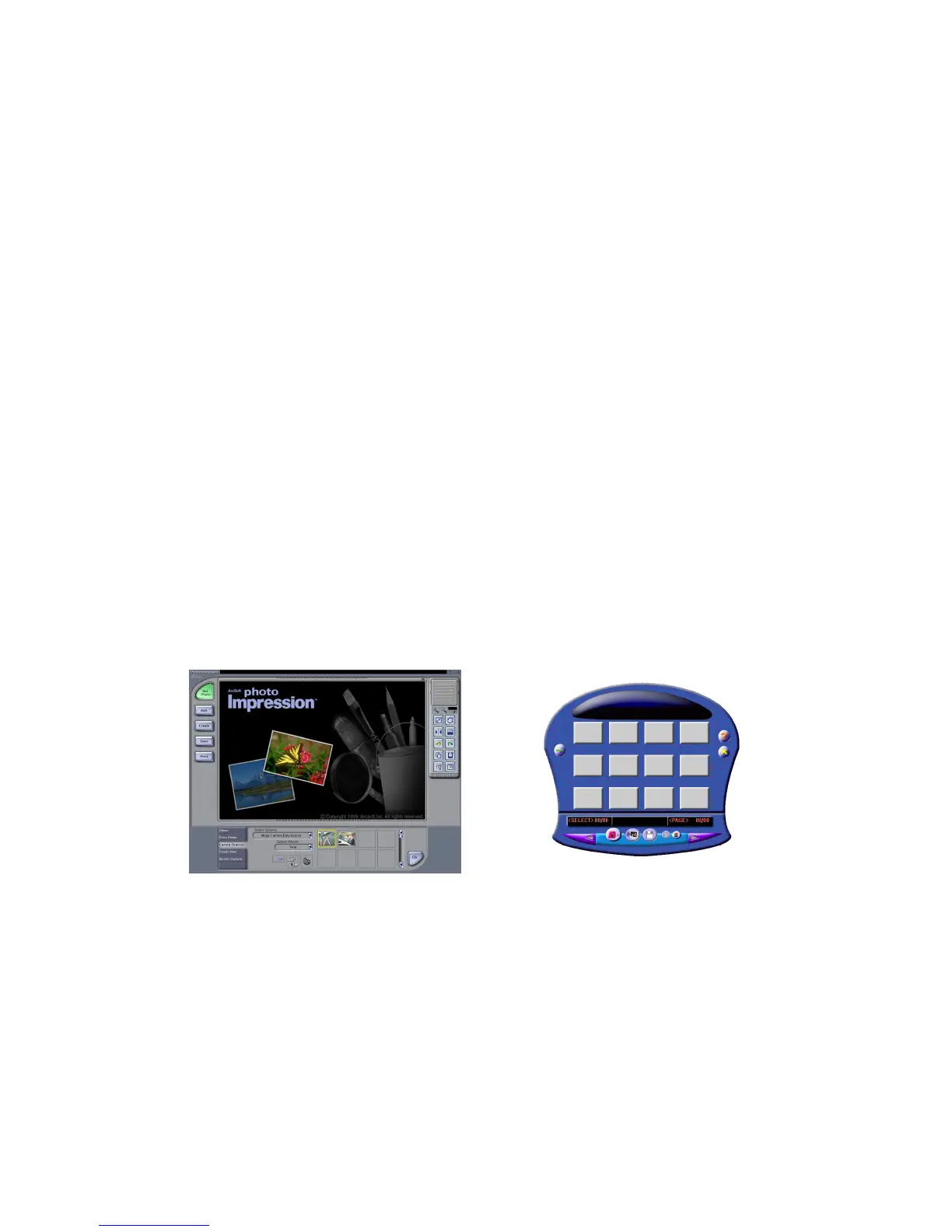
You can use "Arcsoft PhotoImpression 4.0" software to edit the photo. Please
click the button "Camera/Scanner" and then select the camera from the
select source options. The DigiMax Camera will be listed as Dual-Mode
DSC(2770), then click the Acquire button (this will have a picture of a scanner
and a camera on the button). This will load your MyDSC application and will
allow you to download your photos and select the appropriate photos you
wish to use. Instead of Saving these you can choose the option to Transfer
Files which will pass these to the PhotoImpression Software for you to work
with.



 To Next Page