Video Conferences
The camera can be used as a PC camera to conduct image transmission or
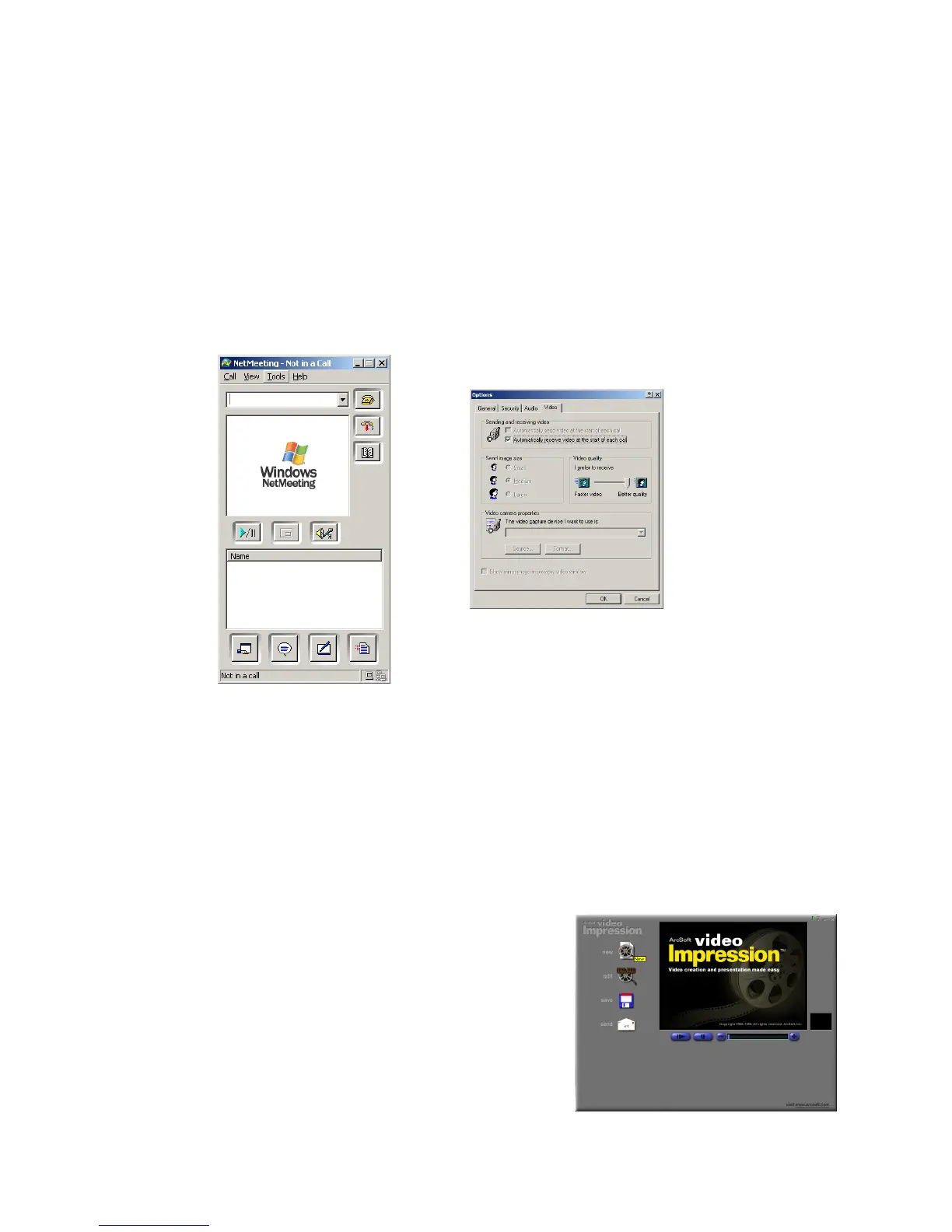
hold online video conferences, you are only required to:
1. Use the USB cable to connect the camera and the USB Interface of PC;
2. Run the video conference software Microsoft NetMeeting (C:\Program
files\NetMeeting) on your computer. Click [TOOLS] and press [OPTIONS];
3. Select an appropriate video device to start a video conference. Click on
the Video tab and choose from the available list.
NOTE: Windows NetMeeting is given as an example that should be available
to most Windows Users and can be downloaded from Microsoft if required.
VideoImpression 1 .6
VideoImpression is an easy to use video editing application. It can edit new
video files onto the current video project, and the content of it will be display
on the working area for the application. The VideoImpresion will assist you in
mastering the editing of your digital video files.
Title Screen
Allows you to select whether to start a New
project or open a currently saved document.



 To Next Page