TV Setting (’2020)
1) Setting Store Mode
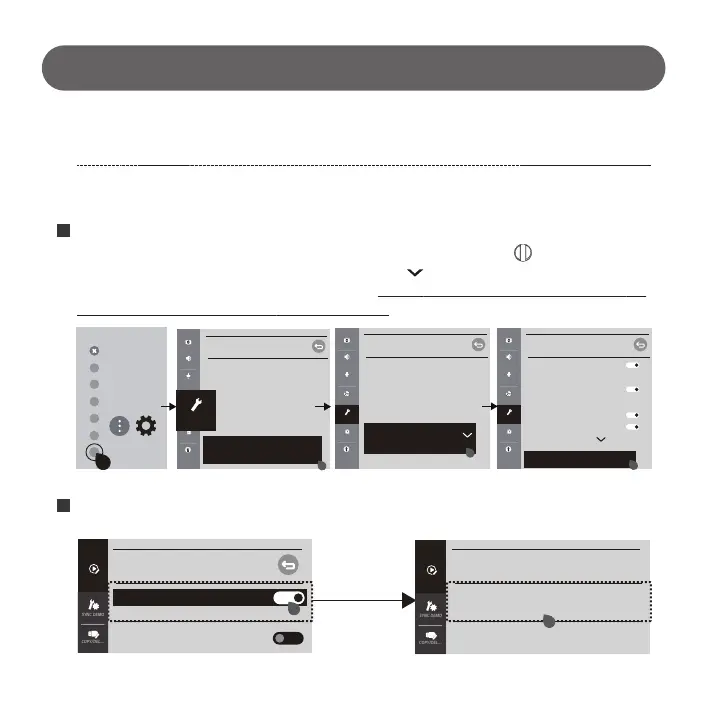
Select “Demo Options” in Setting menu
2) Built-in Video Deactivation.
There’s pop up menu in left or right bottom of screen if pressing “wheel button ( )” of Magic remote or
“OK” button of General Remote . Press “down direction key ( )” and enter “Demo Options” menu.
If no pop menu, enter the process manually as follow. “ Setting → General → Additional Settings →
Home/Store Mode (Store Mode) → Store Mode Settings”
Deactivate “In-store USB/Built-in Video” mode
If this setting is not changed, although you connect Sound Bar Rack well, Built-in video or USB video will be playing.
1
2
All Settings
(
)
GENERAL
Location
Time & Date
Timers
AI Servic
Account Management
Eco Mode
About This TV
Picture
Sound
Channels
Network
General
Safety
Accessibility
General
Additional Settings
ADDITIONAL SETTINGS
Quich Start+
Advertising Cookies
Standby Light
LG Wireless Keyboard
Settings Help
No Signal Image
Picture
Sound
Channels
Network
General
Safety
Accessibility
Home/Store Mode
Store Mode
Store Mode Settings
GENERAL /
Quich Start+
Advertising Cookies
Standby Light
LG Wireless Keyboard
Settings Help
No Signal Image
Home/Store Mode
Store Mode
Picture
Sound
Channels
Network
General
Safety
Accessibility
Store Mode Settings
GENERAL /
ADDITIONAL SETTINGS
DEMO OPTIONS
DEMO OPTI...
COPY/DEL....
SYNC DEMO
In-store USB/Built-in Video
Notifications
DEMO OPTI...
COPY/DEL....
SYNC DEMO
DEMO OPTIONS
In-store USB/Built-in Video
Notifications
- 6 -
TV can be set “Store Mode” up manually as follow.
Setting → General → Additional Settings → Home/Store Mode (Store Mode) → Store Mode Settings



 To Next Page