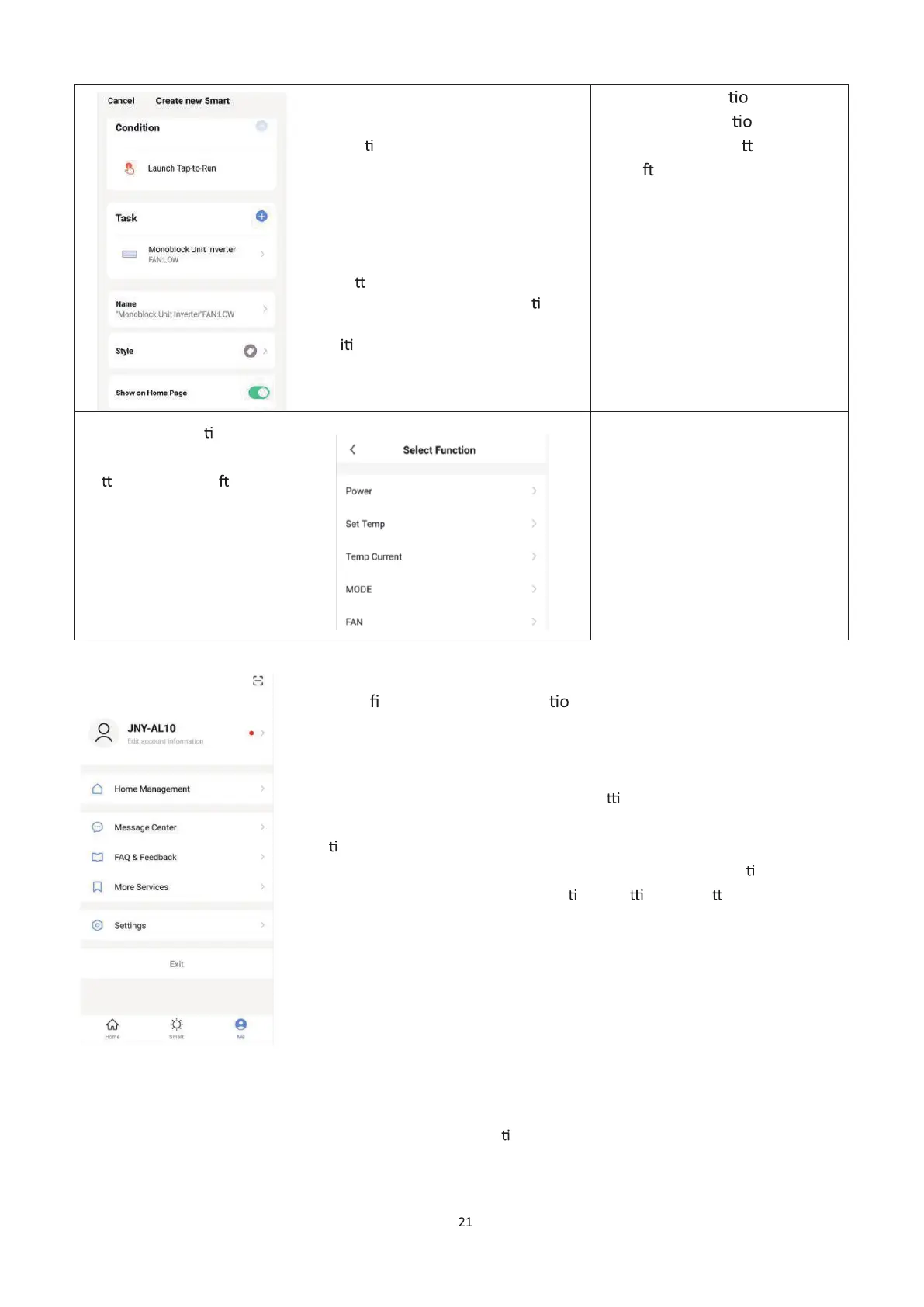
4. Setup is very similar to the scene setup
on the previous page, and includes an
extra sec
on for specifying a trigger for
the scene to start.
Press the arrow next to “Name” to input
the name for your Scene
Show on Home Page: Leave this on if
you require the scene to be displayed
as a bu
on on the Home Screen
Press the Blue Plus to add the ac
on
required. Then select the air
cond
oner from the list of devices.
5.
Chose the func n, set the
value for the func n, and then
press the arrow bu on in the
top le
corner, to return to the
previous screen.
6. Chose the func on,
and then press the arrow
bu
on in the top le corner,
to return to the previous
screen.
The pro le tab gives you the op n to edit both your detail, and use
the added features of the unit.
CHANGING THE NAME OF YOUR DEVICE
When in any of the device screens further se ngs for the device can be
accessed, by pressing on the three dots in the top right hand corner. The top
op
on within this allows you to change the name of the device to something
relevant to the use of the product, such as “Living Room Air Condi
oner”.
Within the menu, you also have the op
on of se ng up a pa ern lock or
chang
e your password.
DEVICE SHARING
This allows you to share access to the controls of your air condi
oner with friends and family.


 To Next Page