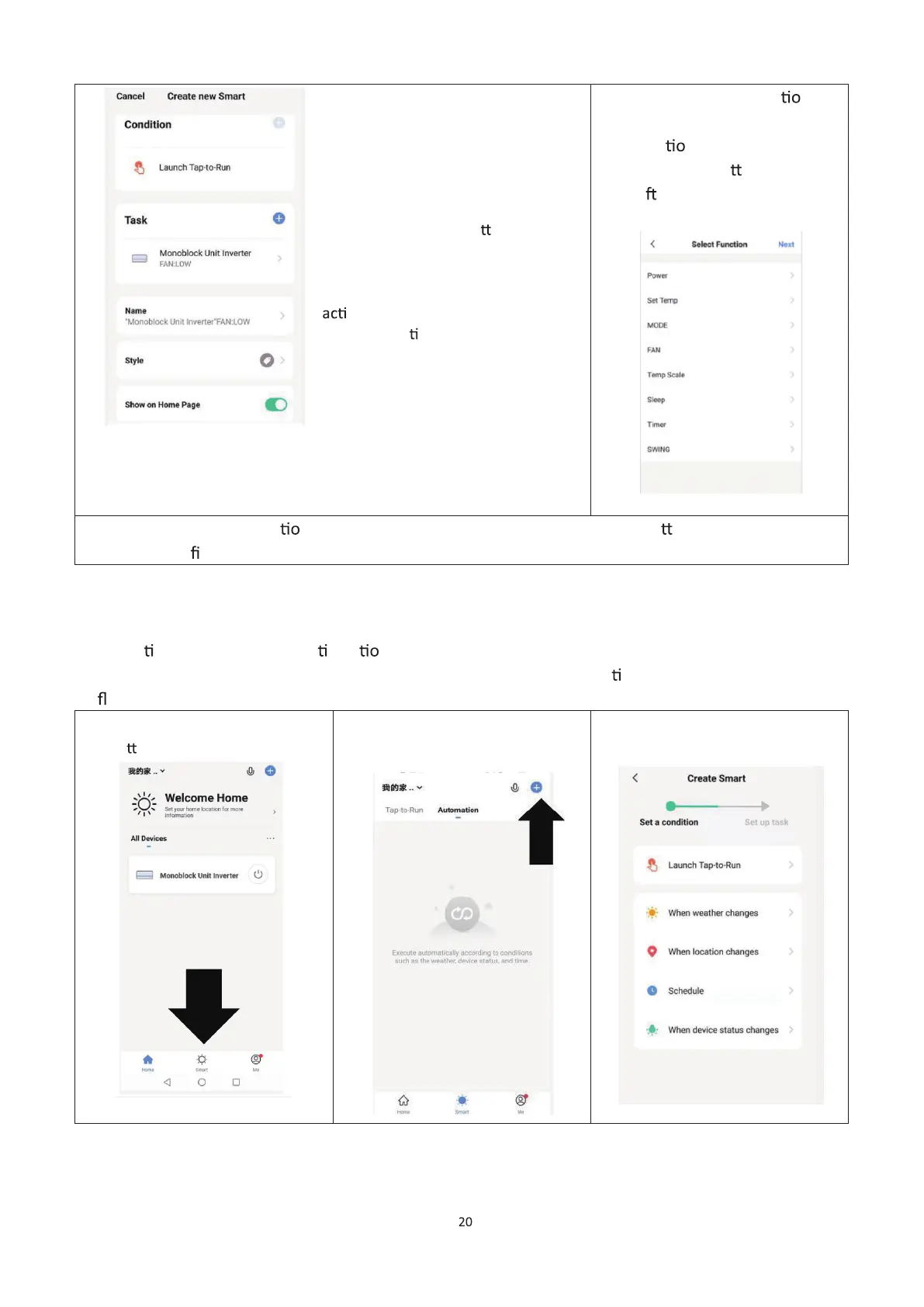
4. Press the arrow next to
“Name” to input the name for
your Scene
Show on Home Page: Leave
this on if you require the scene
to be displayed as a bu
on on
the Home Screen
Press the Blue Plus to add the
on required. Then select
the air condi
oner from the list
of devices.
set the value for the
func n, and then press
the arrow bu
on in the top
le
corner, to return to the
previous screen.
6. Once all the func ns required have been added, press the Save bu on in the top right
corner to nalise and save your new Scene.
AUTOMATION
Automa on allows an automa c ac n to be set up for the device. This can be triggered by the
Time, indoor temperature, humidity of the room, weather condi
ons, and a range of other
in uences.
1. Press on the Smart Scene tab at
the bo om of the Home screen.
2. Press on the Plus in the top right
corner to add a smart scene.
3. Press on the Launch Tap-to-Run
to create a new Scene.


 To Next Page