41
might go into the next time slot, press INFO on the remote, then
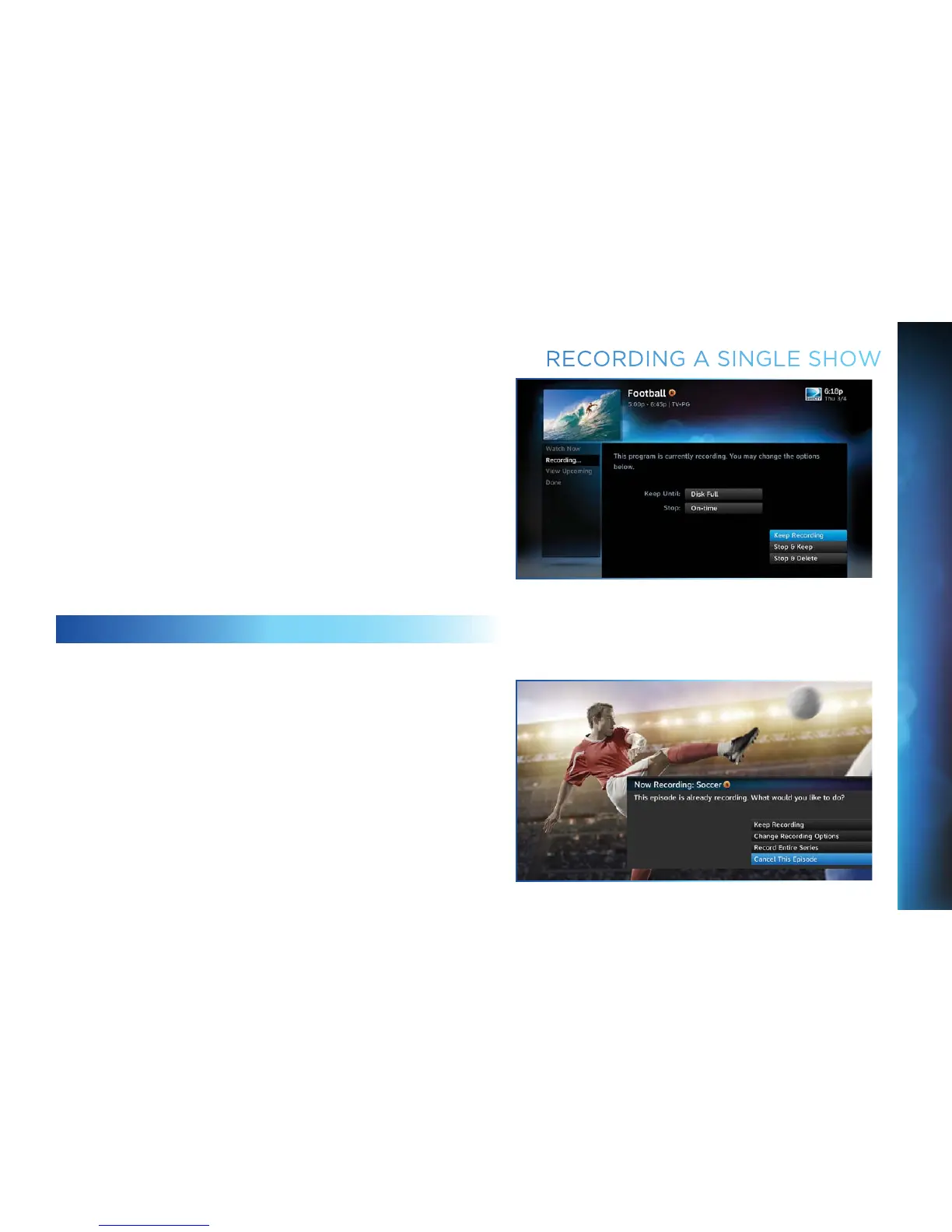
select “More Info” and “Recording” from the onscreen choices
to see the recording options for that show. Once there you can
change the stop time or any other option. To save your changes
select “Save Changes”.
If your show is set to record in the future, you can find it in the
guide or To Do list, then press INFO to display the Info screen.
To change a recording option for that one show, select “Episode
Options” and choose whichever option or options you want
to change. If you want to change a recording option for every
show in the series, select “Series Options” and then choose the
options you want to change.
STOPPING AN IN-PROGRESS RECORDING
If you press the RECORD button a second time on a single show
(like a movie), an onscreen message will appear giving you the
choice to “Keep Recording”, “Change Recording Options”, or
“Stop Recording”. This is an easy way to cancel a recording.
RECORDING A SINGLE SHOW
CHAPTER 4 - RECORDINGS



 To Next Page