One Chunnel GSM VoIP Gateway
42
Select Bridge mode if your network topology requires the network devices (PC or
others) to be in the same network segment as the GoIP Gateway. In this case, the
GoIP Gateway functions as an Ethernet Switch.
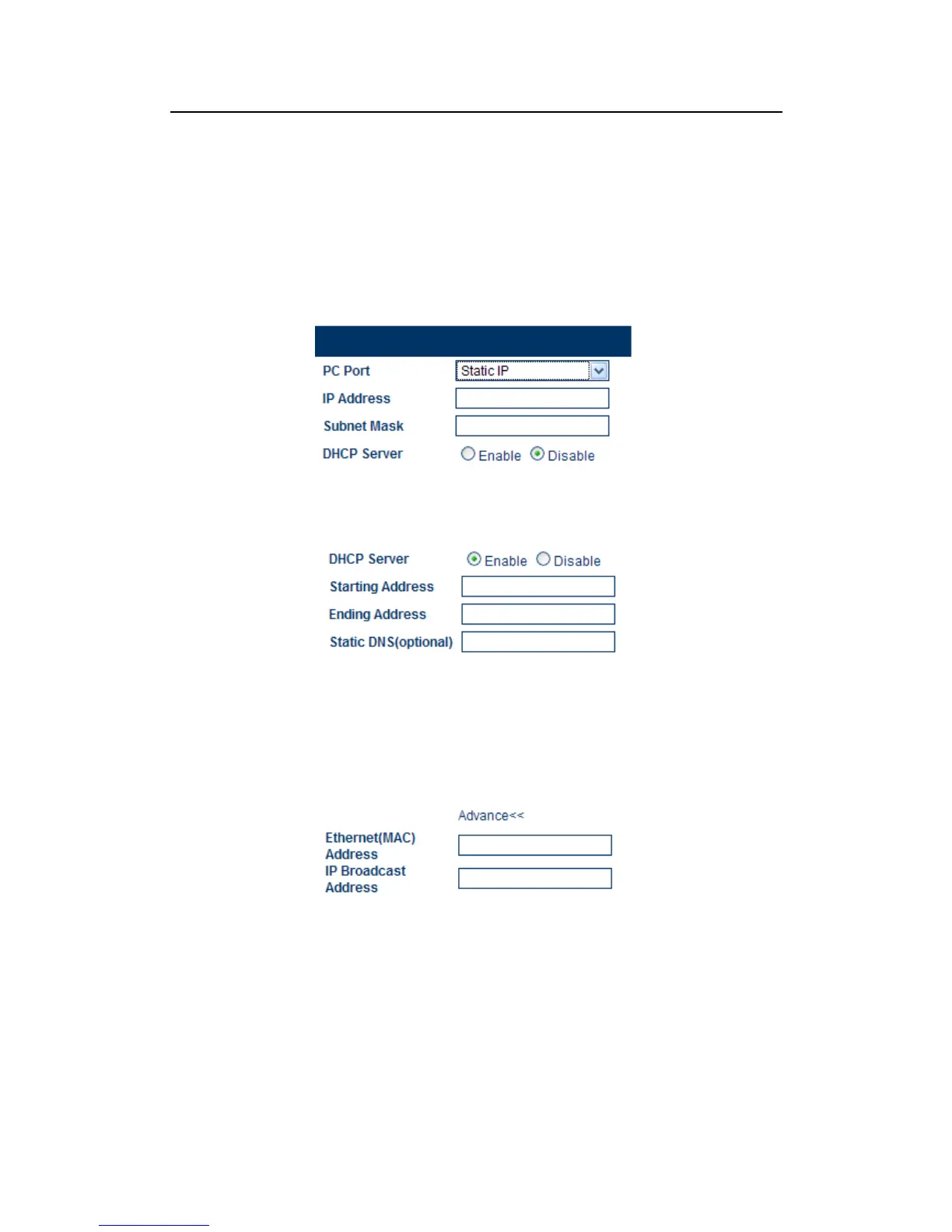
2) Static IP Mode (Default Setting)
Select Static IP mode for a new network segment for the network devices behind the
GoIP Gateway. In this case, the GoIP Gateway functions as an Ethernet Router.
Fill in the IP Address field with a new segment address that is different from that for
the LAN port. Please select the Subnet Mask accordingly. A commonly used value
is 255.255.255.0.
Enable the DHCP Server if you want the GoIP Gateway functions as a local DHCP
host for the PC segment. This will enables the GoIP Gateway to assign IP
Addresses to network devices that are attached to the PC port segment.
Specify the Starting Address. Ending Address, and Static DNS accordingly.
4) Advanced…
The Advanced settings allow the user to set the broadcast address and to clone a
MAC address instead of using the factory preset MAC address. Please consult your
network administrator for further information.
3.11 Save Configuration
To confirm and commit all changes made, click on the Save Changes tab. Otherwise, all
changes will be discarded. Once all changes are saved, the following screen message is
displayed.


 To Next Page