EasyManua.ls Logo

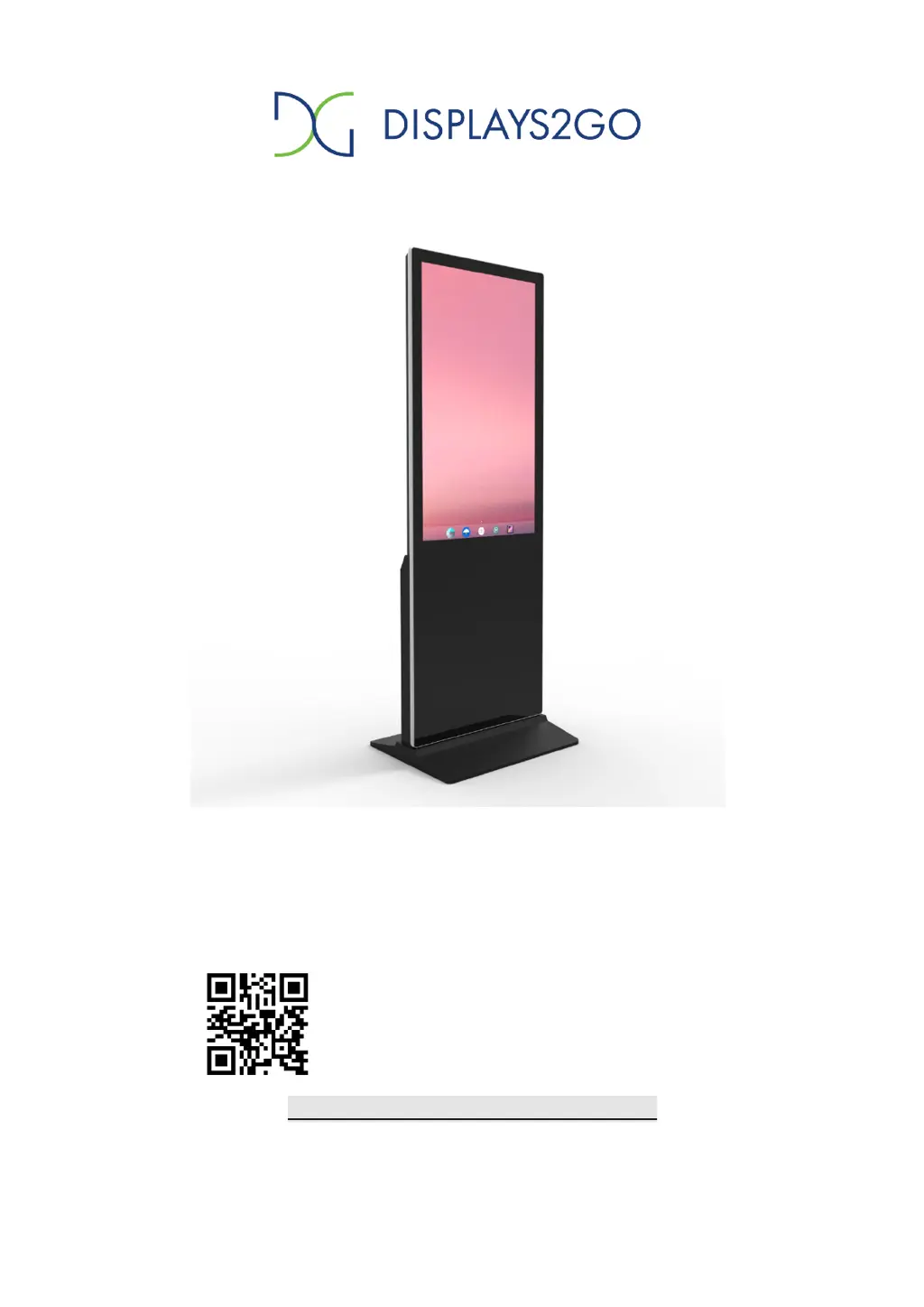
Displays2go DF043NLB - User Manual

Displays2go DF043NLB
28 pages
Print Icon
To Next Page IconTo Next Page
Loading...
1 / 28
User Manual V22.01
Model: DF043NLB,DF043TLB
Product Name: 43inch Floor Standing Digital Signage, Non Touch
Scan QR code to visit the product page:
Operating Instructions for Digital Signage
Note: Before using the product, please read the instructions carefully!
Do not attempt to disassemble this product. If the product does not work properly, please call
our Customer Service Department at 1-844-221-3393.
43inch Floor Standing Digital Signage, IR Touch

Questions and Answers

  • M
    Maria MaynardAug 5, 2025
    How to fix a Displays2go Monitor with no picture or sound?
    • G
      Gregory AnthonyAug 5, 2025
      If your Displays2go Monitor shows no picture or sound, start by ensuring the unit is plugged into a working wall outlet and the power cord is securely connected to the terminal on the back. Then, turn the on/off toggle switch on the back of the unit to the “on” position. If it still doesn't work, unplug the unit, wait 20 seconds, plug it back in, and try again. If the problem persists, contact customer service.
  • B
    Becky DoyleAug 10, 2025
    What to do if my Displays2go Monitor has no sound?
    • S
      sloveAug 10, 2025
      If your Displays2go Monitor has no sound but the picture is working, first adjust the volume using the remote control. Check that your content is in a compatible format such as AVI, MPEG4, WMV, MKV, flv, MP3, MP4, or MOV. If connected to Wi-Fi, try playing a YouTube video with sound. If these steps don't resolve the issue, unplug the unit, wait 20 seconds, and plug it back in. If the problem continues, contact customer service.
  • R
    Robert GutierrezAug 15, 2025
    Why is my Displays2go Monitor remote control not working?
    • S
      Shelly JohnsonAug 15, 2025
      If the remote control for your Displays2go Monitor isn’t working, verify that the batteries are correctly inserted, paying attention to the positive and negative orientation. If they are, try inserting new batteries. Ensure you are within one foot of the front of the unit, pointing the remote directly at the sensor (green dot). If the remote still doesn’t work, contact customer service.
  • L
    Lauren JacksonAug 20, 2025
    What to do if my Displays2go Monitor has no picture but sound?
    • M
      Margaret TerryAug 20, 2025
      If your Displays2go Monitor displays no picture but the sound is working, first check that your content is in a compatible format: AVI, MPEG4, WMV, MKV, flv, MP3, MP4, or MOV. You can also try playing the content on a different device, like a smartphone, computer, or tablet. If these steps do not resolve the issue, unplug the unit, wait 20 seconds, and then plug it back in. If the problem persists, contact customer service.
  • L
    laura50Aug 26, 2025
    How to fix a Displays2go Monitor with no Wi-Fi signal?
    • J
      James HoganAug 26, 2025
      If your Displays2go Monitor has no Wi-Fi signal, ensure that Wi-Fi is turned on in the settings. Check that the antenna is in place and pointed upward. Also, verify that other devices are receiving the Wi-Fi signal. If not, unplug or reset the router, wait 20 seconds, restart it, and check again. If the issue persists, contact customer service.
  • K
    Kevin RivasAug 31, 2025
    What to do if I cannot upload content to my Displays2go Monitor?
    • A
      annadavisAug 31, 2025
      First, confirm that the content you are trying to upload to your Displays2go Monitor is in one of the compatible formats: AVI, MPEG4, WMV, MKV, flv, MP3, MP4, MOV. Also, ensure that the file size is less than the available space. If you’ve checked both of these and still cannot upload, contact customer service.

Summary

Features

Safety Warnings and Precautions

General safety guidelines and warnings for using the digital signage.

Assembly and Connection

Packing List

Lists all items included in the product package.

Interfaces

HDMI Input Feature

Instructions on how to connect and use the HDMI input for external devices.

Steps for Unpacking

Wheel and Base Installation

Remote Control

Installing Batteries

Guide on how to insert batteries into the remote control.

Remote Control Precautions

Important advice for optimal and safe remote control operation.

Remote Control Buttons

Explains the function of each button on the remote control.

Basic Operation

Power On;Standby

Steps to turn the device on, off, or put it into standby mode.

Launch Desktop Overview

Overview of the device's main desktop interface and icons.

Wallpaper Customization

Instructions on how to change the device's wallpaper.

File Manager

Local Settings

Guide to accessing and configuring local settings, including Wi-Fi.

Settings Interface

Menu Bar Status

Explains how to access and navigate the menu bar options.

Screen Rotation

System Language Settings

Factory Reset Procedure

DiViEx App Introduction

System Requirements

Details the necessary hardware and software for the DiViEx application.

Media File Upload

Step-by-step guide to preparing and uploading media files.

DiViEx App Settings

Picture Editing Features

Features for editing images, including cropping, text, and filters.

Music Playback

Technical Specifications

Troubleshooting

No Picture or Sound

Solutions for issues related to the display or audio output.

No Sound, Picture OK

Troubleshooting steps when audio is absent but video is present.

No Picture, Sound OK

Solutions for issues where video is absent but audio is present.

Remote Control Issues

Steps to resolve problems with the remote control's functionality.

Troubleshooting (Continued)

Wi-Fi Connectivity Problems

Steps to diagnose and fix problems with Wi-Fi connectivity.

Software & Content Playback Issues

Solutions for software installation, content playback, and upload errors.

Hardware & App Issues

Procedures for handling hardware problems and pre-installed app errors.

Cleaning and Maintenance

Hazardous Substances Information

FCC Compliance Statement

Displays2go DF043NLB Specifications

General IconGeneral
Aspect Ratio16:9
Response Time8 ms
Display Colors16.7 Million
ConnectivityVGA, HDMI, USB
Operating Temperature0°C - 50°C