Introduction
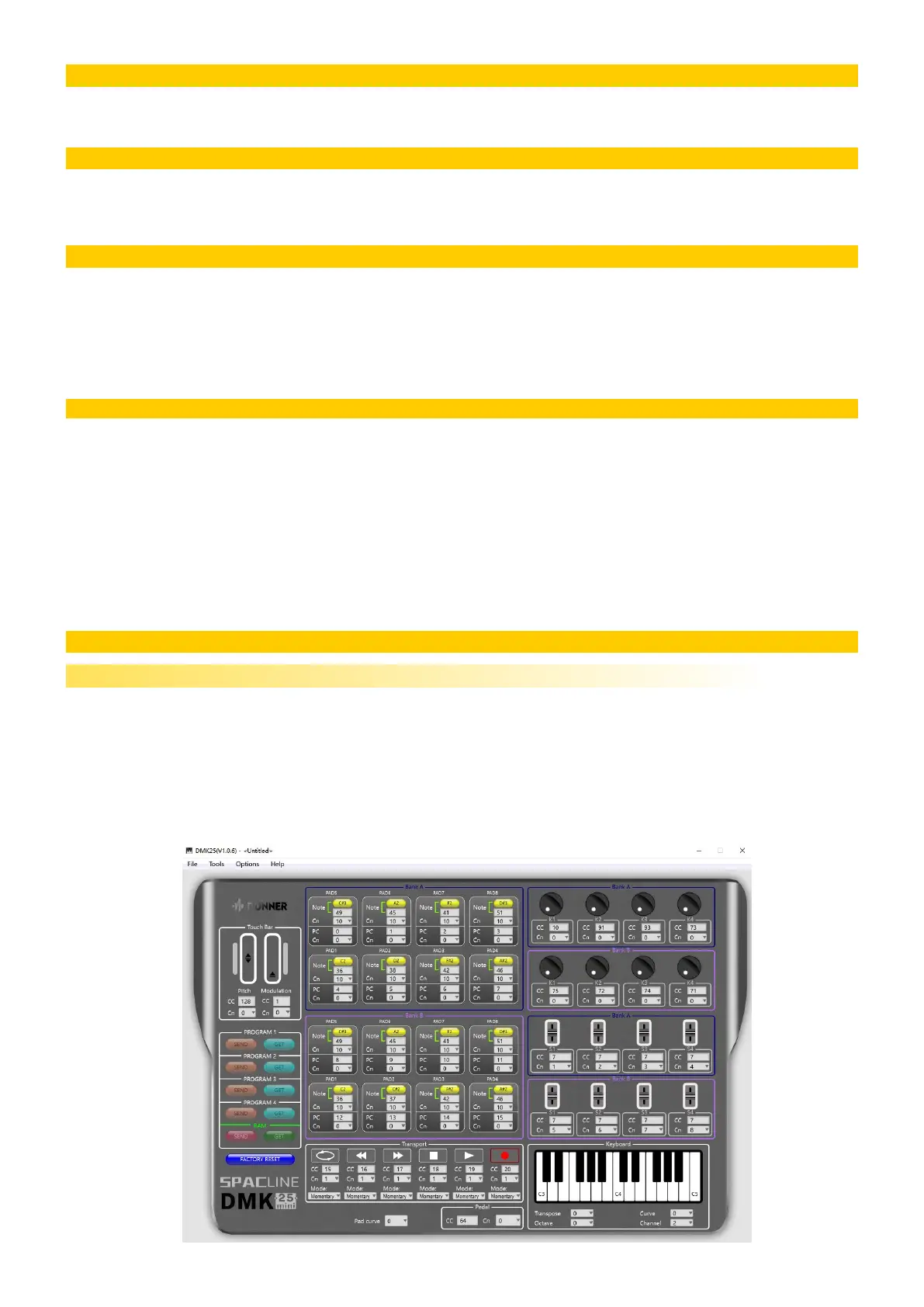
The DMK25 editor software gives you a visual and intuitive way to edit the various MIDI messages that DMK25 mini's controls
send to your computer.
System Requirements and Product Support
For the latest information about this product (system requirements, compatibility information, etc.) and product registration,
visit https://www.donnerdeal.com/pages/download
For additional product support, visit https://www.donnerdeal.com/pages/contact-us
Installation
Windows
Ÿ 1.Double-click the .exe installer file you downloaded.
Ÿ 2.Follow the on-screen instructions.
Mac OS
Ÿ 1.Double-click the .pkg installer file you downloaded.
Ÿ 2.Follow the on-screen instructions.
Abbreviation notes
Ÿ CC-Continuous Controller: Is a MIDI message capable of transmitting a range of values, usually 0-127. The MIDI Spec
makes 128 different continuous controllers available for each MIDI channel, although some of these have been pre-assigned
to other functions. CC’s are commonly used for things like MIDI controlling volume (#7), pan (#10), data slider position
(#6), mod wheel (#1) and other variable parameters.
Ÿ Cn-Channel:Can be simply understood as a path, generally used for voice classification.
Ÿ PC-Program Change:Also known as Patch Change, a type of MIDI message used for sending data to devices to cause
them to change to a new program. Program Changes messages are channelized so they will only affect a device on a
specific MIDI channel. These commands are used in all sorts of MIDI applications ranging from simply changing patches on
a synth or reverb to controlling lighting systems. Software sequencers that appear to have the programs of your keyboard in
them by name are in fact using program change commands that are known to pull up those programs in your keyboard.
Operation
To use the DMK25 mini Editor:
1. Optional: Connect DMK25 mini to your computer using a standard USB cable.You can still use the editor without connecting
an DMK25 mini, but you will not be able to send Programs to it or
load (get) Programs from it. Before using, make sure that no other software such as editor, MIDI debug, or Daw audio
workstation is opened.
2. Open the DMK25 mini Editor. The window will show a graphical representation of your DMK25 mini with all of its editable
controls(When it's not connected, the light on the left side is off).
Getting Started
1


 To Next Page