7SafeRoute® System 2019-03WN 059722 45532
dormakaba System manual Status query of a configured unit
6 Status query of a configured
unit
After a power failure, the license used and the status
of all connected components are displayed in several
initialization steps on the SafeRoute® Control Unit
emergency button’s illuminated ring.
6.1 Querying the status of an SCU-UP/
SCU-TL
1. Disconnect the power supply.
2. Reconnect the power supply.
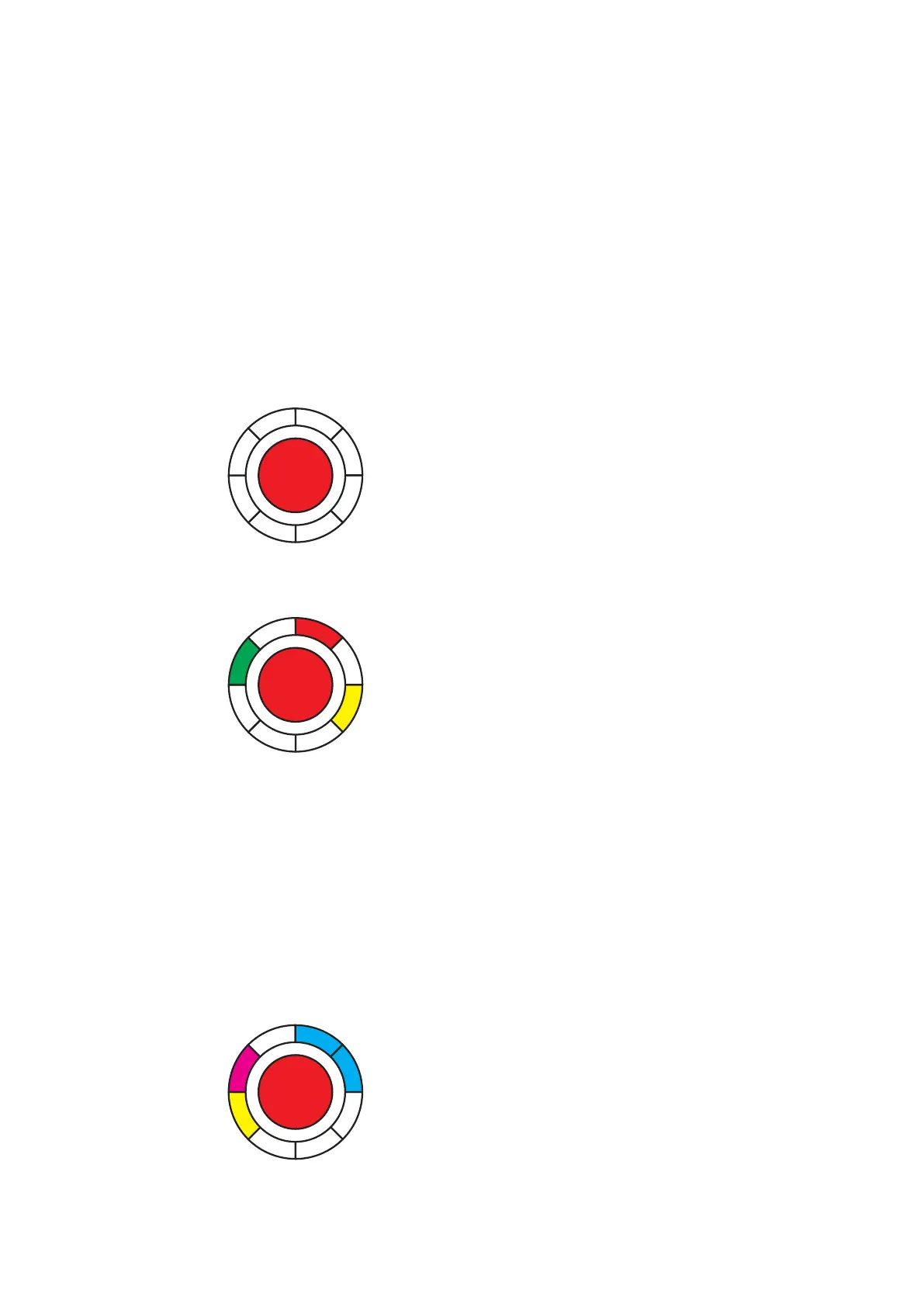
‣ The illuminated ring on the emergency button
changes to Initialization view 1:
White (lit up) = SLI license card
SLI Premium
without SLI
SLI Mini
SLI Basic
SLI Standard
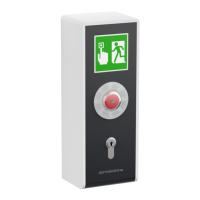
‣ The illuminated ring changes to Initialization
view 2:
STV 1
SCU 1
STV 2
SCU 2
STV 3
SCU 3
STV 4
SCU 4
Red = STV-xxx available.
The display flashes red (2.5 Hz) if there is no
configuration and the STV is not assigned to
any SCU.
Green = SCU emergency button available.
The indicator flashes green (2.5 Hz) if the
emergency button is not yet configured.
Yellow = Malfunction: STV/SCU is missing/
defective.
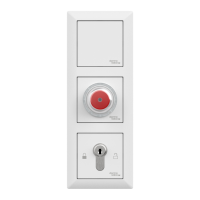
‣ The illuminated ring changes to Initialization
view 3:
ST DCW® 1
I/O DCW® 1
ST DCW® 2
I/O DCW® 2
ST DCW® 3
I/O DCW® 3
ST DCW® 4
I/O DCW® 4
Blue = ST DCW® address X available.
Magenta = I/O DCW® available.
Yellow = Malfunction: STV/SCU is missing/
defective.
‣ The SCU switches to the operating state and
the illuminated ring lights up red permanently.
→ The door is locked.
6.2 Querying the status of an SCU-DR
1. Disconnect the power supply.
2. Reconnect the power supply.
‣ The LEDs from In 1 to In 4 change to the
initialization view and display the license.
In 1 - 4 off no/defective license card
In 4 on SLI Basic
In 3 on SLI Standard
‣ The illuminated ring lights up/flashes green/
yellow briefly.
‣ The LED segment 1 on the SCU emergency
button’s illuminated ring lights up white.
‣ The illuminated ring on the emergency button
lights up red.
→ The door is locked.


 To Next Page