Need help?
Do you have a question about the Doro 1362 and is the answer not in the manual?
Steps to remove the SIM card and battery cover.
Steps to insert the SIM card into its slot.
Steps to insert the SD card into its slot.
Instructions for charging the phone's battery.
How to power the phone on and off using the power button.
Explains the use of PIN and PUK codes for SIM card security.
Accessing and viewing the call log.
Steps to create and send SMS and MMS messages.
How to turn the flashlight on and off.
Accessing and configuring phone settings like Bluetooth, tone, text size, and brightness.
Using phone functions like Alarm and Torch.
Managing SIM card operations, including PIN code management.
Common issues and solutions, such as battery not installing or phone not connecting.
Warnings and advice on safe listening levels to prevent hearing damage.
Information on network services and potential risks.
General safety precautions for using the mobile phone.
Specifications including SAR, network bands, battery, and dimensions.
Information on radio wave absorption by the human body.
Details on the product warranty and limitations.
Guidelines for the safe and environmentally sound disposal of the device.
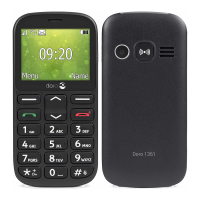
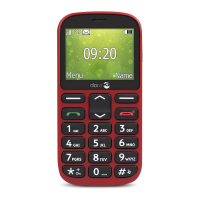
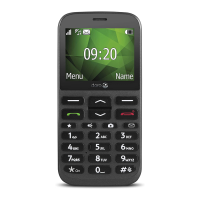
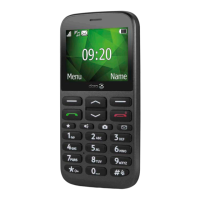
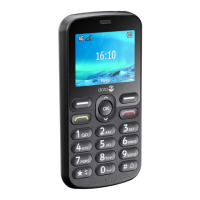
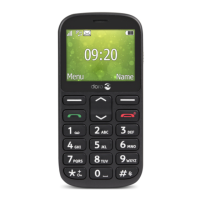
The Doro 1362 is a user-friendly mobile phone designed for simplicity and ease of use, particularly for seniors or those who prefer a straightforward mobile experience. It features a classic candy bar form factor with a clear display and well-spaced, tactile buttons.
The primary function of the Doro 1362 is to facilitate communication through calls and text messages. It supports basic telephony features, including making and receiving calls, and sending and receiving SMS messages. The phone is equipped with a camera for taking photos, allowing users to capture and share moments.
Beyond basic communication, the Doro 1362 includes several features aimed at enhancing user safety and convenience. It has an assistance button, which, when pressed, can automatically dial pre-set numbers or send an SMS to alert contacts in case of an emergency. This feature is highly customizable, allowing users to define up to five recipients for assistance calls and messages.
The phone also includes an alarm function, which can be set to remind users of important events or as a wake-up alarm. A built-in torch light provides illumination in dark environments. For entertainment, the phone has an FM radio, allowing users to listen to their favorite stations.
The Doro 1362 supports Bluetooth connectivity, enabling it to connect wirelessly to other Bluetooth-enabled devices, such as headsets or hands-free kits. This enhances the user's ability to make calls or listen to audio without holding the phone.
Making and Receiving Calls: To make a call, users enter the desired phone number using the keypad and press the green call button. To answer an incoming call, the green call button is pressed. The phone supports speed dial, allowing users to quickly call frequently used numbers by pressing and holding a numerical key. The call log keeps a record of dialed, received, and missed calls, which can be accessed to redial numbers or view call details.
Sending and Receiving Text Messages: Users can compose and send SMS messages by navigating to the "Messages" menu. The phone provides a predictive text input system to assist with typing. Received messages are stored in the inbox and can be read and replied to directly. The phone also supports picture messages (MMS), allowing users to send and receive photos along with text.
Camera Functionality: The integrated camera allows users to take photos. Photos can be viewed in the gallery and can be sent via MMS or transferred to a computer. The camera is designed for simple point-and-shoot operation.
Assistance Button: The assistance button, typically located on the back of the phone, is a key safety feature. When activated, it initiates a sequence of actions, such as dialing pre-set emergency numbers or sending an SMS with the user's location (if GPS is enabled and configured). Users can customize the recipients and the message sent.
Alarm Function: The alarm can be set with specific times and days of the week. Users can choose an alarm tone and whether the alarm should repeat.
Torch Light: The torch light can be activated and deactivated from the main menu or via a dedicated shortcut, providing a convenient light source.
FM Radio: The FM radio can be accessed through the entertainment menu. Users can scan for available stations and save their favorites. Headphones typically need to be connected to act as an antenna for the radio.
Bluetooth Connectivity: To connect to a Bluetooth device, users navigate to the Bluetooth settings, enable Bluetooth, and search for available devices. Once a device is paired, it can be used for hands-free communication or audio streaming.
Settings and Customization: The phone's settings menu allows users to customize various aspects of the device, including display brightness, font size, sound profiles, ringtones, and call settings. Users can also manage contacts, set up speed dial numbers, and configure security features like PIN codes.
Battery Management: The Doro 1362 is powered by a rechargeable battery. Users are advised to charge the battery fully before first use. The phone indicates battery level on the display, and a low battery warning prompts users to recharge. To prolong battery life, it is recommended to avoid extreme temperatures and to use the original charger.
Cleaning: The phone can be cleaned with a soft, dry cloth. Avoid using harsh chemicals or abrasive materials that could damage the screen or casing.
Software Updates: While not explicitly detailed as a user-accessible feature, software updates may be provided by the manufacturer to improve performance, add new features, or fix bugs. These updates are typically handled by service providers or through specific instructions from Doro.
Troubleshooting: The manual provides a troubleshooting section to help users resolve common issues, such as problems with charging, network connectivity, or sound. This often involves checking basic settings, restarting the device, or ensuring proper insertion of the SIM card.
SIM Card and Memory Card Handling: The phone requires a SIM card for network connectivity. Users need to correctly insert the SIM card into the designated slot. An optional memory card (MicroSD) can be inserted to expand storage for photos and other media. Proper insertion and removal procedures are outlined in the manual to prevent damage.
Security: The phone supports PIN codes for the SIM card and the phone itself to prevent unauthorized access. Users are advised to keep their PIN codes secure and to change default PINs for enhanced security.
Environmental Care: The manual includes information on proper disposal of the device and its battery, emphasizing the importance of recycling electronic waste to protect the environment. It adheres to WEEE (Waste Electrical and Electronic Equipment) directives.
 General
| Display Size | 2.4 inches |
|---|---|
| Resolution | 240 x 320 pixels |
| Battery Capacity | 800 mAh |
| SIM Type | Mini-SIM |
| Connectivity | 2G |
| Weight | 96 g |
| FM Radio | Yes |
| Display Type | TFT |
| Colors | Black, White |
| Bluetooth | 3.0 |
| Memory Card Slot | microSD |
| Network | GSM 900 / 1800 |
| Rear Camera | 0.3 MP |

 To Next Page