English
Tip: While you're in the middle of writing a message you can change the
keyboard also from the quick settings in the Notification panel. To open
the Notification panel, swipe the status bar down.
Select keyboard and personalise your keyboard
You can select to personalise your keyboard, depending on the selected
keyboard.
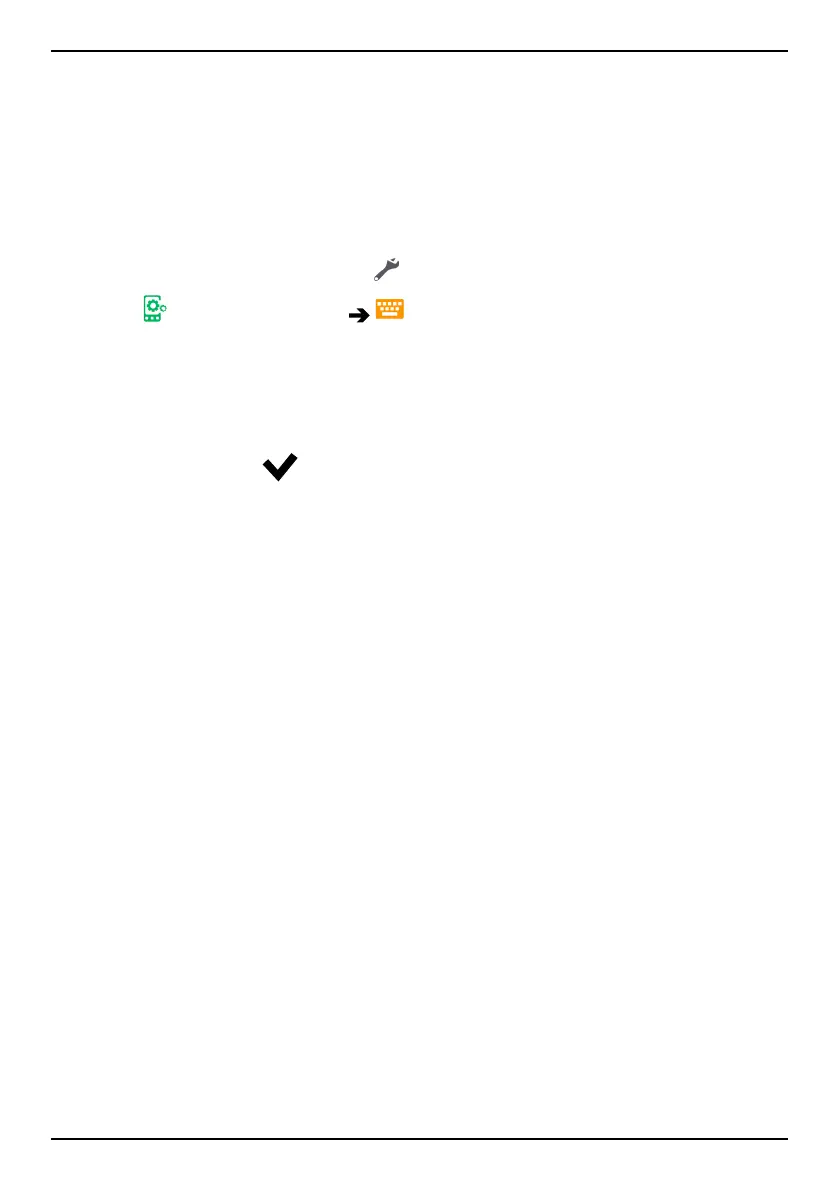
1. From the Home screen, tap
Set.
2. Tap
A general option The keyboard options.
3. Tap Choose a keyboard.
4. Tap wanted keyboard.
5. After you've done that, tap More options to make further personalisa-
tions to your keyboard.
6. When done, tap
.
Capture a screenshot
It's easy and often useful to get a snapshot of your phone’s screen, a
screenshot. To view the screenshot, see Handle pictures in the Gallery, p.58.
Take a screenshot
1. Find the screen you want to get a snapshot of.
2. Simultaneously press and hold the Power button and the Volume mi-
nus key.
Connect to the Internet
Your smartphone Doro 8042 is just like any other mobile phone - you can
make calls and send texts. But you can also access the Internet, send and
receive emails, install apps and games, and check your social networking
sites, like Facebook and Twitter, for this you need to be connected to Inter-
net. Unless you configured an internet access in the startup wizard, when
first starting your phone, here are the instructions on how to do it.
Connect to Internet using wireless networks (Wi-Fi)
Use Wi-Fi to connect your phone to the Internet instead of the mobile net-
work. You may already have Wi-Fi in your home and it's often available at
workplaces. Take advantage of free networks in coffee shops, hotels, trains
20



 To Next Page