English
Cut, copy, share and assist
Cut, Copy, Share, Select all and Paste are features available when writing
e an email, text message/box, or basically anywhere.
Note! Long pressing on any action bar icon will help to identify them by
popping up a text bar describing the action.
1. Touch and hold the text you want to copy.
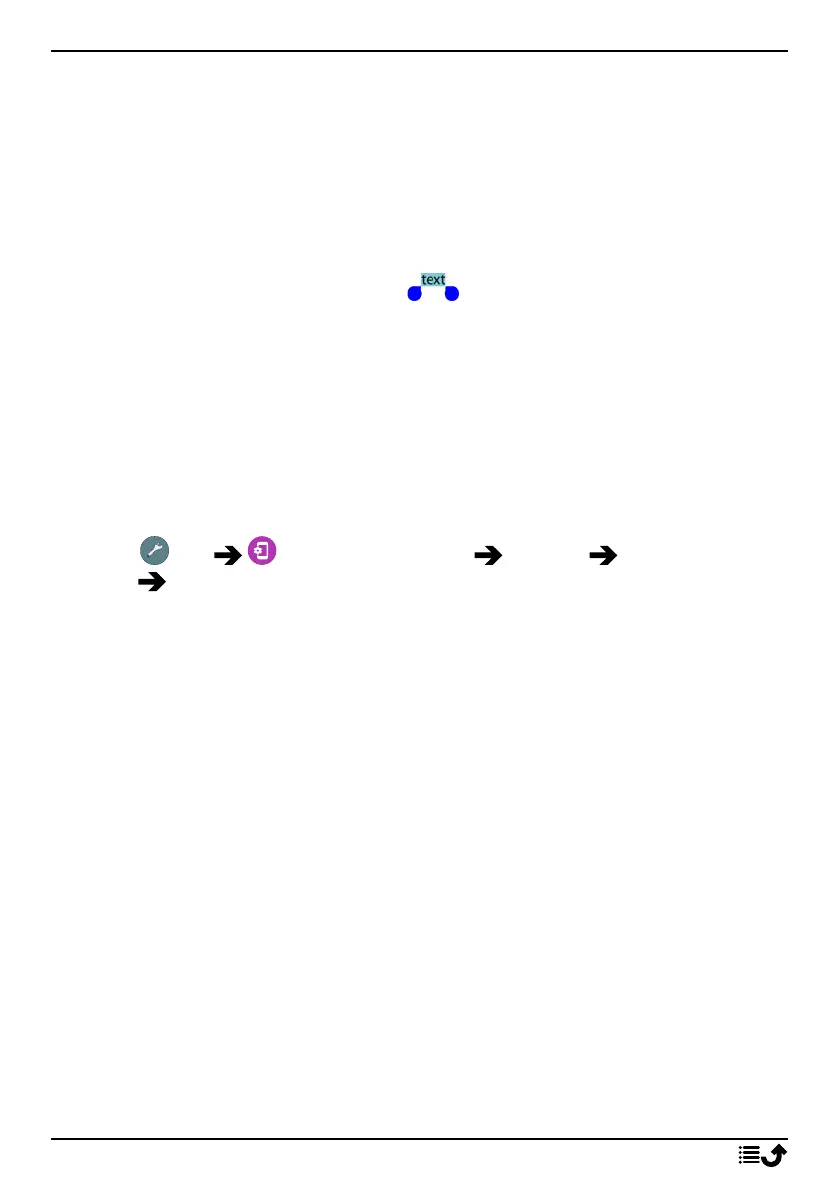
2. The selected text is highlighted
. Move the marker on either end
to increase or decrease the highlighted area.
3. When the highlighted area is the size you want, select Cut or Copy.
4. Touch and hold where you want to paste. The text box Paste will be
displayed. Tap the text box to paste the text.
Select keyboard and personalise your keyboard
You can select to personalise your keyboard, depending on the selected
keyboard.
1. Tap Set Advanced settings System Languages & in-
put Virtual keyboard.
2. Tap wanted keyboard and make the wanted personalisations to the
keyboard.
Capture a screenshot
It's easy and often useful to get a snapshot of your phone’s screen, a
screenshot. To view the screenshot, see Handle pictures in the Gallery, p.58.
Take a screenshot
1. Find the screen you want to get a snapshot of.
2. Simultaneously press and hold the Power button and the Volume mi-
nus key.
Note! Pressing and holding the Power button and the Volume Down key is
also the key combination that makes the phone to reboot after 8 seconds.
Connect to the Internet
Your smartphone Doro 8050 is just like any other mobile phone - you can
make calls and send texts. But you can also access the Internet, send and
receive emails, install apps and games, and check your social networking
sites, like Facebook and Twitter, for this you need to be connected to
20



 To Next Page