English
Tip: To enable/disable you can also press and hold the Power button and
then select Aeroplane mode in the menu that opens.
is shown in the status bar when enabled.
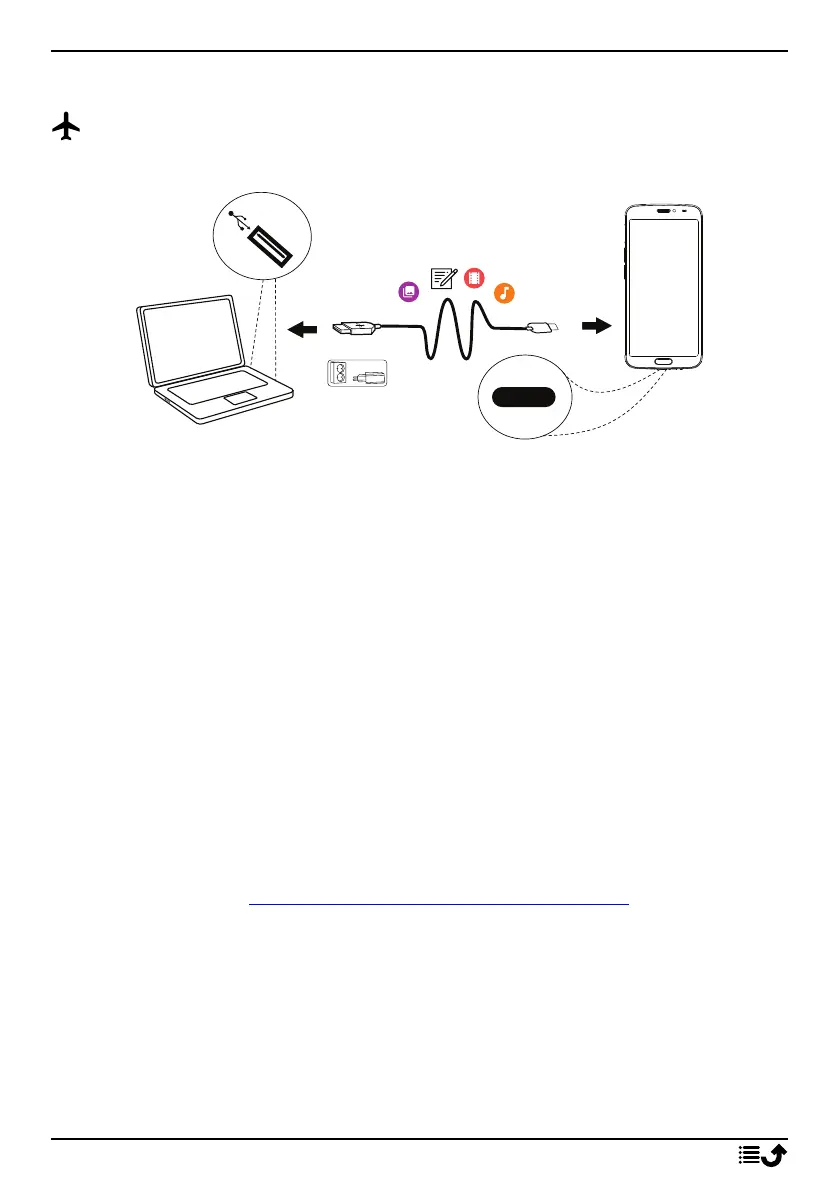
Connect the phone to a computer
Connect the phone to a computer and start transferring pictures, music
and other file types. All you have to do is connect a USB cable between the
phone and computer. From your computer's file explorer, you can drag and
drop content between your phone and the computer.
Note! You might not be able to transfer some copyright-protected material.
Tip: If default storage location is set to memory card, all photos and videos
taken by the phone are stored in the DCIM/Camera folder on the memory
card.
Drag and drop content between phone and a computer
1. Connect your phone to a computer using a USB cable.
Note! You might need to wait for the driver to be installed on your
computer before you can access the phone.
Mac users, see https://www.android.com/filetransfer/.
2. Open the notification panel on the phone by swiping down from the
status bar. Tap Android system/Tap for more options. and select File
transfer.
3. You are prompted, on the computer screen, to choose what to do
when you connect your phone to a computer.
4. Select to open the device and view files in the computers file explorer.
36



 To Next Page