English
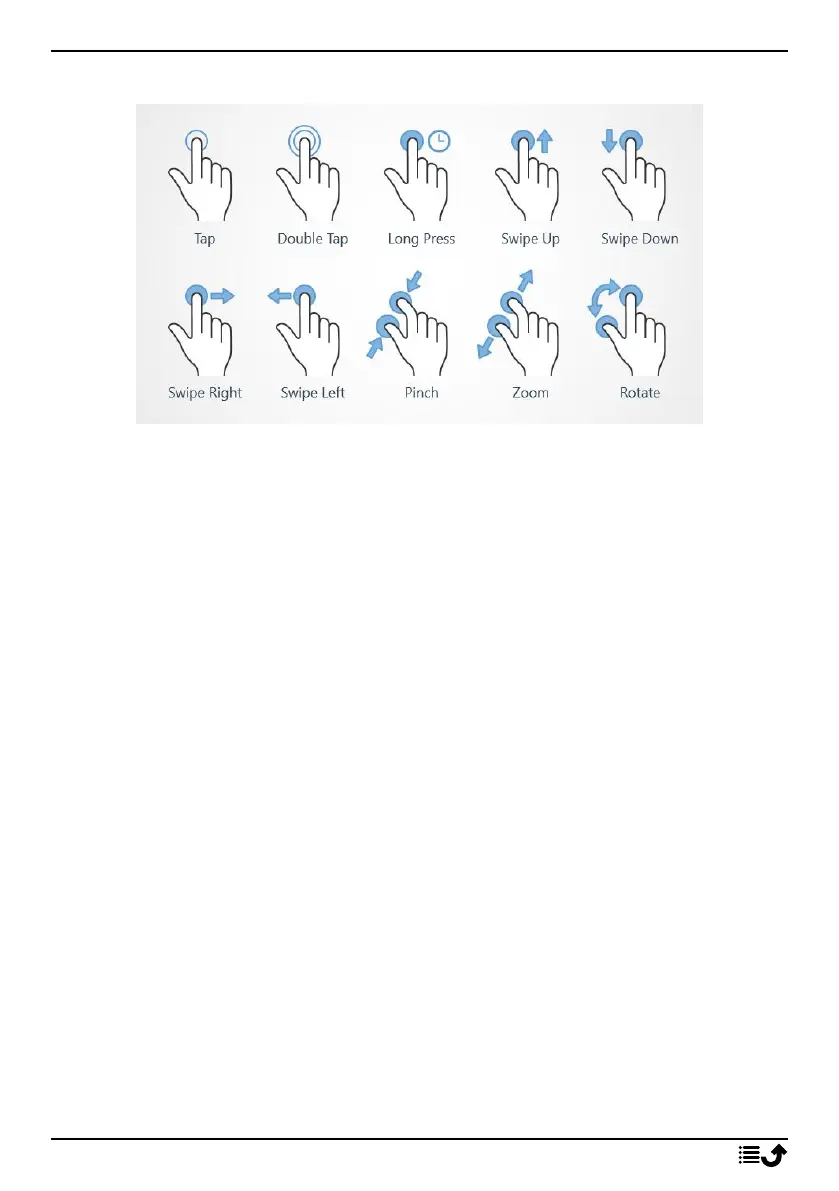
Touchscreen motion and gestures
Tap
• Tap an item, such as a button or a program icon, to select it or to open
it. Tap can be used to select or deselect a relevant tick box in a list of
options.
Double tap
• Touch the same item twice to zoom in on a map or an image.
Long press
• Touch and hold an item on the screen. Some actions, such as to move
an icon on the Home screen, begins with a long press.
Swipe
• A swipe is when you press your finger to the screen and drag it, the
screen moves. Swiping to the left on the Home screen, for example,
moves you to the next Home screen. Drag or flick your finger on the
screen in the direction you want to go. Think of it as using the left- or
right-arrow keys on a computer keyboard. Flick means to swipe more
quickly on a page, quickly flick your finger on the screen in the direc-
tion you want to move.
Pinch
• Place two fingers separated on the screen and pinch them together to
zoom out of a map. This function is not always applicable.
9



 To Next Page