English
Zoom
• Place two fingers together on the screen and spread them to zoom in.
This function is not always applicable.
Rotate view in maps
• Using two fingers, rotate the map clockwise or counterclockwise.
Touch the Compass Pointer icon to reorient the map with north at the
top of the screen.
Drag and drop
• Dragging and dropping is a way of moving something – for example,
an app on your desktop – from one place to another. To drag, put your
finger on an app and hold down. As you move your finger across your
screen, the app is dragged across the screen, or across several screens.
Place your finger where you want the app to go and release your fin-
ger. The app drops.
CAUTION
Avoid scratching the touch screen, do not tap it with anything sharp or
allow the touch screen to come into contact with water. Do not touch
the screen if the glass is cracked or shattered.
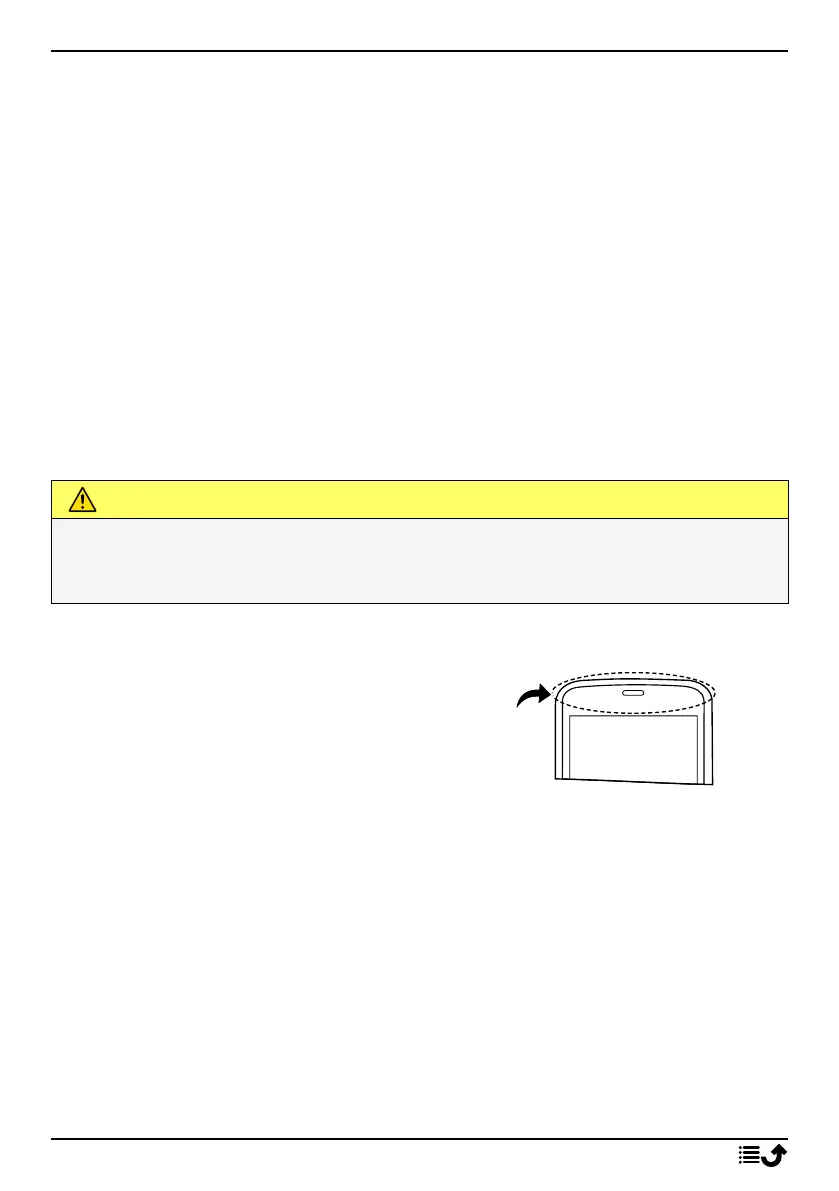
Sensors
Your device has sensors that detect light and
proximity on the top of the front.
• Light sensor to detect light and adjust
the brightness of the screen, if set to
automatic.
• Proximity sensor (touch sensor) to de-
tect motions. It can turn the touch
screen off during voice calls when your
ear is close to the screen to prevent
unintentionally activating other
functions.
Home screen
The Home screen is your start screen on your Doro 8080, and here you can
collect the apps and your favourite contacts that you use most often. You
can also set your favourite picture as wallpaper. Use the Google
™
search
10



 To Next Page