English
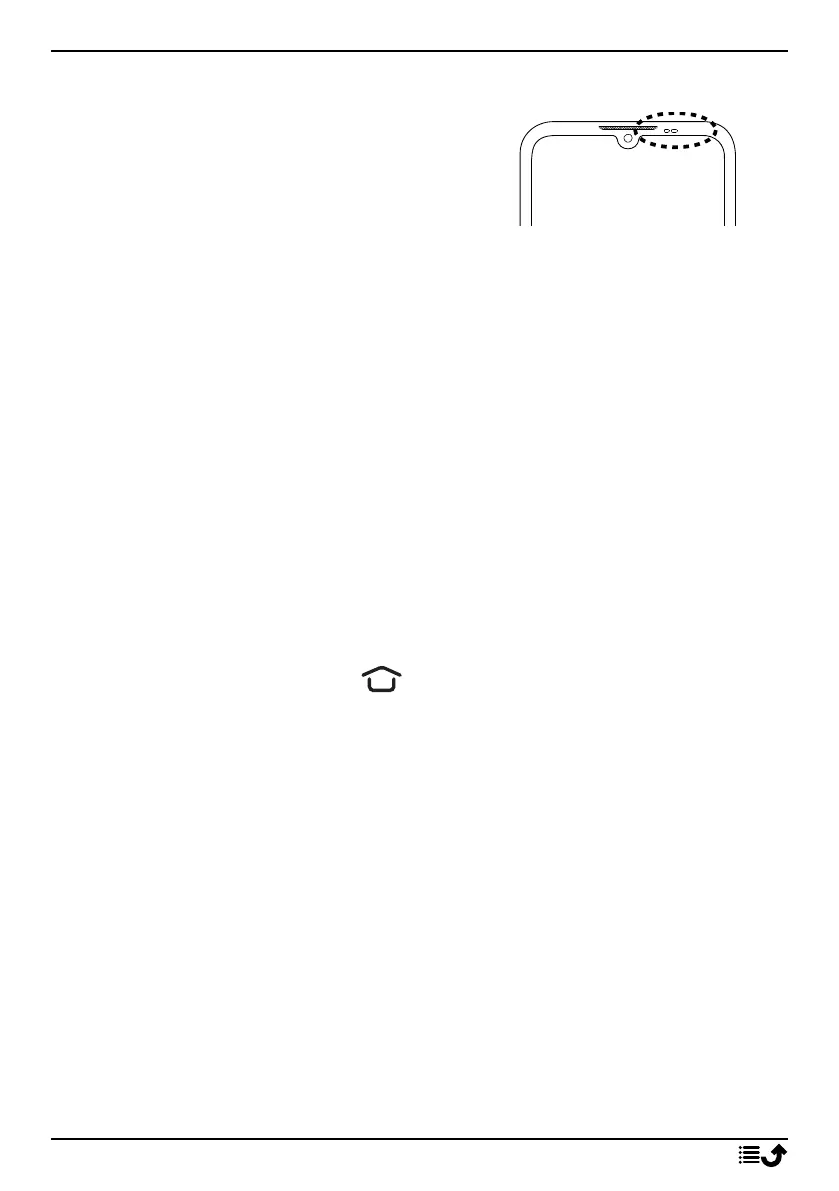
Sensors
Your device has sensors that detect light and
proximity on the top of the front.
• Light sensor to detect light and adjust
the brightness of the screen, if set to
automatic.
• Proximity sensor (touch sensor) to de-
tect motions. It can turn the touch
screen off during voice calls when your
ear is close to the screen to prevent
unintentionally activating other
functions.
Home screen
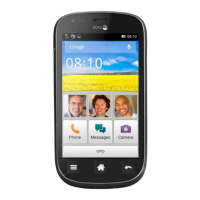
The Home screen is your start screen on your Doro 8110, and here you can
collect the apps and your favourite contacts that you use most often. You
can also set your favourite picture as wallpaper. Use the Google
™
search
bar to quickly find what you are looking for. To manage shortcuts on the
Home screen see My widgets, p.32.
Go to the Home screen
• Tap the home display icon .
Lock screen
The screen turns off and locks when you are not using the phone. The lock
screen can show time and date as well as notifications like missed calls or
messages.
Note! Your phone continues to run while it’s sleeping. Mail is received,
social networking updates are made, and so on. Your phone also continues
to play music while the screen is locked.
Activate the screen
• Briefly press the Power button.
Lock the screen
• Briefly press the Power button.
12



 To Next Page