English
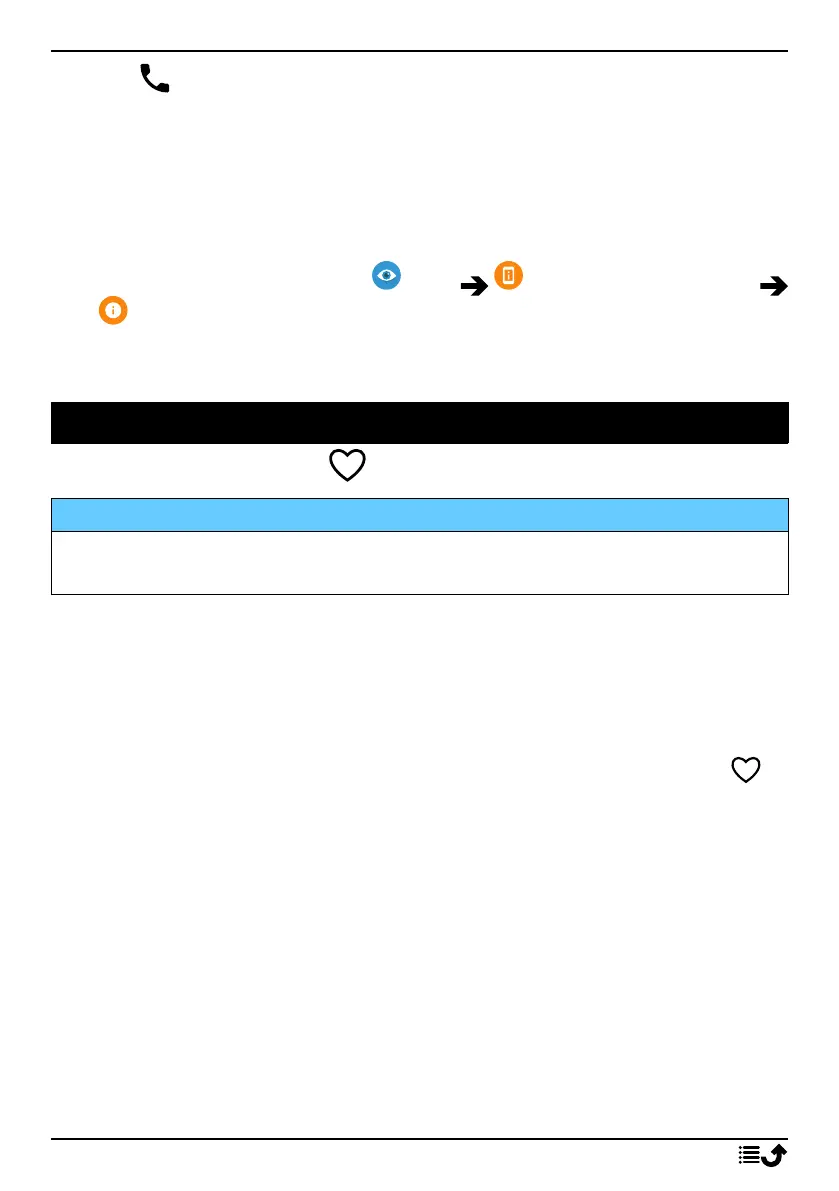
3. Tap to call an ICE contact.
Note! Only applies when screen lock method is set to Face unlock, Pattern,
PIN or Password, and you must have added your ICE information. To
activate the screen lock or change the type of screen lock, see Screen lock,
p.13.
How to find the ICE contacts in the menu
1. From the Home screen, tap View My phone information
Phone status.
2. Tap Emergency information to see the stored ICE information.
Assistance options
My assistance button
IMPORTANT!
You need an Internet connection to use this service. Contact your service
provider for detailed data subscription costs before activating.
Make an assistance call
The Assistance button on the back of the phone allows easy access to con-
tact your predefined Responders (family and friends) if you should need
help. The function relies on that the Responder of an assistance alert has
the smartphone app, Response by Doro installed on their smartphone and
the link with the Senior’s Doro phone is setup. See Response by Doro ,
p.54.
When the setup is done:
• Press and hold the assistance button on the back of the phone for 3
seconds, or press it three (3) times within 1 second. The assistance
alert is sent after a delay of 5 seconds. In this time you can prevent a
possible false alarm by pressing Cancel.
• An assistance alarm is now initiated and your Group of Responders
will be alerted with your distress signal and your latest known location.
• The first person to confirm the alarm becomes responsible for it, and
can call you to inquire the reason for your alarm, as well as take ap-
propriate action.
53



 To Next Page