English
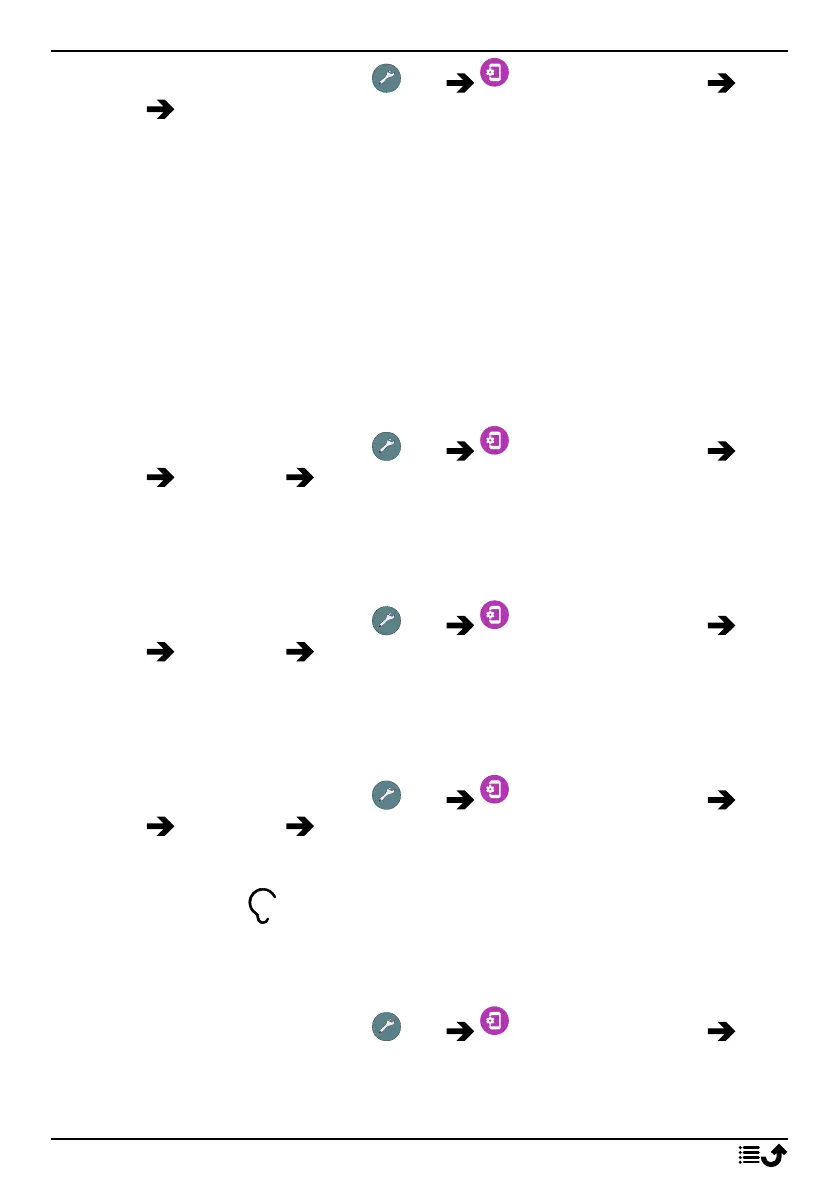
1. From the Home screen, tap Set Advanced settings Dis-
play Brightness level.
2. Drag the slider to adjust the screen brightness manually. The higher
value the brighter the screen.
Tip: When Adaptive brightness is enabled, the screen brightness will
automatically adapt to your current environment.
Swipe the status bar down to open the Quick settings panel. Swipe down
again to reach the brightness slider control.
Screen timeout
You can set the length of time the device waits before turning off the dis-
play backlight.
1. From the Home screen, tap Set Advanced settings Dis-
play Advanced Screen timeout.
2. Tap to set the length of time.
Font size
Adjust the text size to make your screen easier to see.
1. From the Home screen, tap Set Advanced settings Dis-
play Advanced Font size.
2. Drag the slider to adjust the text size.
Display size
Adjust to make items on your screen smaller or larger.
1. From the Home screen, tap Set Advanced settings Dis-
play Advanced Display size.
2. Drag the slider to adjust the text size.
Sound settings
Volume
Adjust volume levels for various sounds on your device.
1. From the Home screen, tap Set Advanced settings
Sound.
2. Drag the slider to adjust the volume:
34



 To Next Page