English
ICE (In Case of Emergency)
In the event of a trauma, it is critical to have this information as early as
possible to increase the chances of survival. Add ICE contact to improve
your own safety. First responders can access additional information such as
medication and next of kin from your phone in case of an emergency. All
fields are optional, but the more information provided the better.
Note! Your ICE contacts are fetched from your Contact book and you need
to make sure that relevant information is stored on each ICE contact.
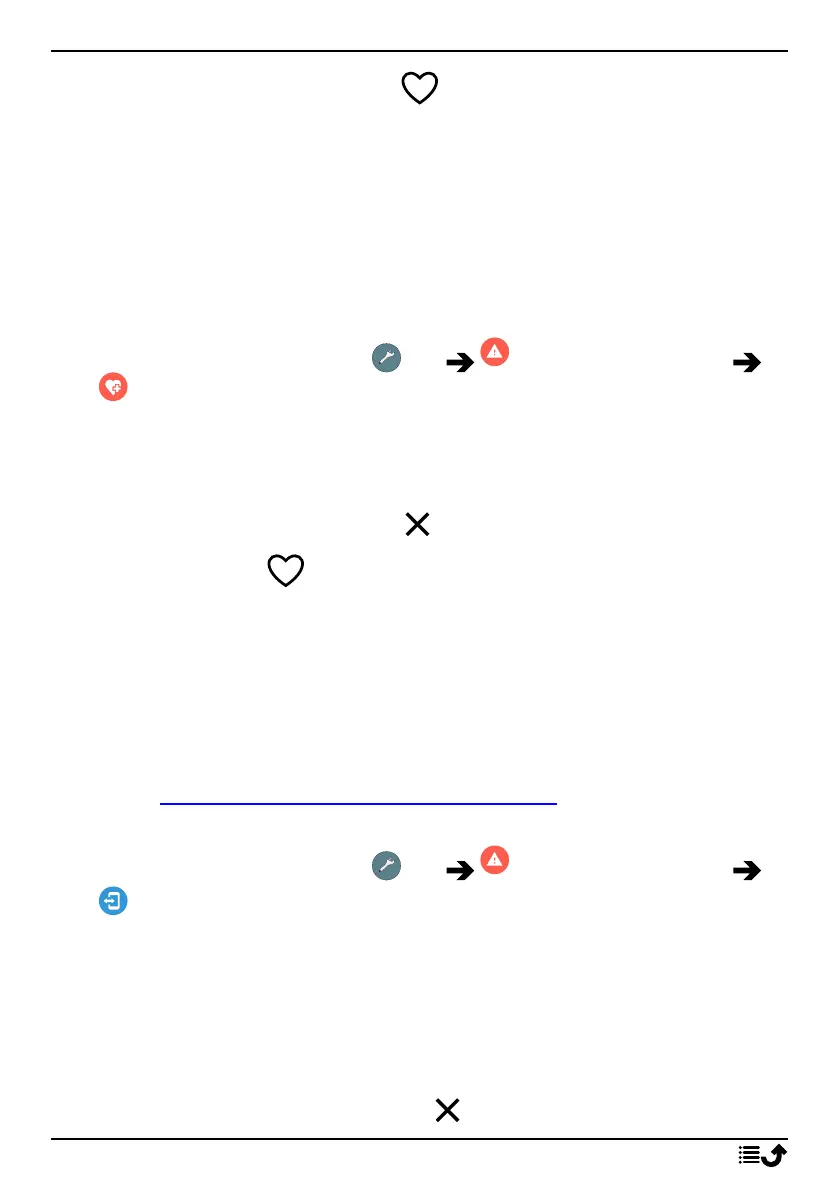
1. From the Home screen, tap Set An assistance option
My ICE information.
2. Tap Add information to enter your medical information. Follow the
on-screen instructions to complete the ICE-card information.
3. Tap Add contact to add and ICE contact.
Note! To remove an ICE contact tap next to the ICE contact.
The remote help
Let somebody you trust manage your phone remotely, for example, this
can be requested when you contact Doro support. Allow access so they
can remotely administrate and transfer files, help you to perform mainte-
nance tasks and help with problems should they occur.
The person performing the remote help must have Teamviewer installed.
Teamviewer can be downloaded and installed for many different operating
systems at http://www.teamviewer.com/download/.
To connect a remote support session
1. From the Home screen, tap Set An assistance option
The remote help.
2. To use the remote help app you have to agree to Teamviewer’s terms
and conditions. Browse through a short introduction.
3. Share Your ID with your personal tech support to allow remote con-
trol. Tap Send my ID... to select how to share your ID.
4. Follow the on-screen instructions to allow the remote help session.
5. To quit TeamViewer, open the Notification panel, swipe the status bar
down. Click QuickSupport and tap in the upper right corner.
57



 To Next Page