EasyManua.ls Logo

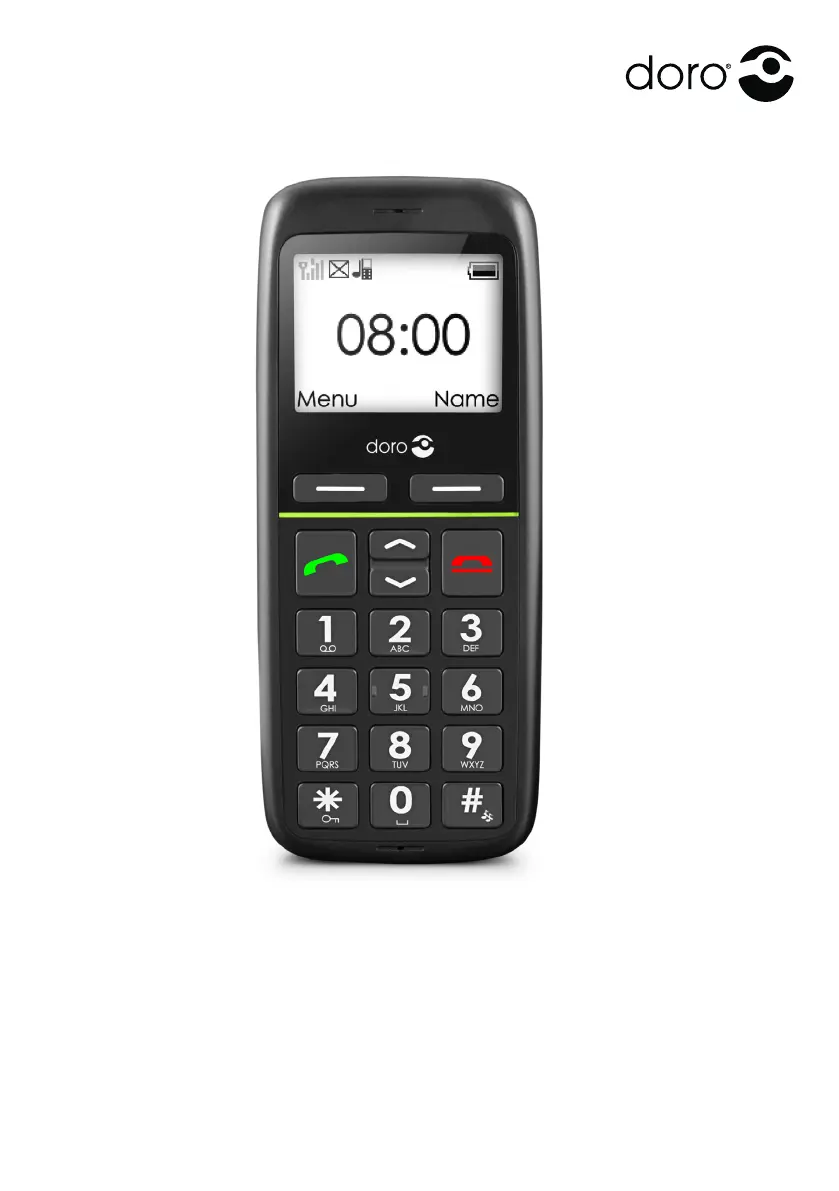
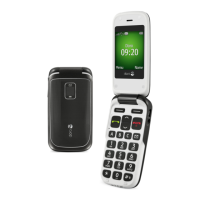
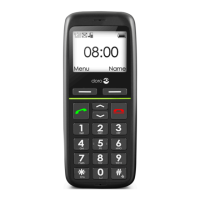
Doro PhoneEasy 341gsm - User Manual

Doro PhoneEasy 341gsm
48 pages
Print Icon
To Next Page IconTo Next Page
Loading...
PhoneEasy
341gsm

Other manuals for Doro PhoneEasy 341gsm

Questions and Answers

  • M
    Michele GutierrezSep 4, 2025
    Why does standby time decrease on my Doro PhoneEasy 341gsm?
    • H
      Heather PowellSep 4, 2025
      The standby time on your Doro Cell Phone might be decreasing due to a low battery charge capacity (consider installing a new battery). It can also happen if you are too far from a base station, causing the phone to constantly search for a signal. Try moving to a location with a stronger signal or temporarily turning off the phone.
  • J
    Joy BauerSep 18, 2025
    How to check battery installation in Doro PhoneEasy 341gsm?
    • M
      Michael AndersonSep 18, 2025
      To check the battery installation in your Doro Cell Phone, refer to the manual for instructions.
  • L
    lbauerSep 16, 2025
    Why can't I place or receive calls on my Doro PhoneEasy 341gsm Cell Phone?
    • K
      Kayla CoxSep 16, 2025
      If you are unable to place or receive calls on your Doro Cell Phone, call barring might be activated. Deactivate call barring in your phone's settings. If the problem persists, contact the network operator for further assistance.
  • M
    Mark FosterSep 14, 2025
    Why does the standby time on my Doro PhoneEasy 341gsm decrease quickly?
    • C
      christineandersonSep 14, 2025
      A rapid decrease in standby time on your Doro Cell Phone can be due to a low battery charge capacity, requiring a new battery. Alternatively, if you are too far from the base station, your phone might constantly search for a signal, draining the battery. Try moving to a location with a stronger signal or temporarily turning off the phone.
  • L
    Laura GreenSep 12, 2025
    Why is the signal weak on my Doro Cell Phone?
    • C
      Christopher RojasSep 12, 2025
      A weak signal on your Doro Cell Phone can occur if you are too far from the base station. Trying again from another location might solve this issue. Network congestion can also cause a weak signal, in which case you should try calling at a later time.
  • T
    Tyler GreenSep 12, 2025
    Why does my Doro PhoneEasy 341gsm Cell Phone have an echo or noise during calls?
    • A
      Alejandro ReynoldsSep 12, 2025
      Echo or noise during calls on your Doro Cell Phone may be due to a regional problem from a bad network relay. Hang up and redial; this may switch you to another network relay.
  • Z
    zpetersonSep 9, 2025
    What to do if my Doro PhoneEasy 341gsm Cell Phone doesn't accept the PIN code?
    • J
      john84Sep 9, 2025
      If your Doro Cell Phone is not accepting the PIN code, it may be because the wrong PIN code was entered too many times. Enter the PUK code to change the PIN code.
  • J
    Joshua WhiteSep 7, 2025
    Why does my Doro PhoneEasy 341gsm Cell Phone have a weak signal?
    • W
      Whitney WaltersSep 7, 2025
      A weak signal on your Doro Cell Phone can be due to being too far from a base station. Try again from another location. It may also be due to network congestion, in which case you should try calling at a later time.
  • J
    James HallSep 6, 2025
    What to do if my Doro PhoneEasy 341gsm has a SIM card error?
    • C
      Charles CalhounSep 6, 2025
      If your Doro Cell Phone displays a SIM card error, it could be due to several reasons: a damaged SIM card (check its condition), incorrect installation (remove and reinstall the SIM card), or a dirty/damp SIM card (wipe the contact surfaces with a clean cloth).
  • C
    Carrie McfarlandAug 21, 2025
    What to do if my Doro Cell Phone fails to add a contact?
    • A
      Amanda ReedAug 21, 2025
      If your Doro Cell Phone is failing to add a contact, it might be because the phonebook memory is full. Delete contacts to free up memory.

Summary

Installation

Installing the SIM card and battery

Instructions for inserting the SIM card and battery into the phone.

Operation

Activating the phone

Steps to turn the phone on/off and initial activation procedures.

Making a call

Guide on how to dial numbers and initiate calls.

Additional functions

Phonebook

Storing and managing contacts with phone numbers.

SOS calls

Making emergency calls using the SOS function.

Emergency Call key

Using the dedicated emergency button for quick calls.

SMS messaging

Creating, sending, and managing text messages.

Settings

Emergency

Configuring the Emergency Call key function and numbers.

Troubleshooting

Phone cannot be switched on

Solutions for power-on issues like low battery or incorrect installation.

Failure to charge the battery

Steps to resolve battery charging problems.

PIN code not accepted

Resolving problems with incorrect PIN entry.

Failure to connect to network

Solutions for network connection problems.

Safety Instructions

Operating environment

Guidelines for safe use and handling of the phone.

Medical units

Precautions regarding interference with medical equipment.

Pacemakers

Recommendations for users with pacemakers.

Areas with explosion risk

Warnings about using the phone in hazardous environments.

Emergency calls

Information and warnings about making emergency calls.

Vehicles

Safety advice concerning phone use in vehicles.

Driving safely

Guidelines for using the phone while driving or cycling.

Warranty and Technical Data

Doro PhoneEasy 341gsm Specifications

General IconGeneral
BrandDoro
ModelPhoneEasy 341gsm
CategoryCell Phone
LanguageEnglish

Related product manuals