Need help?
Do you have a question about the Dreame Z10 Pro and is the answer not in the manual?
Details the function of the line laser for obstacle recognition and navigation.
Covers button operations, Mi Home app connection, and Wi-Fi reset.
Explains Spot Clean, DND, scheduled cleaning, and Carpet Boost features.
Details map saving, whole house cleaning strategy, and product specifications.
Instructions for using the Auto-Empty Base and charging the robot.
Steps for using the mopping function, water tank, and cleaning the mop.
Guides for cleaning main brush, dust bin, filter, wheels, and side brush.
Tips for maintaining the robot's battery performance.
Troubleshooting Wi-Fi connection failures, network issues, and app data loading.
Addresses charging problems, power-on failures, and base connectivity issues.
Covers cleaning efficacy, map accuracy, obstacle avoidance, and noise issues.
Details problems with mopping, water leaks, odor, and cleaning the mop pad.
Guidance on device errors, factory reset, scheduled cleaning, and firmware updates.
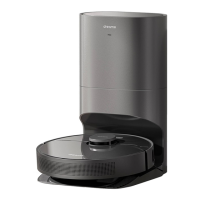
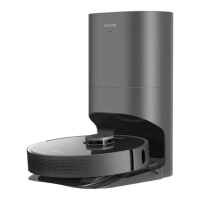
This document provides a comprehensive FAQ for the Dreame Bot Z10 Pro Robot Vacuum and Mop, covering its functions, usage, and maintenance.
The Dreame Bot Z10 Pro is a robot vacuum and mop designed to automate home cleaning. It features a line laser for recognizing surroundings and obstacles, enabling accurate avoidance of bumps, entanglement, and accidental riding on small objects. This obstacle avoidance function is enabled by default and can be adjusted via the Mi Home app. The device is equipped with an LDS Laser Sensor, Collision Buffer, and a High Precision 3D Obstacle Avoidance Sensor for enhanced navigation.
The robot has a multi-functional Power/Clean button. Pressing and holding it for 3 seconds powers the device on or off. After powering on, a single press initiates cleaning. The status indicator light provides feedback: solid white indicates cleaning in progress or finished, white fast flashes signify a pause, and orange fast flashes indicate an error.
A dedicated Dock button allows the robot to recharge. A short press initiates the recharge process. The status indicator for recharging shows white fast flashes when on its way to charge at a normal battery level, orange flashes for low battery, white slow flashes when charging at a normal battery level, orange slow flashes when charging at a low battery level, and solid white when charging is finished.
The Z10 Pro supports connection to the Mi Home app, allowing users to control the vacuum with their phone. This includes scanning a QR code to download and install the app, then adding the device by tapping "+" on the home page. The app also allows for Wi-Fi reset by pressing and holding the Spot Clean and Dock buttons until a voice prompt confirms "waiting for network configuration," and the Wi-Fi indicator flashes slowly.
The Spot Clean function allows the robot to clean a square area of 1.5 meters centered on itself. After cleaning, it automatically returns to its starting position and stops. The Do-Not-Disturb (DND) mode is enabled by default from 10:00 pm to 08:00 am, during which the robot stops cleaning and voice reporting, and the power indicator is off. This mode can be disabled or edited via the Mi Home app.
Scheduled clean-ups can be set through the app, allowing the robot to automatically start cleaning at a specified time and return to the charging base upon completion. The Carpet Boost function, enabled in the Mi Home app settings, allows the Z10 Pro to automatically detect carpets and boost suction power for optimal cleaning.
The Advanced Map function, accessible through the Mi Home app, enables the Z10 Pro to learn its surroundings and build a complete map. This map allows access to features like Auto Zone, Area Editor, Zoned Cleanup, Designated Cleanup, and Virtual Wall. Maps are saved when the robot is charging on the Base after several cleaning tasks. For consistent and complete maps, all room doors should be open during cleaning.
For whole-house cleaning, the robot initially cleans along the edge of a 4.5x4.5m area, then cleans the inner part in an S-shape path. After this area is clean, it proceeds to other rooms using the same principle. Once a map is generated, it cleans rooms by edge cleaning first, then S-shape path cleaning.
The Z10 Pro supports overcharging protection, maintaining a trickle charging status once fully charged. It uses a 5200mAh high-performance Li-Po battery pack, providing up to 150 minutes of run-time under Standard Mode, covering approximately 250 m² of cleaning area.
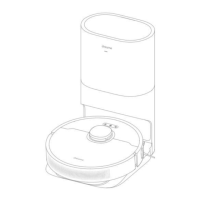
To use the Auto-Empty Base, place it on level ground against a wall and connect it to a power outlet. The robot will turn on and begin charging automatically when placed on the base. It is recommended to fully charge the robot before first-time use. The base should be placed within the best Wi-Fi range, with at least 1.5m clear space in front and 0.5m on both sides, ensuring no objects block the signaling area.
To charge the Z10 Pro, press and hold the power button until the indicator turns solid, then place the robot close to the Base. If the battery is too low, the robot may not power on and should be placed directly on the Base.
For mopping, dampen the mop pad and wring out excess water, then paste it onto the water tank with fixing straps. Open the water tank lid, fill it with water, and securely close it. Align the mopping module with the markings at the rear of the robot until a click sound confirms installation. Press the power button to start mopping. It is not recommended to use the mopping function on carpets. Water flow can be adjusted via the app. The mop module should be removed, and any remaining water poured out, and the mop cleaned when charging or not in use to prevent mold or odor.
To remove the water tank, press the two side clips inwards and slide the tank backward.
To start cleaning, press the power button. Pressing any button during cleaning will pause it. The Z10 Pro will not work if the battery is too low and needs charging before use. If a cleaning duration is less than 10 minutes, the robot will clean twice by default.
The robot automatically returns to the Base for charging after cleaning. The Dock button can also be pressed when the robot is paused to initiate charging. The power button flashes white for battery >15% and orange for battery <15% during charging.
Firmware upgrades for the Z10 Pro can be done via the Mi Home app when the robot is on the Base and the battery is over 15%. All three buttons on the Z10 Pro will flash rapidly during the upgrade process. To restore to factory settings, press and hold the reset button with a tool until a voice prompt "start to restore factory settings" is heard.
The Z10 Pro supports 2.4G Wi-Fi networks. For Wi-Fi configuration, ensure the robot and mobile phone are close to the router, return to the app after connecting to the robot's hotspot, and enable Location permission settings for the app. If connection fails, reboot the router and robot.
If the top cover of the water tank leaks, it's usually due to a vent hole balancing air pressure. Slight leakage is normal if the tank is tilted during removal or installation. Before cleaning, ensure the Z10 Pro is fully charged and starts from the Base. Tidy up the space and remove fragile items or objects from the floor.
The Z10 Pro can cross obstacles up to 20mm high, though this height decreases with the water tank installed or on slippery floors. It has a built-in wall sensor to maintain distance from walls during edge cleaning, but may collide with black walls or edges lower than its height due to sensing limitations.
If the device encounters errors, press and hold the Power/Clean button for 6 seconds to reboot. If it fails to power on, ensure it's connected to the Base and the working temperature is between 0 and 50°C. The Z10 Pro consumes minimal power when connected to the Base, entering sleep mode to maintain battery performance.
If the robot fails to return for charging, check for obstacles around the Base (0.5m clear on sides, 1.5m clear in front). Ensure the robot starts cleaning from the Base. Moving the robot to an uncleaned area can cause repositioning failure, requiring a task restart. If the robot keeps connecting to the base after returning, clean any dust from the charging interfaces.
If the robot makes strange sounds, check if the brush is stuck. Choosing a quieter mode can reduce noise. Slight rattling sounds on tile or wood floors are normal as the robot cleans joins.
If the Z10 Pro gets trapped, remove clutters like slippers or plastic bags and place the robot back in the cleaned area. For furniture with similar height, magnetic stripes or other obstacles can prevent it from entering.
If the side or main brush gets entangled, tidy up power cords or charging cables. Place the host in the cleaned area to continue.
If the Z10 Pro is entangled with the Base's power cable, tie up excessive cord with a strap and keep it off the floor.
If the Z10 Pro fails to relocate itself, ensure it's moved to a cleaned area and no one is standing near it. Ensure the camera has full access to all feature points in the room. Low light can also cause repositioning failure.
If the Z10 Pro fails to decelerate when meeting obstacles, it might be due to dark table legs or short barriers that the LDS Sensor cannot detect.
If the map is distorted, inclined, or overlapped, ensure it's saved correctly. Turn off and restart the robot, then manually place it on the charging base to restore the map. If restoration fails, reposition the charging base and redo mapping. Recommendations include properly placing the base, not manually moving the machine during operation, and avoiding strong light or highly reflective surfaces during mapping. Users can reset mapping, and the robot will remap during its next cleaning. Regularly clean navigation sensors. Map configuration can be adjusted manually via the app.
If the Carpet Boost function is unstable, it might be due to it being a beta version or using the robot on shorter carpets.
If the robot fails to avoid obstacles, wipe the obstacle sensor on the bumper with a soft dry cloth and restart the machine. Check the app to ensure obstacle avoidance is enabled. Ensure the app is updated for a better cleaning experience.
Stubborn stains on the floor may require manual cleaning. If the floor is still dirty after mopping, wash the mop pad in time. If there's an odor from the mop or dust compartment, it's due to dirty components not being cleaned in time.
Scheduled cleans only work if the battery level is higher than 15%. If the Z10 Pro fails to resume cleaning after recharging, ensure it's not in DND Mode. If actively commanded to return or manually moved to the dock, it will not resume cleaning.
If cleaning performance fades, clean the full dust bin, clogged filter, or tangled main brush. The Z10 Pro can operate in low-light environments.
If the Z10 Pro fails to upgrade firmware, check network connection and ensure a stable connection. The battery must be over 15%. If Mi Home fails to load cleaning data, check network connection, restart the app, and try again.
To prevent the robot from cleaning carpets, set a restricted area via the app. The minimum width for the Z10 Pro to pass through is 38 cm.
Regular maintenance is crucial for optimal performance. Main Brush: Clean weekly and replace every 6-12 months. To clean, face the bottom of the Z10 Pro up, press the buckle to remove the protector, pull out the main brush, and clean the bearing. Remove end covers to clean tangled hair and use the cleaning tool provided. Reinstall the main brush and fix the protector. Filter: Clean weekly and replace every 3-6 months. To clean, open the upper cover, press the buckle to remove the dust bin. Open the bin cover, remove debris, fill with water, shake, pour out, and repeat. Remove the filter screen, spin off water, and dry for at least 24 hours before reinstalling. Wash the dust bin with water only; do not use detergent or clean the filter with a finger or brush. Side Brush: Clean weekly and replace every 3-6 months. To clean, turn the robot over, pull out the side brush, clean it, and reinstall. It is recommended to clean monthly for better performance. Mop: Wash after each cleaning and replace every 3-6 months. Remove the mop pad from the module, wash, and dry. Clean after each use to prevent sewage backfilling the water tank and clogging the outlet. Dirty mops affect mopping results. Clean before use.
To clean the omnidirectional wheels, turn the robot over, pull the wheels upward, and clean hair and dirt from the wheels and axles. Reinstall by pressing them firmly down. Wheels can be rinsed with running water but must be dried before use.
To clean and maintain the robot vacuum, use a soft dry cloth to wipe the four cliff sensors at the bottom, the infrared deceleration sensor in the front, the electric pole at the bottom, and the motion tracking sensor at the bottom.
To maintain battery performance, keep the robot charged for daily use. If storing for a long time, power it off and charge it at least once every three months to prevent damage from over-discharge.
 General
| Suction Power | 4000 Pa |
|---|---|
| Dustbin Capacity | 400 ml |
| Water Tank Capacity | 150 ml |
| Battery Capacity | 5200 mAh |
| Charging Time | 6 hours |
| Runtime | 150 minutes |
| Navigation System | LDS Laser Navigation |
| Auto-Empty Base | Yes |
| HEPA Filter | Yes |
| App Control | Yes |
| Mapping | Yes |
| Connectivity | Wi-Fi |
| Cleaning Area | Up to 250 m² |
| Dimensions | 353 x 350 x 96.8 mm |
| Voice Control | Yes (Alexa, Google Assistant) |
| Weight | 3.8 kg |

 To Next Page