
 To Next Page
J
John NelsonSep 23, 2025
Why is there no surround sound on my Dynex TV DVD Combo?
- RRobert WilliamsSep 23, 2025
If there is no surround sound on your Dynex TV DVD Combo, the setup does not match your stereo system.

Why is there no surround sound on my Dynex TV DVD Combo?
If there is no surround sound on your Dynex TV DVD Combo, the setup does not match your stereo system.
What to do if the Dynex DX-LTDVD22-09 TV DVD Combo remote control does not function?
If the remote control for your Dynex TV DVD Combo isn't working, here are a few things to try: * Make sure you're aiming the remote directly at the remote sensor on the TV. * Ensure you are within approximately 15 feet (5 meters) of the TV. Try reducing the amount of light in the room. * Clear anything that might be blocking the path of the beam between the remote and the TV. * Replace the batteries in the remote, ensuring they are inserted correctly. The batteries may be weak.
Why is there poor or no sound on my Dynex DX-LTDVD22-09 TV DVD Combo?
If you are experiencing poor or no sound on your Dynex TV DVD Combo, the following suggestions may help: * Tune to another station, as the station or cable TV provider may be experiencing problems. * Check the volume adjustments to ensure the volume isn't set too low or muted. * Check for any sources of possible interference that might be affecting the sound.
What to do if playback doesn't start when a title is selected on Dynex DX-LTDVD22-09 TV DVD Combo?
If playback does not start when you select a title on your Dynex TV DVD Combo, check the Parental setup.
What to do if the unit or remote operation keys are not working on Dynex DX-LTDVD22-09 TV DVD Combo?
If the unit or remote operation keys are not working on your Dynex TV DVD Combo, turn off the player and unplug the AC power cord for several minutes, then plug it in again.
Why is there no sound on my Dynex DX-LTDVD22-09 TV DVD Combo during DVD playback?
If there is no sound on your Dynex TV DVD Combo during DVD playback: * Make sure that the input selector of the amplifier is set correctly. * The player may be in the Special playback mode. * Select the correct Audio Output position on the AV amplifier.
Why are there no subtitles on my Dynex DX-LTDVD22-09?
If there are no subtitles on your Dynex TV DVD Combo, some discs have no subtitles. Also, make sure subtitles are enabled by pressing the SUBTITLE button.
Why can't I change the audio or subtitle language on my Dynex DX-LTDVD22-09?
If you cannot change the audio soundtrack or subtitle language when playing a DVD on your Dynex TV DVD Combo, multiple languages may not be recorded on the DVD disc.
What causes ghosts in the picture on my Dynex TV DVD Combo and how to fix it?
Ghosts in the picture on your Dynex TV DVD Combo are caused by the television signal following two paths. Changing the direction or position of the antenna may improve the reception.
What causes snow in the picture on Dynex TV DVD Combo?
If you're seeing snow in the picture on your Dynex TV DVD Combo, it could be due to a weak signal, especially if the TV is located far from the TV station. If the signal is extremely weak, installing a larger external antenna may be necessary.
Provides essential safety advice for using the TV, especially concerning children climbing or playing near it.
Details on selecting and installing appropriate wall mounts to prevent TV tip-overs and injuries.
Cautions regarding electrical shock, rain, moisture, and proper power cord usage.
Guidance on laser system safety and the importance of reading accompanying literature.
Enumerates the items supplied with the TV, such as remote control, batteries, and power cord.
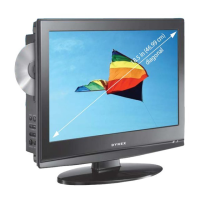
Description of the front-facing controls, sensors, and indicator lights on the TV.
Details on buttons and ports located on the left side of the television.
Identification and function of various input and output jacks on the rear of the TV.
Explanation of the purpose and operation of each button on the remote control.
Step-by-step instructions for correctly inserting batteries into the remote control.
Guidelines for optimal operation of the remote control, including range and angle.
Procedure for connecting the TV to a power source and a TV signal source.
Instructions for connecting external devices like VCRs, satellite boxes, and audio/video equipment.
Steps for using the TV as a monitor for a computer via VGA or PC/DVI audio connections.
How to power the TV on and off, including information on standby mode.
Guide for first-time setup, including language selection and scanning for channels.
Instructions for automatically scanning, memorizing, and managing TV channels.
Procedures for adding new channels to memory and removing unwanted ones.
How to assign custom labels to channels and remove them.
Assigning custom names to different video input sources for easier identification.
Setting age-based viewing restrictions and configuring the V-chip system.
Changing the V-chip password and managing downloaded rating systems.
Enabling and configuring closed caption display for hearing impaired viewers.
Customizing caption appearance like text size, type, color, and opacity.
Modifying picture quality parameters such as brightness, contrast, and sharpness.
Adjusting the picture's aspect ratio, zoom, and color temperature.
Configuring film mode, PC display settings, and digital noise reduction.
Modifying audio levels, balance, sound modes (Stereo/SAP), and audio language.
Adjusting screen backlight and setting the automatic power-off timer.
Understanding DVD disc structure and limitations on regional playback.
Viewing disc information and setting the automatic power-off feature.
Procedure to restore the television to its original factory settings.
Basic playback functions, controlling playback speed, and scene selection.
Using repeat functions, changing soundtrack language, and managing subtitles.
Navigating DVD menus, selecting titles, using zoom, and setting aspect ratio.
Configuring on-screen display, picture modes, night mode, and digital sound output.
Setting parental control levels and managing the playback password.
Guidelines for playing various media file formats from discs.
Creating custom CD playback sequences and viewing JPEG image files.
A reference list of language codes used for DVD audio and subtitle tracks.
Information detailing compatible DVD and CD disc formats for playback.
Instructions for cleaning the TV screen and proper care for discs.
Guidance on when to seek professional service and how to resolve common TV issues.
Technical details including power supply, dimensions, operating conditions, and display type.
Information regarding FCC rules, radio frequency interference, and user warnings.
Terms and conditions of the product's limited warranty, coverage, and service.
 General
| Screen Size | 22 inches |
|---|---|
| Resolution | 1366 x 768 |
| DVD Player | Yes |
| Aspect Ratio | 16:9 |
| Contrast Ratio | 1000:1 |
| Brightness | 250 cd/m² |
| Display Technology | LCD |
| HDMI Input | 1 |
| USB Port | 1 |
| Built-in Tuner | ATSC/NTSC |
| Inputs | Composite, HDMI |