EasyManua.ls Logo

Dynex DX-19LD150A11 - User Manual

Dynex DX-19LD150A11
48 pages
Print Icon
To Next Page IconTo Next Page
Loading...
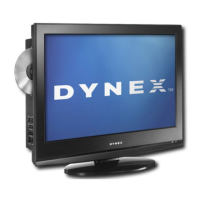
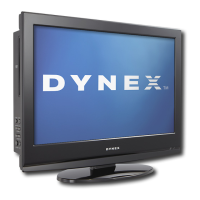
19” LCD TV/DVD combo
DX-19LD150A11
USER GUIDE
DX-19LD150A11_11-0915_MAN_ENG_V4.book Page 0 Monday, August 29, 2011 8:29 AM

Table of Contents

Other manuals for Dynex DX-19LD150A11

Questions and Answers

  • J
    Jacqueline CaldwellSep 12, 2025
    Why Dynex DX-19LD150A11 picture quality is good on some channels and poor on others?
    • C
      Christine Rose DDSSep 12, 2025
      If the picture quality on your Dynex TV/DVD combo is good on some channels but poor on others, and the sound is good, the problem may be caused by a poor or weak signal from the broadcaster or cable TV provider. If you connect to cable or satellite TV without a set-top box and experience poor picture quality, you may need to install a set-top box to improve signal reception and picture quality. Contact your cable or satellite TV provider about upgrading to a set-top box.
  • D
    Debra BentonAug 25, 2025
    Why does my Dynex DX-19LD150A11 TV DVD Combo have picture but no sound?
    • L
      Linda HubbardAug 25, 2025
      If your Dynex TV DVD Combo has good picture but no sound, first increase the volume and make sure that the sound is not muted. Then, ensure that the correct audio mode is selected and the audio cables are connected correctly and securely. Also, check that the antenna or cable TV is connected correctly. If using an antenna, the digital channel signal may be low. The audio cables you are using may be bad.
  • M
    Maria BurgessAug 25, 2025
    Why is my Dynex TV DVD Combo remote control not working?
    • K
      kennethburtonAug 26, 2025
      If the remote control for your Dynex TV DVD Combo is not working, make sure that the power cord is correctly connected to your TV/DVD combo and a power outlet. Ensure there are no obstructions between the remote and the sensor on the TV. Point the remote directly at the sensor. Make sure the batteries are installed correctly and replace dead batteries with new ones.
  • H
    Heather ColonDec 1, 2025
    How to fix dark, poor, or no picture (screen is lit) on Dynex TV DVD combo, but sound is good?
    • J
      Jessica EvansDec 1, 2025
      If your Dynex TV/DVD combo has a dark, poor, or no picture (but the screen is lit), but the sound is good, try the following: * Try another channel, as the station may be experiencing problems. * Make sure that the antenna or cable TV is connected correctly and securely. * Make sure that Audio Only option is set to Off. * Adjust the brightness. * Make sure that the correct picture mode is selected. * If you are using an antenna, the digital channel signal may be low. To check the digital channel signal strength, see “Checking the digital signal strength” in the User Guide. * If you are using an antenna and the signal strength is low, adjust the antenna or use a highly directional outdoor antenna or set-top antenna with a built-in amplifier. * Make sure that the video cable...
  • N
    nmarshallSep 12, 2025
    Why does Dynex DX-19LD150A11 TV DVD Combo picture not fill the screen?
    • A
      Alex JacobsSep 12, 2025
      If the picture on your Dynex TV DVD combo does not fill the screen and there are black bars around it, change the aspect ratio. An increasing amount of digital TV and movies are presented in wide screen (16:9).
  • J
    John GatesSep 17, 2025
    How to fix Dynex TV DVD combo when one or more channels do not display?
    • G
      Gary MarshallSep 18, 2025
      If one or more channels do not display on your Dynex TV/DVD combo, ensure that the channels are not blocked or hidden. The channel may have been deleted from the channel list. You can tune to the channel by pressing the number buttons or you can add the channel back to the channel list. If you are using a cable or satellite box, use the remote that came with that box to change channels and make sure you have the correct input selected to view channels from the cable or satellite box. If you are using an antenna, the digital channel signal may be low.
  • A
    Amber SmithSep 5, 2025
    How to fix double images on Dynex DX-19LD150A11?
    • K
      Kenneth SchroederSep 5, 2025
      If your Dynex TV DVD Combo displays double images, use a highly directional outdoor antenna, cable TV, or satellite TV.
  • D
    dwrightSep 6, 2025
    What to do if Dynex TV DVD Combo finds no channels after auto search?
    • A
      Amy WilliamsonSep 6, 2025
      If, after running Auto Channel Search on your Dynex TV DVD Combo, there are no channels, contact your cable or satellite TV provider. Make sure the antenna or cable/satellite TV is connected securely to your TV/DVD combo. Try replacing the cable between the antenna/cable or cable/satellite box and your TV/DVD combo.
  • R
    Rachel PattersonSep 18, 2025
    Why are some settings not accessible on my Dynex DX-19LD150A11 TV DVD Combo?
    • D
      dawn60Sep 18, 2025
      If a setting is grayed out on your Dynex TV/DVD combo, the setting is not available in the current video input mode.
  • C
    Connor JohnsonAug 30, 2025
    What to do if Dynex TV DVD combo shows only snow (noise) on the screen?
    • E
      earllaneAug 30, 2025
      If your Dynex TV/DVD combo only shows snow (noise) on the screen, try another channel. The station may be experiencing problems. Also, make sure that the antenna or cable TV is connected correctly and securely. If you are using an antenna, the digital channel signal may be low. To check the digital channel signal strength, see “Checking the digital signal strength” in the User Guide. If you are using an antenna and the signal strength is low, adjust the antenna or use a highly directional outdoor antenna or set-top antenna with a built-in amplifier.

Summary

CHILD SAFETY

Tune into safety

Safety guidelines for TV stand placement and child interaction.

Wall mounting safety

Safety precautions for wall-mounting the TV.

Important safety instructions

Product warnings

Warnings regarding electric shock, lightning, power lines, and LCD panel handling.

Replacement parts safety

Guidelines for using correct replacement parts for safety.

Post-service safety check

Importance of safety checks after service or repair.

Safety cautions

Servicing precautions

Conditions requiring professional servicing for the TV/DVD combo.

Outdoor antenna grounding

Guidelines for grounding outdoor antennas for protection.

Condensation precautions

How to handle condensation to prevent performance issues.

Mobile telephone interference warning

Warning about potential interference from mobile phones.

End of life disposal

Information on proper disposal of the product.

Non-active pixels explanation

Explanation of non-active pixels on the LCD panel.

Installing stand or wall-mount bracket

Installing the TV stand

Step-by-step instructions for attaching the TV stand.

Installing a wall-mount bracket

Instructions for attaching the TV to a wall-mount bracket.

TV;DVD combo components

Package contents

List of items included in the product package.

Remote control overview

Making connections

Choosing the best connection

Guide to selecting the optimal connection type for video quality.

Connection cautions

Important notes and warnings for making connections.

Connecting power

Connecting cable or satellite box

Connecting via HDMI

Step-by-step guide for connecting via HDMI.

Connecting via DVI

Instructions for connecting a DVI device using HDMI.

Connecting via component video

Connecting via composite video

Connecting via coaxial cable

Connecting antenna or cable TV

Connecting DVD or Blu-ray player

Connecting DVD;Blu-ray via HDMI;DVI

Steps to connect a DVD/Blu-ray player using HDMI or DVI.

Playing from DVD;Blu-ray player

How to select the input source and play content.

Connecting VCR or DVD player

Connecting VCR;DVD via component

Steps to connect a VCR/DVD player using component cables.

Playing from component video

How to select the input source for component video.

Connecting a VCR

Connecting VCR via A;V cable

Instructions for connecting a VCR using an A/V cable.

Playing from VCR

How to select the input source and play content from a VCR.

Connecting VCR;DVD via S-Video

Connecting a computer

Connecting computer via VGA

Instructions for connecting a computer using a VGA cable.

Connecting computer via HDMI

Instructions for connecting a computer using an HDMI cable.

Connecting a USB flash drive

Connecting headphones

Connecting home theater system

Connecting via digital audio

Steps to connect a home theater system using digital audio.

Connecting via analog audio

Steps to connect a home theater system using analog audio.

Using the remote control

Installing remote control batteries

Instructions for inserting batteries into the remote control.

Aiming the remote control

How to point the remote control for proper operation.

First-time setup wizard

Setting up the TV;DVD combo

Guided steps for initial setup of the TV/DVD combo.

Understanding the basics

Turning TV;DVD combo on;off

How to power the TV/DVD combo on and off.

Selecting video input source

How to choose the active input source for viewing.

Using the DVD player

Starting DVD playback

Steps to insert a disc and begin playback.

DVD playback controls

Explanation of buttons for playback control.

Removing a disc

How to eject and remove a disc.

Changing DVD settings

Viewing photos

Viewing photos from USB

Steps to view photos from a USB flash drive.

Viewing favorite photos

How to access and view marked favorite photos.

Viewing photos in slide show

Customizing slide show settings

Using on-screen menus

On-screen menu overview

Explanation of the on-screen menu structure and navigation.

Navigating menus

Selecting a channel

Adjusting volume

Viewing channel information

Adjusting picture settings

Adjusting TV picture

Steps to adjust picture modes, brightness, contrast, etc.

Adjusting aspect ratio

Options for changing the picture's aspect ratio.

Adjusting computer image

Setting power on vivid mode

Adjusting sound settings

Selecting sound mode;language

How to choose sound modes or audio languages.

Adjusting sound settings

Fine-tuning treble, bass, balance, and auto volume.

Playing TV audio only

Changing channel settings

Automatically scanning channels

How to scan for available TV channels.

Performing automatic channel scan

Step-by-step guide to auto-scan channels.

Hiding channels

Setting up favorite channels

Viewing favorite channels

Adding;changing channel labels

Checking digital signal strength

Setting parental controls

Setting;changing password

How to set or modify the parental control password.

Setting parental control levels

How to set rating levels to block programs.

Setting parental control levels

Blocking unrated TV

Locking control buttons

Setting the sleep timer

Adjusting menu settings

Selecting menu language;transparency

How to change the on-screen menu language and transparency.

Labeling input sources

Restoring default settings

Maintaining the TV;DVD combo

Cleaning the TV;DVD combo

Instructions for cleaning the product's surfaces and screen.

Servicing the TV;DVD combo

Information about authorized servicing and repair.

Care and handling of discs

Guidelines for handling and cleaning discs.

Troubleshooting

Video and audio problems

Solutions for common video and audio issues.

Remote control issues

Solutions for problems with the remote control.

General troubleshooting

Disc playback troubleshooting

USB photo display troubleshooting

Product specifications

Programming universal remotes

Programming a different universal remote

Instructions for programming external universal remotes.

Additional help for remote programming

Resources for further assistance with remote controls.

Legal notices

One-year limited warranty

Warranty definitions

Explains terms used in the warranty statement.

Warranty coverage duration

Details on the length of the warranty period.

What the warranty covers

Information on what is included in the warranty.

Obtaining warranty service

Steps to follow to get warranty service.

Warranty validity regions

Specifies where the warranty is applicable.

What the warranty does not cover

Exclusions from the warranty coverage.

Common universal remote codes

FCC Part 15 compliance

Canada ICES-003 statement

HDMI information

Open Source Software information

Dynex DX-19LD150A11 Specifications

General IconGeneral
BrandDynex
ModelDX-19LD150A11
CategoryTV DVD Combo
LanguageEnglish

Related product manuals