Tutorials
34 E-MU Systems
OS X Users
2. Turn on Use Audio Units.
3. Turn on Use VST Plug-in System Folders.
4. Press the Re-scan Plug-ins button. (You may have to wait a few seconds.)
Windows Users
5. Press the Browse button, then locate VST Plug-ins located in the Steinberg
folder. (Default path: C:\Program Files\Steinberg\VstPlugIns\)
NOTE
Windows Users: If the plug-
ins do not appear after
selecting the proper folder,
press the Re-scan button.
6. After selecting the VST plug-ins folder, press OK. (You may have to wait a few
seconds while Ableton locates the plug-ins.)
Set up the Audio Parameters
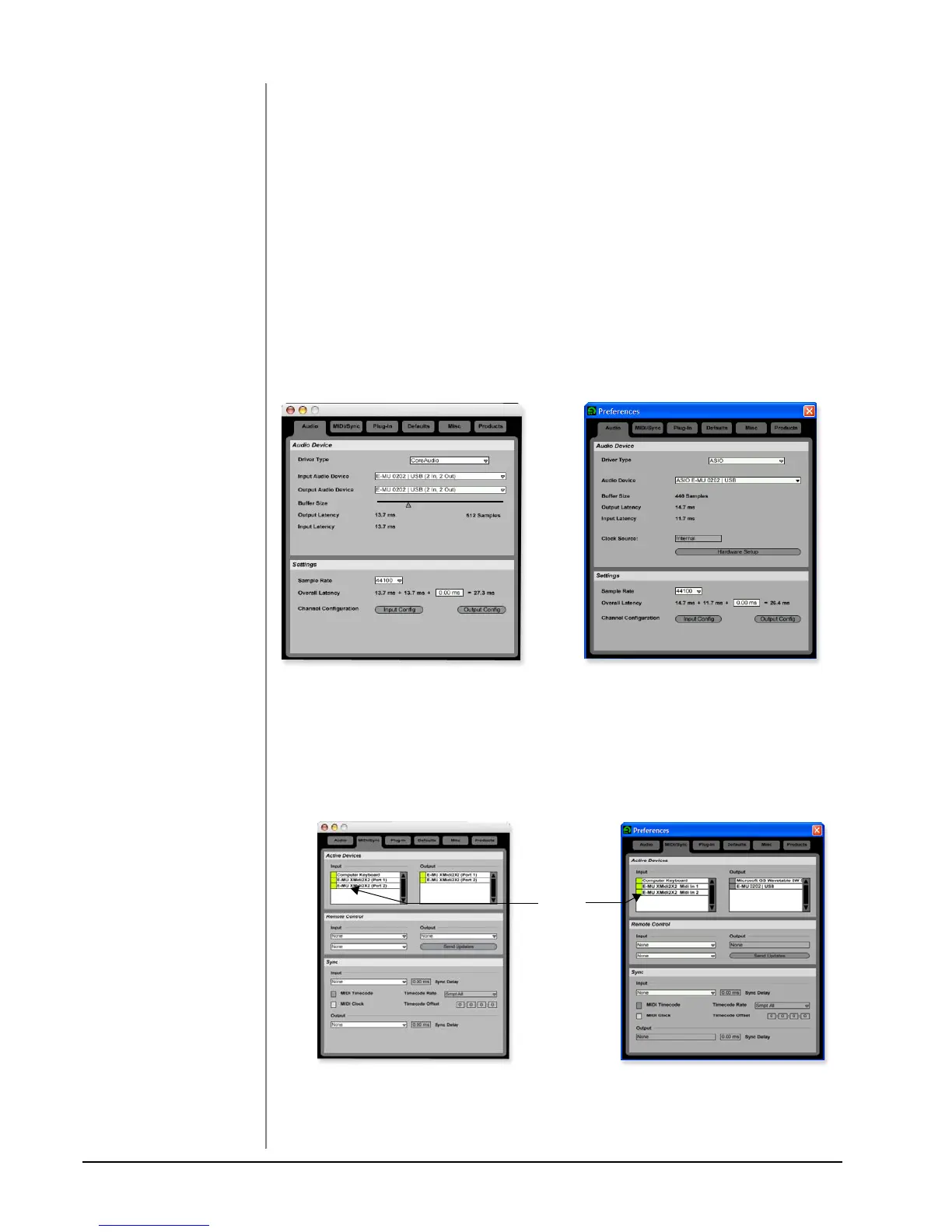
7. Click the Audio tab of the Preferences dialog box. The Audio Setup page
appears.
8. Windows Users:Select ASIO and ASIO E-MU 0202|USB as the Audio Device.
OS X Users: Select Core Audio and E-MU 0202|USB as the Audio Device.
Set up the MIDI Parameters
NOTE
Live enables every MIDI
input by default
9. Click the MIDI/Sync tab of the Preferences dialog box. The MIDI Setup page
appears.
10. Your MIDI interface or USB MIDI keyboard should appear in the list. Make
sure it’s selected.
11. Preference Setup is now complete. Click the close button to close the window.
WindowsOS X
Set up the Audio Parameters as shown above.
OS X Windows
Select
MIDI
Interface


 To Next Page