21
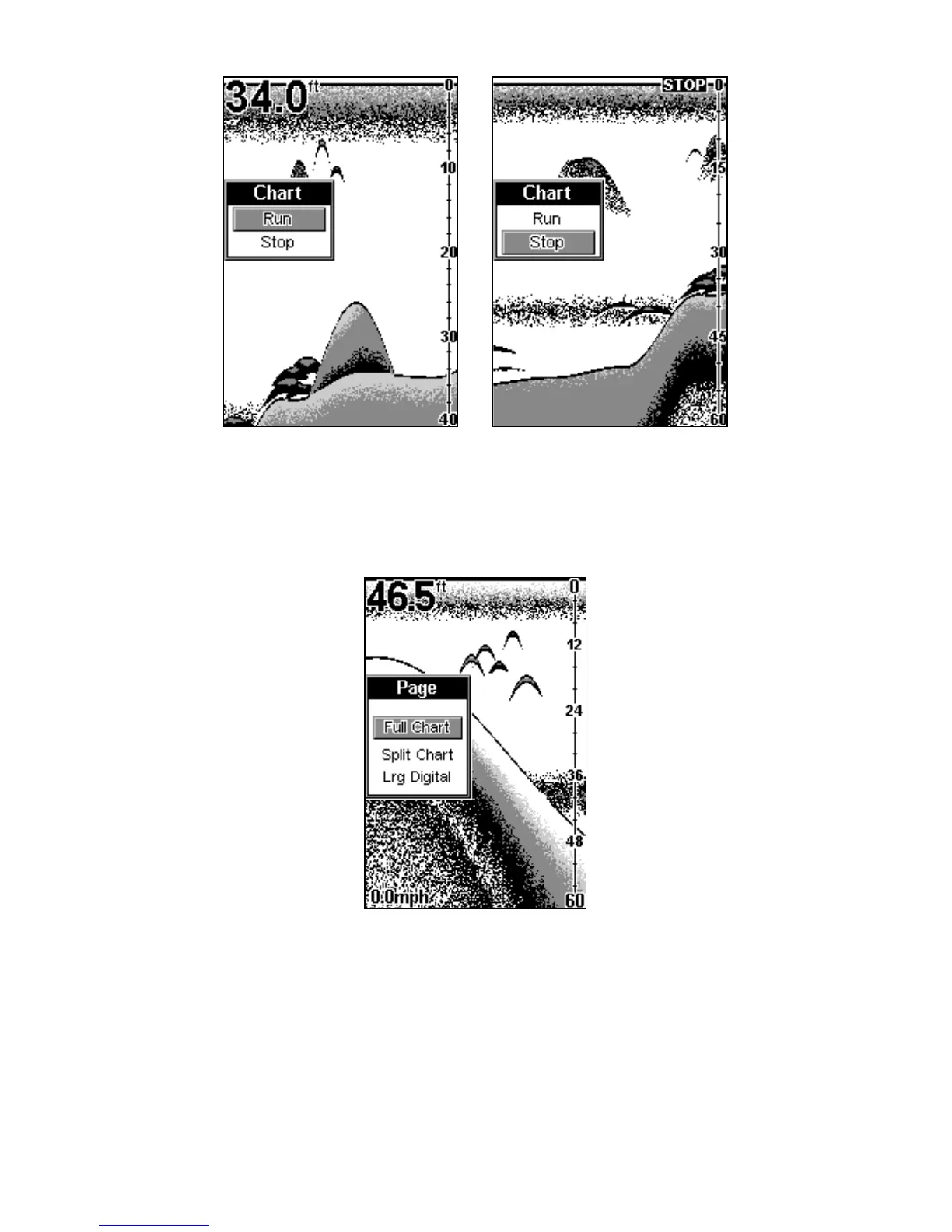
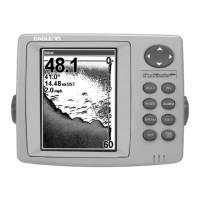
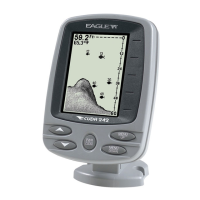
Chart menu. Chart is running or scrolling normally at left.
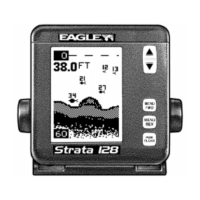
Chart is stopped at right, and "Stopped" warning message appears.
SCREEN DISPLAY MODES or PAGES
The TriFinder 2 has three screen display modes, or "Pages:" Full Chart
page, Split Chart page and Large Digital page.
The Page menu lets you select from three display modes, or pages.
To switch from one page to another page, press
MENU
until the
P
AGE
menu appears. Press
UP ARROW
or
DOWN ARROW
to select the desired
page. (The screen changes as you move through the menu.) When the
page you want is selected, press
PWR
to clear the menu.
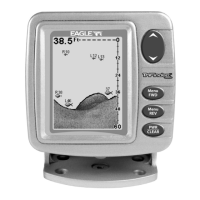
FULL CHART
This shows all echoes scrolling across the full screen. This is the default
page. The bottom signal scrolls across the screen from right to left.


 To Next Page