REMOTE OPERATION
23
Tip: You can also click “ ” or “ ” in the image display section to log out (see “Image Display” at page 22).
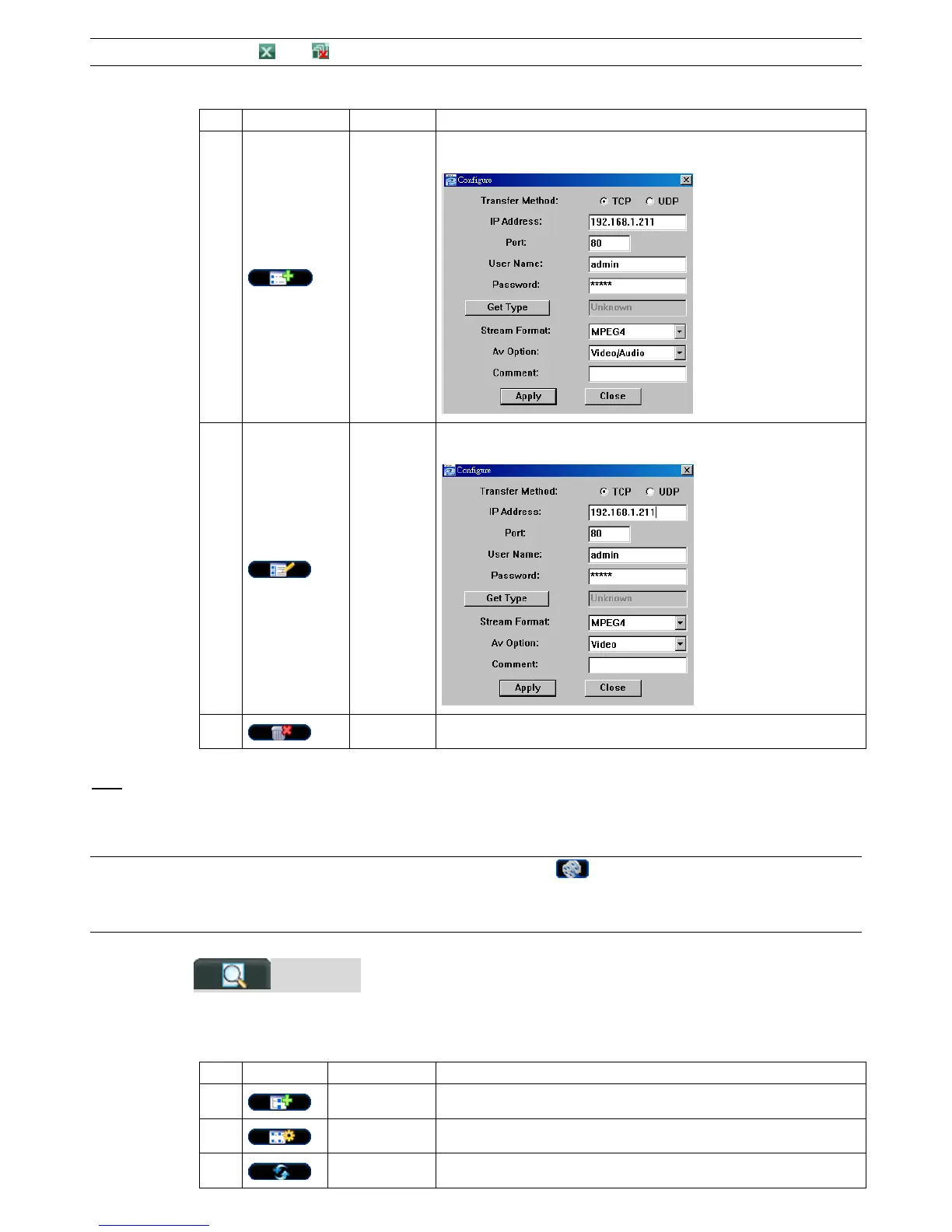
You can also create new IP address information, or modify or remove the current IP address information.
NO. Button Function Description
1
Add
Click to directly add one IP address for login. Key in the DVR access
information needed, and click “Apply” and “Close”.
2
Edit
Select one current IP address from the address list, and click this button to
modify the DVR access information as needed.
3
Remove Select one IP address from the address list, and click this button to delete it.
REC
When the AP is connected to more than 1 device, and not all devices are necessary to enable the manual record
function, check “REC” for the connected device(s), and its manual record function will be on.
Note: When the AP is connected to more than 1 device, click “ ” will record the live views for all the
connected devices. To enable the manual record function for the specific device(s), please set from
this view.
(
(
S
S
e
e
a
a
r
r
c
c
h
h
)
)
Click to search and view the available IP address(es) for the DVR connection. You can choose one
address to add into the address book, edit the details, or update the address list.
NO. Button Function Description
4
Add into address
book
Select from the available IP address list, and click this button to add the
selected address to the address book.
5
Setting
Select from the available IP address list, and click this button to edit the setting.
6
Refresh Click to update the available IP address list.



 To Next Page