DVR AND NETWORK SETUP
11
3.2.2 Network Configuration
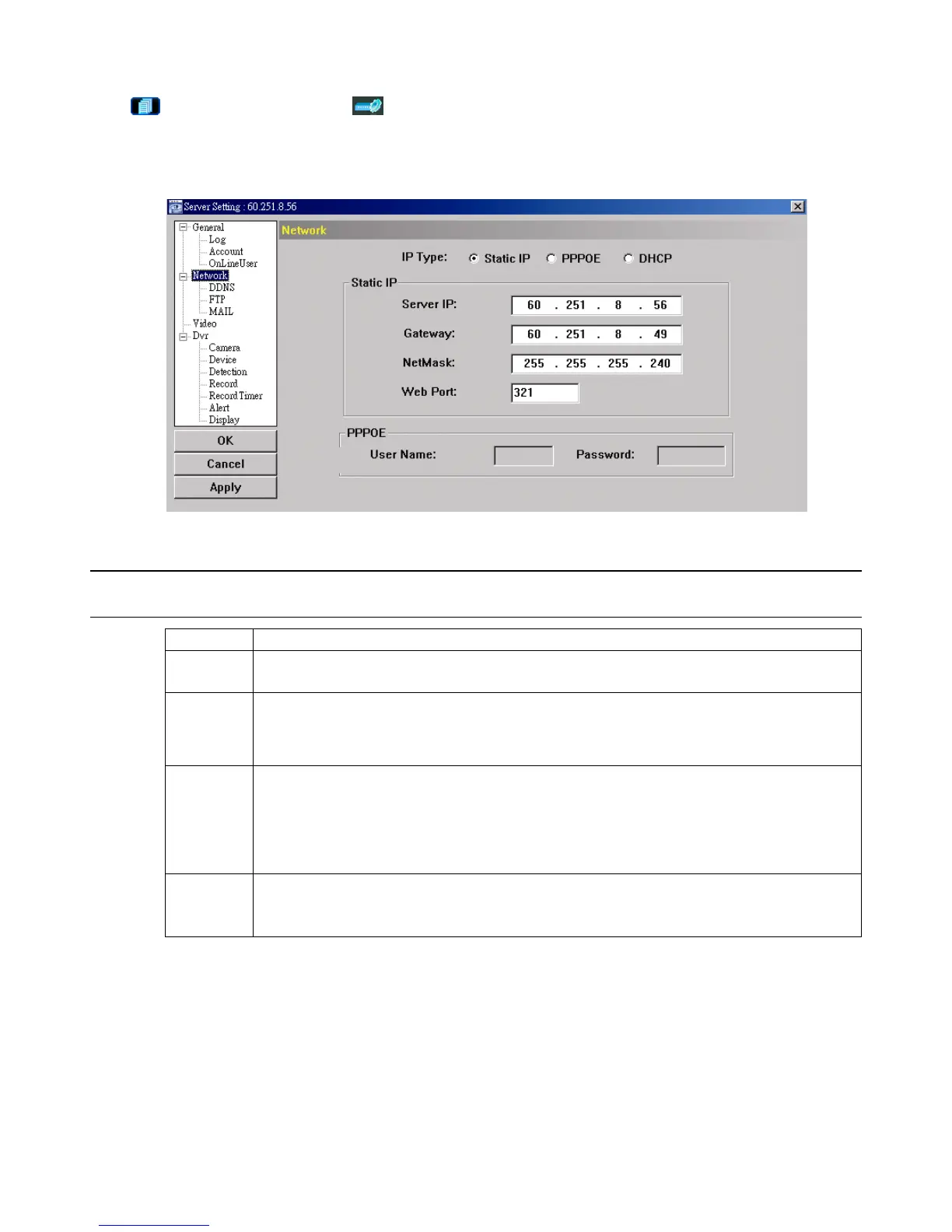
Click “ ” (Miscellaneous Control) → “ ” (Server Setting) → “Network”.
In “Network” and its sub-menu, “DDNS”, you can set the DVR network configuration. The network configuration allows the
DVR to connect to the LAN or Internet.
Select the network type you will be using for DVR connection. There are 3 network connection types: Static IP, PPPOE
and DHCP.
NOTE: PPPOE and DHCP network connection types are required to apply the DDNS service to get a
“Hostname” to correspond to a dynamic IP address. Please refer to “DDNS” at page 12 for details.
Function Description
Web Port Typically, the default TCP port used by HTTP is 80. However, in some cases, it is better to change this port number
for added flexibility or security. The valid web port number ranges from 1 to 9999.
Static IP Computers are communicated and recognized by their own unique IP addresses over the Internet. “Static IP”
provided by your ISP (Internet Service Provider) means the IP address of the computer is fixed.
Key in the server IP address, gateway and network information provided by your ISP provider to configure a static
IP network connection.
PPPOE PPPOE stands for Point-to-Point Protocol over Ethernet. Users can easily have the Internet service as long as
they’re ready for the following things: 1) Insert an Ethernet card into the PC. 2) Obtain the ADSL service via any
ISP. 3) Obtain and install the PPPOE software CD.
When everything is ready, choose the “PPPOE” IP type, and key in the user name and password provided by your
ISP. Then, select “Network” → “DDNS” to set DDNS settings.
For detailed DDNS settings, please refer to “DDNS” at page 12.
DHCP This DHCP function needs to be supported by a router or cable modem network with the DHCP service. Choose
the “DHCP” IP type, and select “Network” → “DDNS” to set DDNS settings.
For detailed DDNS settings, please refer to “DDNS” at page 12.



 To Next Page