EasyManua.ls Logo

Eaton PXG600E - User Manual

Eaton PXG600E
248 pages
Print Icon
To Next Page IconTo Next Page
Loading...
User & Installation Manual IM02603003E
Power Xpert Gateway 600E
Rev. 5.03:3835 May 2012

Table of Contents

Questions and Answers

  • C
    Caitlin TaylorJul 30, 2025
    How to fix Eaton Gateway login issues?
    • K
      Katelyn JohnsonJul 30, 2025
      If you've lost your password for the Eaton Gateway, you can reset it along with the IP addresses. If the IP address is incorrect at PXG600E, this could also be the reason. Another potential cause is improperly installed USB drivers; ensure they are installed correctly. Also, check that the USB or Ethernet LAN cable is securely connected.
  • M
    markcastroAug 3, 2025
    What to do if I cannot access Eaton PXG600E Gateway via Modbus TCP client?
    • U
      ubarnesAug 3, 2025
      To resolve access issues via Modbus TCP client, first ensure that the Modbus TCP settings on the Eaton PXG600E Gateway are correct. Verify that the “Enable” box is checked and the port address matches the port address of the Modbus TCP client. If the IP address set at PXG600E is incorrect, reset the passwords and IP addresses.
  • J
    John AlvarezAug 7, 2025
    Why does Eaton Gateway data freeze in my web browser?
    • D
      Darrell SmithAug 7, 2025
      If data freezes or the browser stops responding when viewing the Eaton Gateway, it may be due to interrupted communications. Try pressing CTRL and F5 simultaneously to reload the web session.
  • N
    Norma CarrollAug 12, 2025
    What to do if Eaton PXG600E UI data isn't updating?
    • M
      Michael OsborneAug 12, 2025
      If UI data is not updating or configuration changes are not being saved on your Eaton Gateway, the browser might not be communicating with the PXG because of a LAN Proxy server. Try adding the gateway IP address to the proxy server exceptions list.
  • J
    John LamAug 16, 2025
    Why are Eaton PXG600E COM1 and INCOM indicators not flashing?
    • A
      Anthony SmithAug 16, 2025
      If the COM1 and INCOM indicators are not flashing periodically on your Eaton Gateway, it could be because the PXG600E is rebooting, which is normal during the boot process. If the unit is not rebooting, the internal PXG600E communications may be locked up. Reboot the PXG600E by pressing the Hard Reset Switch momentarily. During the rebooting process, the COM2B traffic indicator and the COM1 traffic indicator will be solid green. The indicators should resume normal operation within two to three minutes.
  • J
    Joshua AustinAug 20, 2025
    How to fix Eaton PXG600E Gateway INCOM or COM1 port access issues?
    • A
      Autumn MorrisAug 20, 2025
      If you cannot access devices connected to the INCOM or COM1 (Modbus RTU or QCPort) port on your Eaton Gateway, ensure the devices are correctly wired according to the specifications. Pay particular attention to the polarity. Also, check for loose connections and repair them.
  • C
    Christy BrowningAug 25, 2025
    Why is Eaton Gateway web page not displaying correctly?
    • K
      karensnowAug 26, 2025
      If only the banner and version number appear on the screen of your Eaton Gateway's web page, the screen resolution may not be set to the recommended 1280x1024. Temporarily, use the scroll bar to view the screen content. For a permanent solution, reset the monitor's screen resolution to 1280x1024, if available.

Summary

Safety Precautions

General Safety Warnings

Essential safety precautions for installation, operation, and maintenance, including shock and grounding hazards.

PXG600 E Overview

Layout of PXG600 E

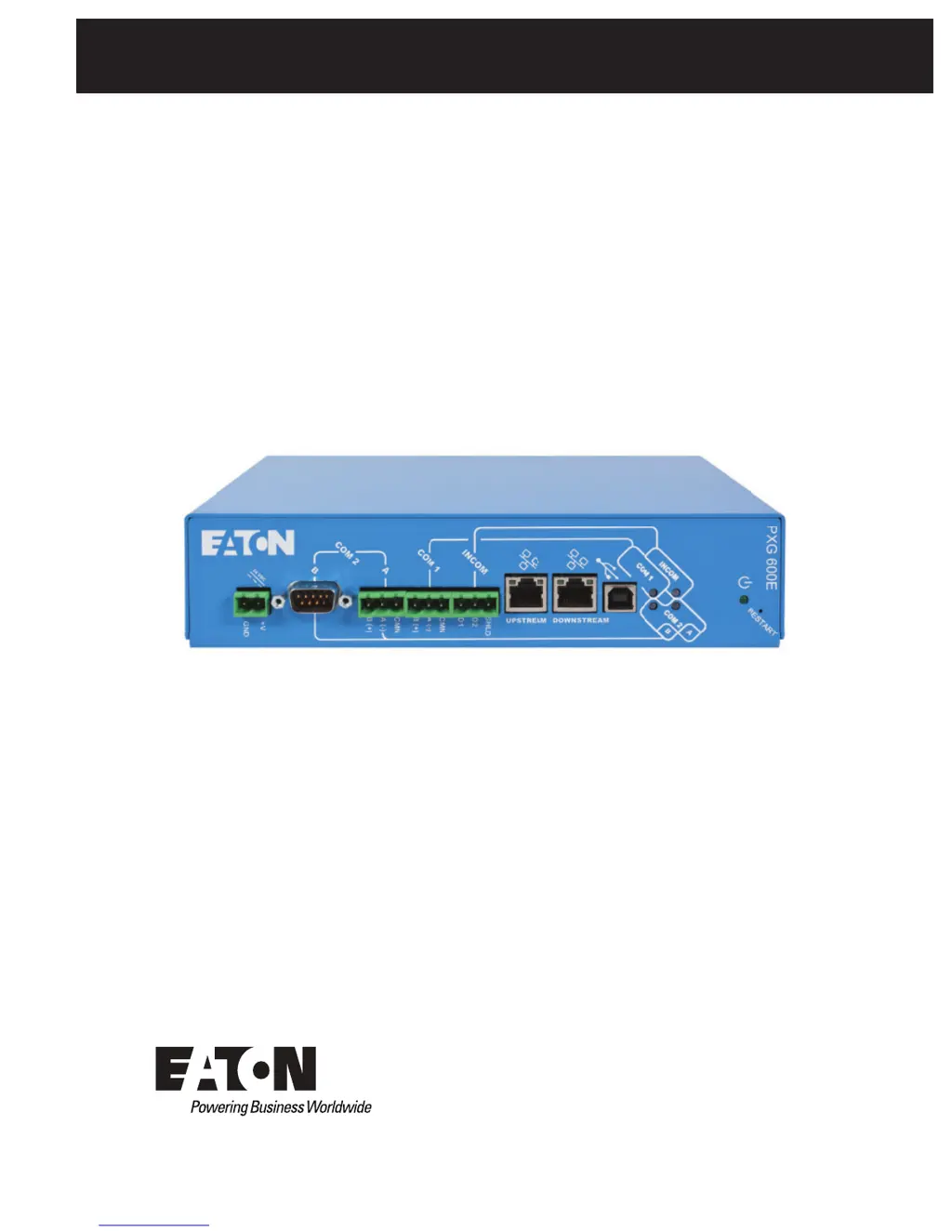
Identifies and describes the physical ports and indicators on the PXG600E unit.

PXG600 E Theory of Operation

PXG600 E Operation and Supported Networks

Explains the operational principles and supported downstream networks (INCOM, QCPort, Modbus RTU).

Security and Access Control

Covers security features, password protection, secure browsing, and access control mechanisms.

Installation of PXG600 E

Wiring Connections Guide

Step-by-step guide for connecting power, indicators, communication ports, and Ethernet/USB.

Accessing the PXG600 E

USB Connection and Driver Installation

Procedure for connecting and configuring the PXG600E using a USB port and installing necessary drivers.

Ethernet LAN Connection

Procedure for connecting the PXG600E to an Ethernet LAN and accessing it via its IP address.

PXG600 E Configuration Web Page

Configuration Web Page Overview

Introduces the PXG600E configuration web page, its toolbar, and data presentation area.

Downstream Port Configuration

Details configuring INCOM, COM1, and COM2 ports for downstream devices, including specific parameters.

Adding Downstream Devices

Introduces adding devices (Mains, Buses, Devices) using the device list editor.

Editing and Deleting Devices

Explains how to edit or delete downstream device parameters and the implications.

Modbus TCP and Security Configuration

Details configuring the Modbus TCP feature and managing passwords for system security.

IP Address Setup

Explains options for managing IP addresses, including DHCP and static IP assignment for IPv4 and IPv6.

Save and Restore Configuration

Guides on saving the current configuration or restoring a previous one.

Email Reports Configuration

Details how to configure the PXG600E to send event and periodic status emails.

Device Configuration Tabs

Device Configuration Tabs Overview

Introduces customizing downstream device properties using configuration tabs.

Adding Support For New Devices

Troubleshooting and Maintenance

Troubleshooting and Maintenance Overview

Introduces troubleshooting and maintenance procedures, including warnings and level of repair.

Resetting Lost Passwords and IP Addresses

Describes the procedure to reset passwords and IP addresses to factory defaults using the Restart button.

Troubleshooting Matrix

Provides a table of common problems, possible causes, and solutions for troubleshooting the PXG600E.

Connecting to an Ethernet LAN

Eaton PXG600E Specifications

General IconGeneral
Product NamePXG600E
Product TypeGateway
ManufacturerEaton
Communication ProtocolsModbus TCP, SNMP
Storage Temperature-40°C to +85°C
Humidity5% to 95% non-condensing
CertificationsCE, FCC, RoHS
Ethernet Ports2

Related product manuals