4. Hardware Installations
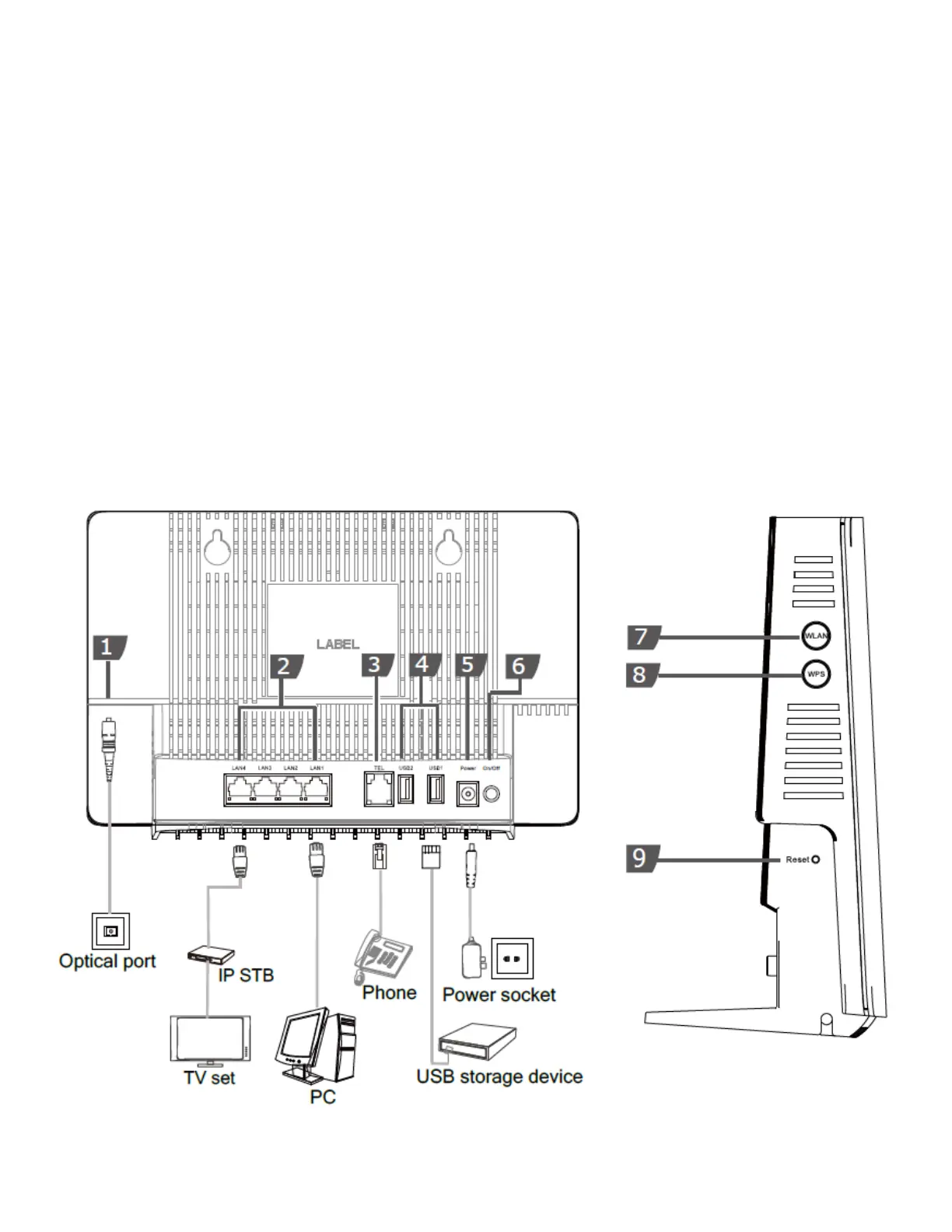
Step 1 Use an optical fiber to connect the optical port on the ONT.
Note.
- The optical connector connected to the OPTICAL port is an SC/UPC connector.
- To ensure normal use of fibers, make sure that the fiber bend radius is larger than 30 mm.
Step 2 Use a network cable to connect the LAN port to an Access Point.
Step 3 Use a phone line to connect the TEL port to a phone or fax machine.
Step 4 Use a power adapter to connect the POWER port to the power socket.
Note.
Do not use any power adapters that are not in the standard configuration. Otherwise, the device may be
abnormal or unsafe.
Step 5 Use a USB data cable to connect the USB port to the USB storage device.
Step 6 Press the ON/OFF power switch.
Step 7 Press the WLAN switch to enable the Wi-Fi access function. By default, this function is enabled.
Step 8 Press the WPS switch to enable the WPS encryption function.
Note.
Before enabling the WPS encryption function of a GPON terminal, ensure that the function is set in the
system software in advance. After successful setting, press the WPS switch for the settings to take effect.
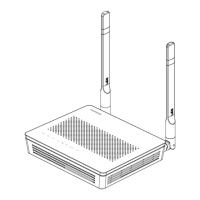
The connections between the HG8145V and other devices are shown as follows.


 To Next Page