Need help?
Do you have a question about the EchoStar HUGHES JUPITER HT2000W and is the answer not in the manual?
Explains DANGER, WARNING, and CAUTION signal words and their severity for potential injury.
Defines the NOTICE signal word for messages related to property or product damage.
Describes generic and specific hazard symbols used in the document, including electric shock.
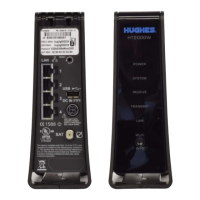
Provides a description of the HT2000W satellite modem and its connectivity options.
Details requirements for modem placement, ventilation, and heat sources to ensure proper function.
Specifies the correct upright orientation for operating the modem to prevent issues.
Outlines the necessary hardware and software for connecting a computer to the modem.
Lists specific requirements for network interfaces and browsers to connect to the modem.
Provides guidance on who to contact for operational, warranty, or repair support.
Explains how to connect and use the power supply safely and correctly.
Step-by-step guide on how to properly connect the power cord to the modem.
Instructions on how to safely disconnect the power cord using its locking mechanism.
Instructions on how to connect to and open the modem's web-based management interface.
Overview of the main page of the System Control Center and its features.
Explanation of the status indicators and navigation links within the System Control Center.
Describes the information displayed in the parameters bar at the top of the screens.
Details the navigation links available in the left-side panel of the System Control Center.
Provides vital parameter information about the modem's operational status.
Offers identification, software, and satellite information for the modem.
Guide on how to perform a test to verify terminal communication with the satellite network.
Instructions for running an internal diagnostic test on the satellite modem.
Guides users through initial connection methods, including Ethernet and Wi-Fi.
Step-by-step instructions for connecting the modem to a PC using an Ethernet cable.
Details how to connect to the modem's Wi-Fi network using the WPA password.
Explains the Wi-Fi Protected Setup (WPS) method for connecting devices.
Covers initial Wi-Fi setup tasks, including logging into the configuration page.
Step-by-step guide to access and log into the modem's web interface.
Instructions on how to change the default administrator password for security.
Guidance on customizing Wi-Fi network names (SSID) and security parameters.
Instructions for setting up separate Wi-Fi networks for guests, restricting access to network resources.
Procedure for restarting the modem to resolve potential issues.
Introduction to advanced configuration options available for network control.
Configuration settings for wireless bands, including mode, channel, and bandwidth.
Details on configuring primary and guest networks for both 2.4GHz and 5GHz bands.
Manages Wi-Fi Protected Setup (WPS) settings for easy device connection.
Allows specifying MAC addresses to control network access for connected devices.
Configuration options for the modem's Local Area Network (LAN) IP settings.
Settings for managing DHCP reservations and IP address pools for LAN devices.
Allows configuration of DNS server settings for DHCP clients.
Enables or disables the router's firewall features for network protection.
Provides tools to set rules for client devices, limiting access to specific services or IP ranges.
Allows specifying particular URLs to block for all users on the network.
Enables SPI and Anti-DoS filtering and discards pings from the WAN.
Allows designating a device as a DMZ host, bypassing firewall rules for specific traffic.
Configuration options for enabling IPv6 and setting the IPv6 prefix.
Enables or disables Network Address Translation (NAT) functions.
Allows creating custom NAT port forwarding rules for incoming Internet traffic.
Configures port triggering options for specific WAN ports active with certain LAN ports.
Enables/disables Quality of Service (QoS) and biases traffic priority levels.
Setup QoS rules for specific devices, IP addresses, or ports.
Displays the current routing table of the modem.
Allows designing and configuring static network routes.
Allows enabling/disabling IPv6 and providing the IPv6 prefix.
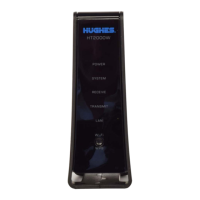
Describes the status indicated by the LEDs on the front panel of the modem.
Details the appearance and status of various LEDs on the router.
Explains the link status and speed indicated by LEDs on the modem's LAN ports.
Lists the technical specifications for the HT2000W satellite modem.
Lists safety standards compliance for the modem in various regions.
Details compliance with EMI standards from FCC and CSA.
Lists EMC standards compliance for the European Union.
Details RF spectrum compliance standards for the European Union and USA.
Lists telecommunications standards compliance, including FCC Part 25 for USA.
Information regarding authorized repairs and grounding connections for equipment in Canada.
Applies FCC Part 15 rules to the HT2000W modem, including cautions and compliance statements.
Provides the warning statement for Class B digital apparatus compliance in Canada.
Details compliance information for Class II Radio Equipment within the European Union.
 General
| Type | Satellite Modem |
|---|---|
| Manufacturer | EchoStar/Hughes |
| Model | HUGHES JUPITER HT2000W |
| Frequency Band | Ka-band |
| Interface | Ethernet |
| Wi-Fi | 802.11b/g/n |
| Humidity | 5% to 95% non-condensing |
| Connectivity | Wired |
| Ethernet Ports | 1 |
| Operating Temperature | 0°C to 40°C |
| Satellite Compatibility | HughesNet Jupiter Satellites |

 To Next Page