10/12
ESI Quick Start-up Guide
www.ecoer.com
01.2021Manufacturer reserves the right to change specifications or designs without notice.
1. Create an ecoer account
2. Add Unit (Register a new AC/HP)
Steps of warranty registration
Get the Ecoer Smart Service Pro App
Download or update the Ecoer Smart Service Pro App
free on the App Store or Google Play.
• Sign an agreement with homeowner
• Scan/Input serial numbers to submit
Hang the IoT device on the condensing unit, tighten it with the
included screw and belts. Unscrew the cable locker cap and fasten
the waterproof joint based on the IoT install guide.
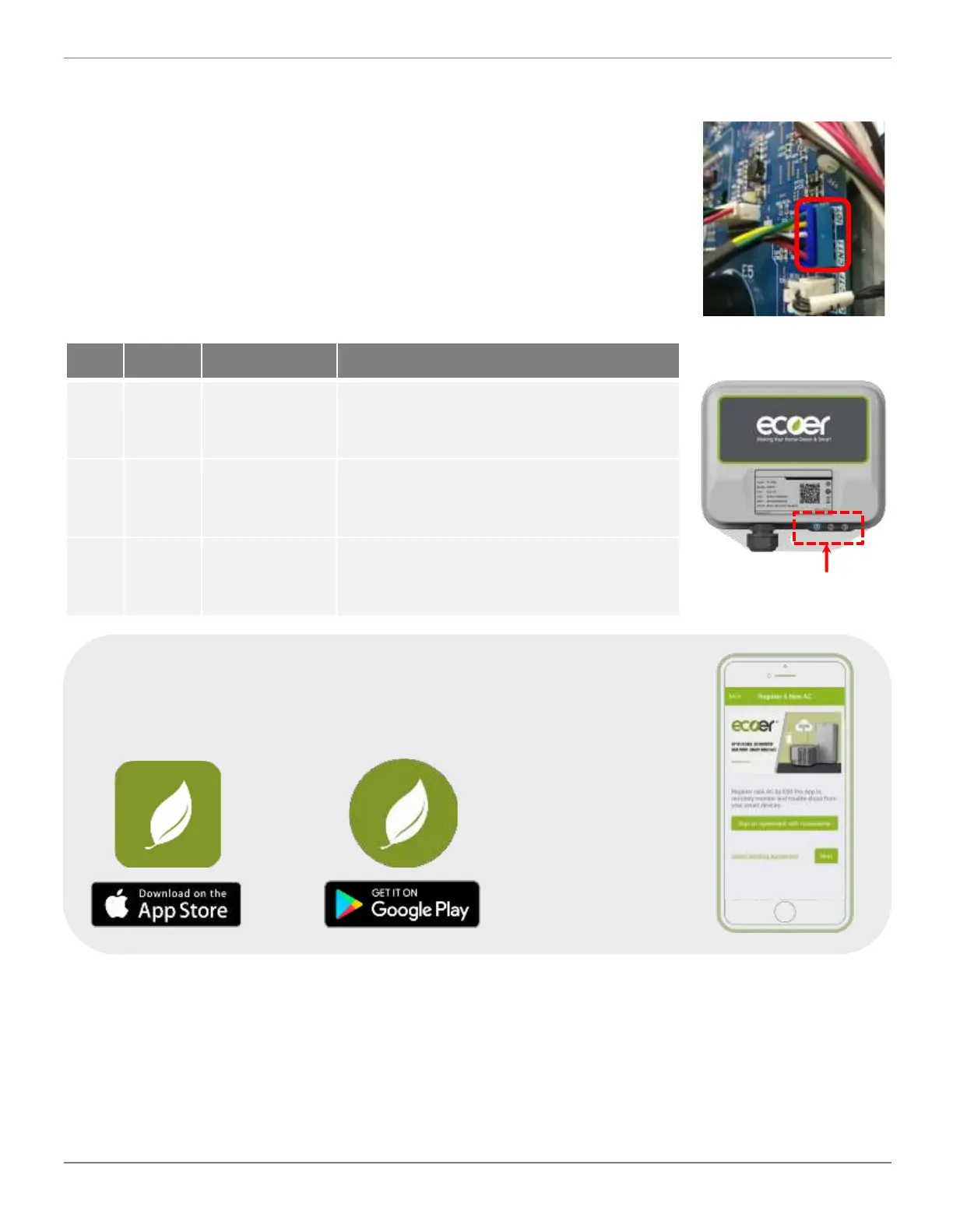
Plug the male blue terminal of IoT device into CN11 (IoT)
connector on main control board of condensing unit.
Power ON
the condensing unit and check if the IoT device is working
properly. The normal working state of IoT device should be the
blue LED (No.1) is blinking with other LEDs light OFF.
LEDs
No. Color Indications Description
1 Blue
IoT Device
status
Always OFF Power off
Always ON Booting
Blinking Running
2 Red LTE Status
Always OFF LTE connected
Always ON Booting
Blinking LTE disconnected
3 Green
Connection to
PCB
Always OFF Local link connected
Always ON Booting
Blinking Local link disconnected
IoT Connection and Registration


 To Next Page