35
SETTING TIME FORMAT
U
se this feature to select a 12-hour (AM/PM) or 24-hour
clock.
1. From any of the rolling status screens, press the
SELECT (¡) button to display the Main menu.
2. Press the DOWN (6) button to scroll through the
menu options until User preferences is highlighted.
3. Press the SELECT (¡) button to display the User
preferences menu.
4. Press the DOWN (6) button to scroll through the
menu options until Time format is highlighted.
5. Press the SELECT (¡) button to display the Time
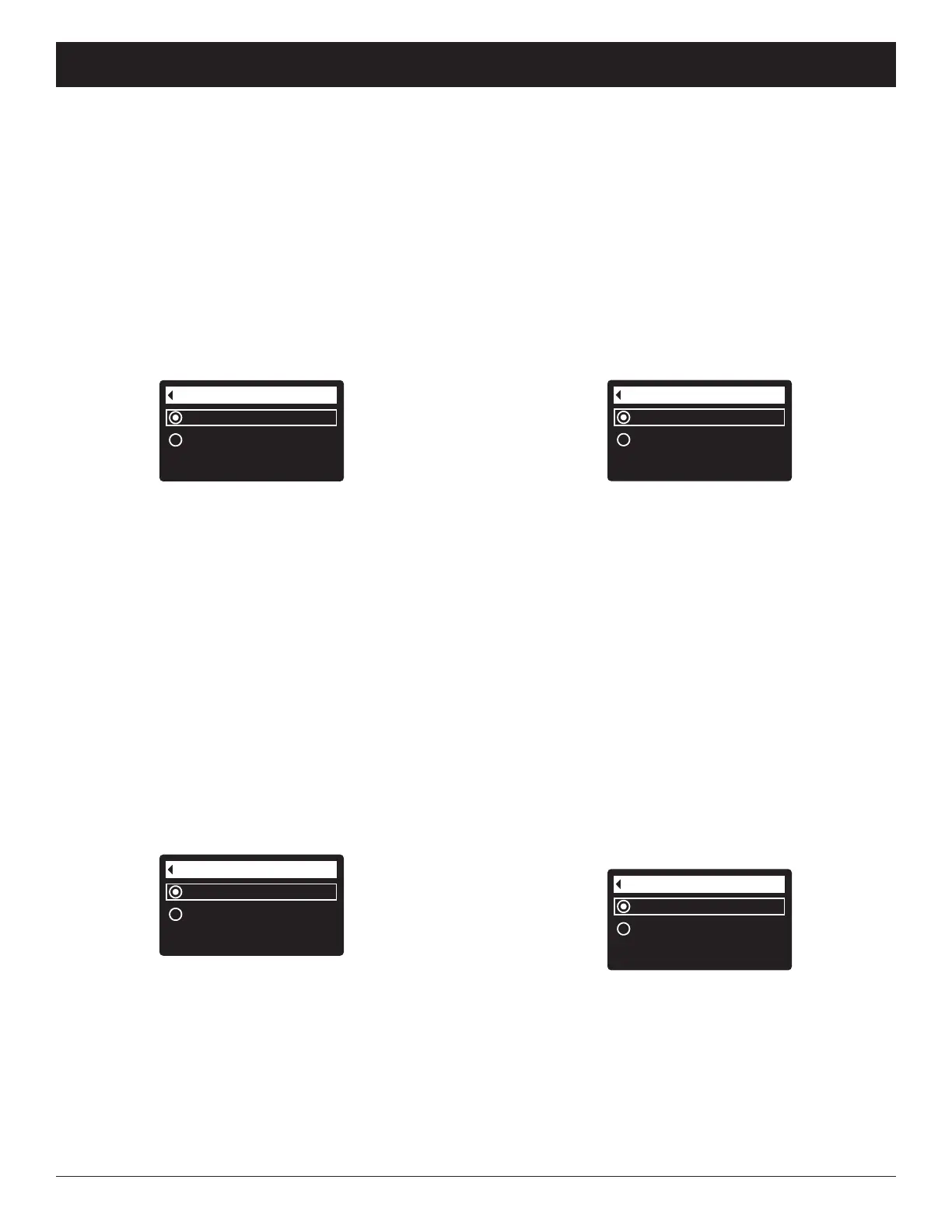
format menu (See Figure 112).
12-hour AM/PM
24-hour
Time format
FIG. 112
6. If the desired time format already has a dot next to it
(See Figure 112), go to Step 7. Otherwise, press the
DOWN (6) or UP (5) buttons to scroll to the other
time format, then press SELECT (¡) to choose it.
7. Press the SELECT (¡) button. The display will go
back to the User preferences menu.
8. Press the LEFT (3) button twice to return to the
rolling status screens.
SETTING VOLUME UNITS
Use this feature to select gallons or liters as volume
units.
1-3. Go to the User preferences menu by following
Steps 1-3 in “Setting Time Format” above.
4. Press the DOWN (6) button to scroll through the
menu options until Volume units is highlighted.
5. Press the SELECT (¡) button to display the Volume
units menu (See Figure 113).
gallons
liters
Volume units
FIG. 113
6. If the desired volume unit already has a dot next to it
(See Figure 113), go to Step 7. Otherwise, press the
DOWN (6) or UP (5) buttons to scroll to the other
volume unit, then press SELECT (¡) to choose it.
7. Press the SELECT (¡) button. The display will go
back to the User preferences menu.
8. Press the LEFT (3) button twice to return to the
rolling status screens.
SETTING HARDNESS UNITS
U
se this feature to select grains or parts per million
(ppm) as hardness units.
1. From any of the rolling status screens, press the
SELECT (¡) button to display the Main menu.
2. Press the DOWN (6) button to scroll through the
menu options until User preferences is highlighted.
3. Press the SELECT (¡) button to display the User
preferences menu.
4. Press the DOWN (6) button to scroll through the
menu options until Hardness units is highlighted.
5. Press the SELECT (¡) button to display the
Hardness units menu (See Figure 114).
FIG. 114
6. If the desired hardness unit already has a dot next to
it (See Figure 114), go to Step 7. Otherwise, press
the DOWN (6) or UP (5) buttons to scroll to the
other hardness unit, then press SELECT (¡) to
choose it.
7. Press the SELECT (¡) button. The display will go
back to the User preferences menu.
8. Press the LEFT (3) button twice to return to the
rolling status screens.
SETTING WEIGHT UNITS
Use this feature to select pounds or kilograms as
weight units.
1-3. Go to the User preferences menu by following
Steps 1-3 in “Setting Hardness Units” above.
4. Press the DOWN (6) button to scroll through the
menu options until Weight units is highlighted.
5. Press the SELECT (¡) button to display the Weight
units menu (See Figure 115).
pounds
kilograms
Weight units
FIG. 115
6. If the desired weight unit already has a dot next to it
(See Figure 115), go to Step 7. Otherwise, press the
DOWN (6) or UP (5) buttons to scroll to the other
weight unit, then press SELECT (¡) to choose it.
7. Press the SELECT (¡) button. The display will go
back to the User preferences menu.
8. Press the LEFT (3) button twice to return to the
rolling status screens.
ECOWATER
S Y S T E M S
Conditioner/Refiner Operation



 To Next Page