34
ECOWATER
S Y S T E M S
Conditioner/Refiner Operation
MODIFYING ROLLING SCREENS
D
uring normal conditioner/refiner operation, up to five
status screens are shown in sequence (See
“Conditioner/Refiner Status Screens” on Page 28).
When the conditioner/refiner’s electronic control is first
powered up, the default is to show all four. You can
turn on/off individual screens*:
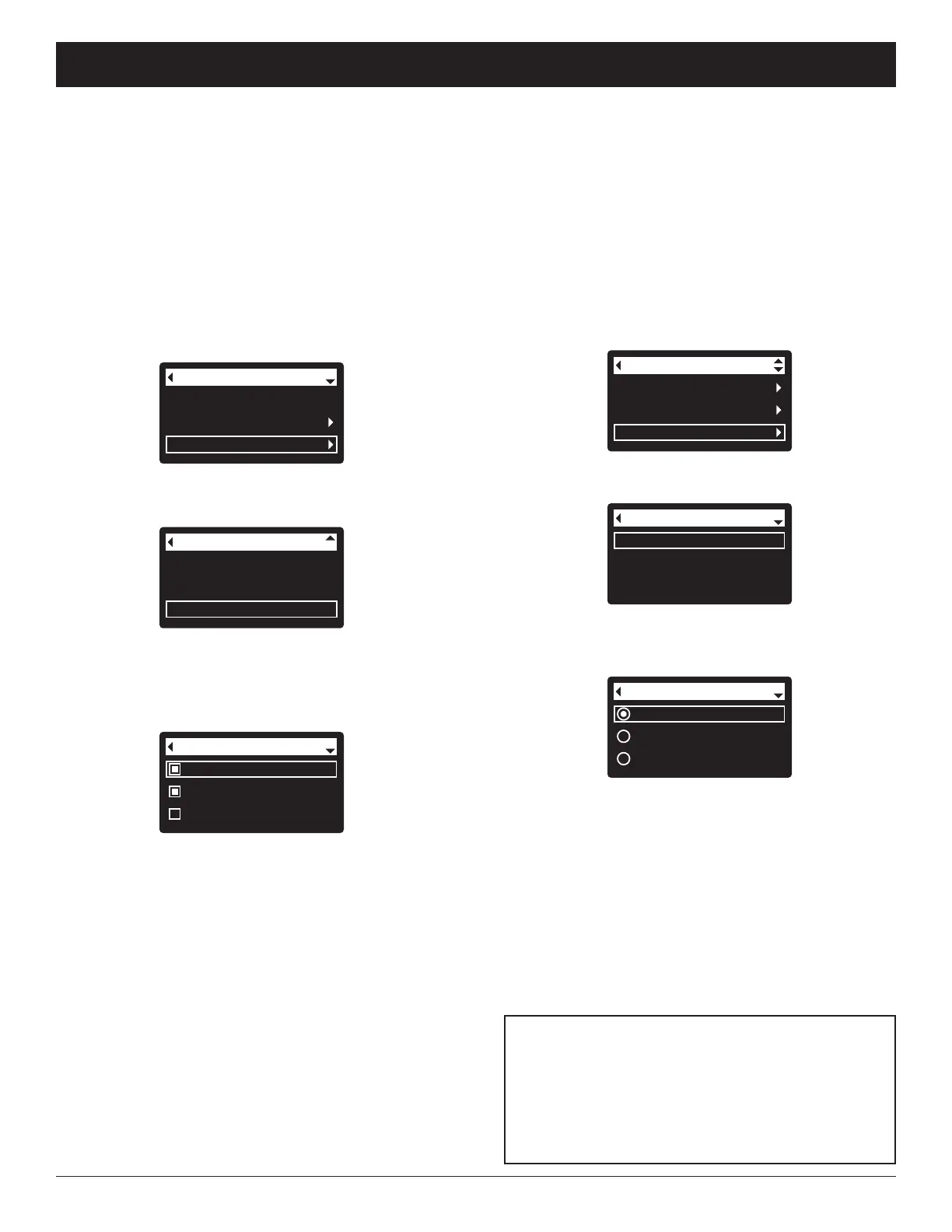
1. From any of the rolling status screens, press the
SELECT (¡) button to display the Main menu.
2. Press the DOWN (6) button to scroll through the
menu options until Basic settings is highlighted
(See Figure 106).
3. Press the SELECT (¡) button to display the Basic
settings menu (See Figure 107).
Recharge
Salt settings
Basic settings
Main menu
FIG. 106
Iron level
Recharge time
Rolling screens
Basic settings
FIG. 107
4. Press the DOWN (6) button to scroll through the
menu options until Rolling screens is highlighted.
5. Press the SELECT (¡) button to display the Rolling
screens menu (See Figure 108).
Salt status
Water use
Flow rate
Rolling screens
FIG. 108
6. Press the DOWN (6) or UP (5) buttons to scroll
through the list. Items with a black square next to
them will be displayed during normal operation.
7. To un-select a screen, make sure its name is high-
lighted in a box. Then press the SELECT (¡) button.
The black square will disappear. Pressing SELECT
(¡) again makes the black square reappear and re-
selects the highlighted item. At least one screen
must be selected/highlighted.
8. When selections are complete, exit this menu by
pressing the LEFT (3) button. The display will go
back to the Basic settings menu (Figure 107).
9. Press the LEFT (3) button twice to return to the
rolling status screens.
*
This does not include service reminders, errors, alerts or
Recharge status screens.
SETTING THE LANGUAGE
When the conditioner/refiner’s electronic control is first
powered up, a “wizard” screen prompts you to set the
l
anguage (See Page 13-15 or 17). Language is set
independently on the conditioner/refiner and remote
(See Page 22 to set the remote’s language). To
change the conditioner/ refiner’s language:
1. From any of the rolling status screens, press the
SELECT (¡) button to display the Main menu.
2. Press the DOWN (6) button to scroll through the
menu options until User preferences is highlighted
(See Figure 109).
4. Make sure Language is highlighted.
5. Press the SELECT (¡) button to display the
Language menu (See Figure 111).
Salt settings
Basic settings
User preferences
Main menu
FIG. 109
Language
Time format
Volume units
User preferences
FIG. 110
3. Press the SELECT (¡) button to display the User
preferences menu (See Figure 110).
English
Español
Français
Language
FIG. 111
6. If the desired language already has a dot next to it
(See Figure 111), go to Step 7. Otherwise, press the
DOWN (6) or UP (5) buttons to scroll to the desired
language, then press SELECT (¡) to choose it. The
choices are: English, Spanish, French, Italian,
German, Dutch, Polish, Russian, Hungarian, Turkish,
Lithuanian, Greek, Romanian, Czech, Slovak,
Bulgarian, Serbian or Croatian.
7. Press the SELECT (¡) button. The display will go
back to the User preferences menu (Figure 110).
8. Press the LEFT (3) button twice to return to the
rolling status screens.
TO SET THE CONDITIONER/REFINER TO ENG-
LISH IF ANOTHER LANGUAGE IS DISPLAYED:
From the rolling status screens, press SELECT (¡).
Press DOWN (6) three times, then press SELECT
(¡) twice. Press UP (5) to scroll to English at the
top of the list, then press SELECT (¡) twice. Press
LEFT (3) twice to exit all menus.



 To Next Page