43
Using BIOS
Save & Exit Setup
Highlight this item and press <Enter> to save the changes that you have made in the
Setup Utility and exit the Setup Utility. When the Save and Exit dialog box appears,
select [OK] to save and exit, or select [Cancel] to return to the main menu.
Exit Without Saving
Highlight this item and press <Enter> to discard any changes that you have made in
the Setup Utility and exit the Setup Utility. When the Exit Without Saving dialog
box appears, select [OK] to discard changes and exit, or select [Cancel] to return to
the main menu.
Press <Esc> to return to the main menu setting page.
If you have made settings that you do not want to save, use the “Exit
Without Saving” item and select [OK] to discard any changes you have
made.
User Password
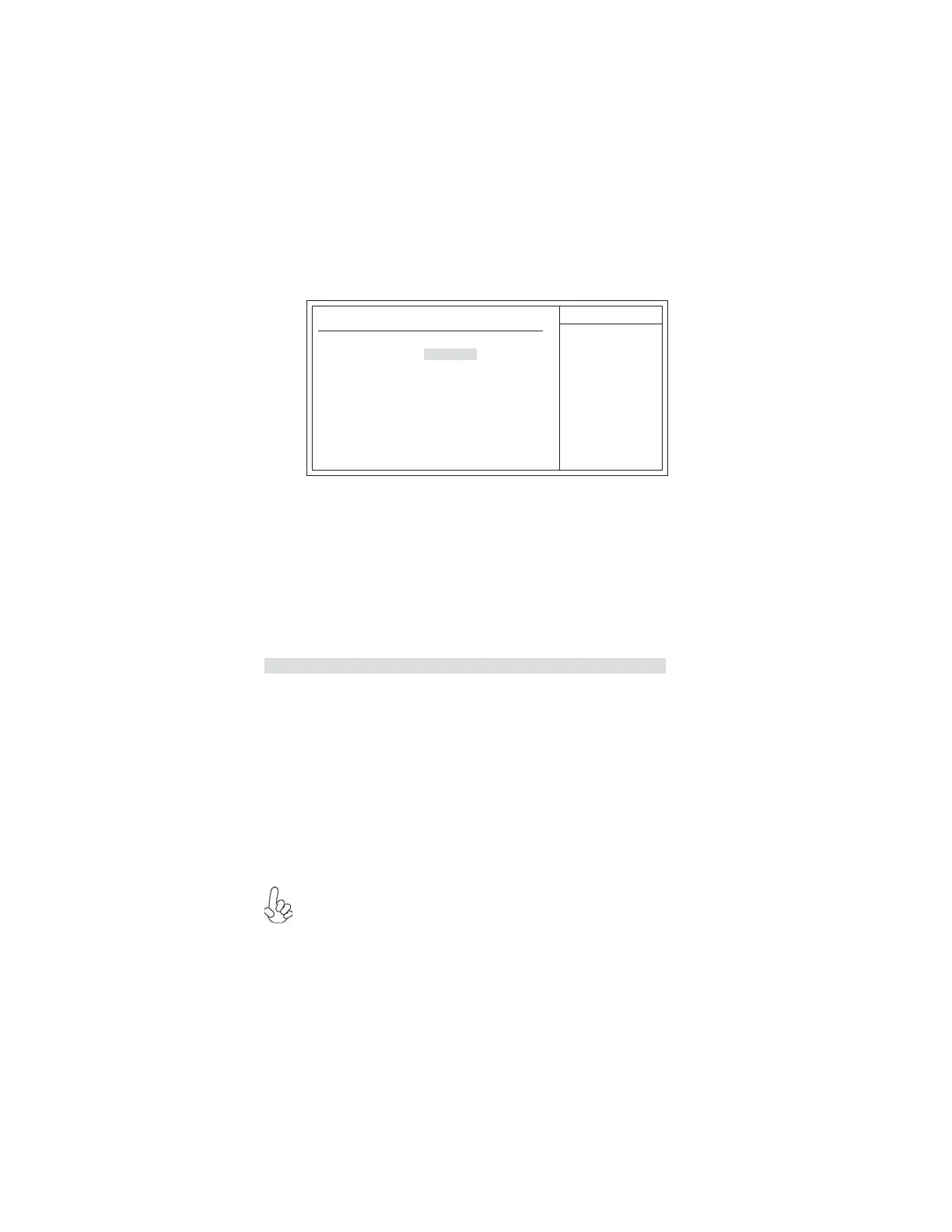
This page helps you install or change a password.
Help Item
CMOS Setup Utility - Copyright (C) 1985-2005, American Megatrends, Inc.
User Password
User Password : Not Installed
User Password (Not Installed)
This item indicates whether a user password has been set. If the password has been
installed, Installed displays. If not, Not Installed displays.
: Move
F10: Save ESC: Exit
Enter : Select
+/-/: Value
F9: Load Default Settings
F1: General Help
Change Password Press Enter
Change Supervisor Password (Press Enter)
You can select this option and press <Enter> to access the sub menu. You can use the
sub menu to change the user password.
Install or Change the
password.


 To Next Page