ECTACO iTRAVL User Manual
6
Reset by Using the Reset Button
• Unfix the rubber strip on the right-hand side of the device.
• Unscrew the removable cap of the stylus – it will serve you as a
reset pin.
Note: The Reset button can also be accessed with any thin
object such as a paper clip. Never use a needle or a sharp pin for
this purpose since it can damage the device.
• Press the Reset button. If you see a message offering you to
format the user disk, press the Down button to cancel formatting
and keep the user data. If you press the Up button, the user data
will be erased and the default settings will be restored. On
completion of the reboot, you will see the calibration screen with
five targets, appearing one after another as you tap them with the
stylus.
• To complete Calibration, please follow the instructions on the
screen. To skip Calibration, just press the Recognize button. You
will see the Main Menu.
Reset via the Setup Section
• Go to the Setup section by pressing the Setup button.
• Tap Defaults. You will receive a pop-up asking you to confirm
restoring.
• Tap OK to restore the default settings or Cancel to cancel the
restore process.
Display and Main Menu
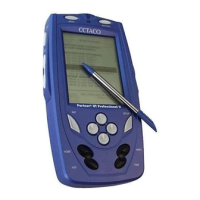
ECTACO iTRAVL TL-2 features touch screen (320 x 240 pixels)
with a windows-driven graphical interface. The Main Menu
consists of icons, which visually organize access to the ECTACO
iTRAVL TL-2 applications.
Note: Tapping screen items is preferably done with the supplied
pointing device called the stylus, which, when not in use, is kept
in a special slot at the side of the device's back panel (see
General View).


 To Next Page