EasyManua.ls Logo

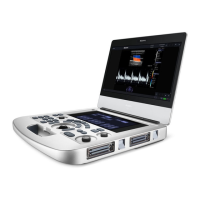
EDAN Acclarix AX18 - User Manual

EDAN Acclarix AX18
149 pages
Print Icon
To Next Page IconTo Next Page
Loading...
1

Table of Contents

Questions and Answers

  • K
    kevin32Aug 7, 2025
    Why is my EDAN Acclarix AX18 overheating?
    • M
      Maria ThompsonAug 7, 2025
      If your EDAN Medical Equipment is overheating, make sure the system vents are clear and unobstructed. Check that the ambient temperature is below 40?. Also, verify that the five fans at the system vents are working correctly.
  • E
    Elizabeth JacobsonAug 12, 2025
    How to improve image clarity on EDAN Acclarix AX18 Medical Equipment?
    • K
      Keith SimonAug 12, 2025
      To improve image clarity on your EDAN Medical Equipment, try the following: * Adjust the overall gain. * Adjust the eight TGC slide controls. * Adjust the focus (the number and the position).
  • S
    Sean ColemanAug 17, 2025
    What to do if EDAN Acclarix AX18 Medical Equipment shows no image on screen?
    • N
      Nathaniel CortezAug 17, 2025
      If your EDAN Medical Equipment isn't displaying an image when powered on, check the power supply, wires, and plugs. Also, ensure the transducers are connected properly.
  • U
    ubowenAug 22, 2025
    Why does my EDAN Acclarix AX18 have a distorted display?
    • E
      Erica SteeleAug 22, 2025
      If you're seeing strip-shape or snowflake-shape disturbances on the display screen of your EDAN Medical Equipment, take these steps: * Inspect the power supply. * Check for disturbances from other devices. * Check the surrounding environment for electric or magnetic field interference. * Ensure the power supply and transducer plugs and sockets are properly connected.
  • I
    Ian RodriguezAug 27, 2025
    How to fix a dark image window on EDAN Medical Equipment?
    • O
      ofloresAug 27, 2025
      To brighten a dark image window on your EDAN Medical Equipment, adjust the brightness and slide the TGC controls on the touch screen. Also, check that the transducer is correctly connected.
  • A
    angela69Sep 1, 2025
    What to do if a button is unresponsive on EDAN Acclarix AX18?
    • J
      Joe StokesSep 2, 2025
      If a button on your EDAN Medical Equipment is unresponsive, check the control panel to see whether the button is blocked, and press it several times to release it. If that doesn't work, try cleaning the button.

Summary

Safety

Warnings

Advises against actions or situations that could result in personal injury or death.

Cautions

Advises against actions that could damage equipment or produce inaccurate data.

Getting Started

System Configuration

Details the standard and optional components included with the ultrasound system.

System Preparation

Covers essential steps for preparing the system before use, including battery and power.

Transducer Connection

Guides the user on how to properly connect and disconnect transducers.

Powering on; off

Explains the procedures for powering the system on, off, and entering sleep mode.

Exam Operation

How to Start an Exam

Step-by-step guide on initiating a new patient exam and selecting transducers.

The Patient Information Page

Details the process of entering and managing patient demographic data.

Imaging

B-mode

Covers the fundamental B-mode imaging technique and its optimization controls.

Using B-mode

Instructions for operating and scanning in B-mode.

B-mode Image Optimization

Explains touch screen controls for enhancing B-mode image quality.

Color Mode

Details Color Doppler imaging, including variants and image optimization.

Using Color Mode

Steps for acquiring and optimizing images in Color Mode.

Color Image Optimization

Covers touch screen controls for adjusting Color Mode image parameters.

PW Mode

Focuses on Pulsed Wave (PW) Doppler, its usage, and optimization.

Using PW Mode

Instructions for performing scans and displaying Doppler strips in PW Mode.

PW Image Optimization

Details touch screen controls for optimizing PW Doppler images.

Transducers and Biopsy

Transducer Cleaning and Disinfecting

Provides detailed instructions for cleaning and disinfecting transducers.

Cleaning

Lists validated cleaning agents and procedures for transducer cleaning.

Disinfecting

Details methods and intensity levels for disinfecting transducers based on application.

Needle Guide Bracket Cleaning and Sterilization

Instructions for cleaning and sterilizing needle guide brackets.

Measurements and Reports

Generic Measurements

Explains simple measurements like distance and area, not tied to specific anatomy.

B-mode Generic Measurements

Lists and describes generic measurements available in B-mode.

Strip Doppler Generic Measurements

Lists and describes generic measurements for Doppler strips.

M-mode Generic Measurements

Lists and describes generic measurements available in M-mode.

Application Measurements

Details measurements specific to clinical applications like OB, Vascular, etc.

Worksheet and Report

Covers the creation and management of worksheets and patient reports.

Worksheet

Details how to view and edit worksheets containing measurement data.

Report

Describes how to generate and save patient reports.

Exam Data Management

Presets

Utilities

System Set-up

Configuring system-wide parameters unrelated to presets.

General Set-up

Settings for hospital name, language, date/time formats, and video mode.

Patient Set-up

Configuring units, custom fields, and patient name display for data entry.

Connectivity

Configuring network access and DICOM services for data transfer.

TCP;IP

Settings for wired and wireless network connections.

DICOM

Configuration for DICOM services, including Store and Modality Worklist.

Troubleshooting and Maintenance

Daily Checklist

A checklist for routine inspections before and after system use.

Troubleshooting

Solutions for common system malfunctions and error messages.

Appendix B Ultrasound Intensity and Safety

Ultrasound Safety and the ALARA Principle

Explains ultrasound safety principles and the ALARA concept.

Appendix D EMC Information

EDAN Acclarix AX18 Specifications

General IconGeneral
Touch PanelYes
Display15.6-inch
Probe TypesConvex, Linear, Phased Array
Scan ModesB-Mode, M-Mode, Color Doppler, Power Doppler, Pulsed Wave Doppler, Continuous Wave Doppler
Imaging Modes2D, Color, PW, CW, Power Doppler, M-Mode
Advanced Imaging TechnologiesTissue Harmonic Imaging, Spatial Compound Imaging
Image StorageUSB, Network
ConnectivityWi-Fi, Ethernet, USB, HDMI
Power Supply100-240VAC, 50/60Hz
Battery LifeUp to 1 hour

Related product manuals