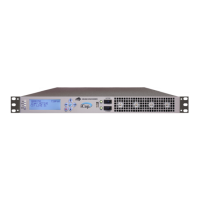
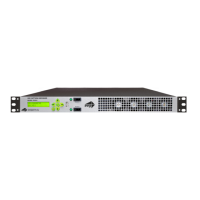
HD490 Smart Encoder
13 Copyright © 2000-2012 EEG Enterprises, Inc.
All Rights Reserved.
Once the page has loaded, you will see a list on the top panel of the
different web applications installed on your encoder. Click any of these
links to navigate to the page for that application.
Update
The Update page enables you to load and apply a software update to the
HD490 through the web interface. First, download the update file to
your local computer. Then, from the Update page, select ‘Choose File’
to navigate to the update file path, and ‘Upload’ to apply the update.
Follow any on-screen instructions to complete the update, and note that
some updates may require a reboot to take effect.
Product Info
The Product Info page contains the Documentation subpage at the top
and the Licensing subpage on the lower half of the page
The Documentation subpage contains PDF files of the HD490 manual
as well as software manuals for any installed modules. These files can
be downloaded or viewed in your web browser with a PDF reader such
as Adobe Acrobat Reader.
The Licensing subpage displays the status of the caption module, the
unit’s serial number and provides a way to enable the caption module
with a valid license key if it is not currently enabled. If your captioning
is not enabled and you would like to enable it, please contact an EEG
Sales Representative at sales@eegent.com for a license upgrade. Once
you have received your new license key, simply enter it into the input
box and click the ‘Submit’ button. A message box should appear
informing you that the upgrade was successful and your captioning will
now be enabled.
Terminal
The Terminal page gives you access to a Smart Encoder command
terminal that emulates the serial port interface to the encoder. You can
enter any of the commands detailed in this manual into the Web
Terminal, just as you would through a serial port terminal, using
<CTRL+A> and <CTRL+C>.


 To Next Page