EasyManua.ls Logo

Eizo RadiForce MS231WT - User Manual

Eizo RadiForce MS231WT
60 pages
Print Icon
To Next Page IconTo Next Page
Loading...
Important
Please read PRECAUTIONS, this Users Manual, and Setup Guide
(separate volume) carefully to familiarize yourself with safe and
effective usage.
Please refer to the Setup Guide for basic information ranging from
connection of the monitor to a PC or external device to using the
monitor.
The latest Users Manual is available for download from our Web site:
http://www.eizo.com
Cover

Table of Contents

Question and Answer IconNeed help?

Do you have a question about the Eizo RadiForce MS231WT and is the answer not in the manual?

Overview

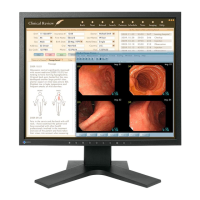
This document describes the RadiForce MS231WT Touch Panel Color LCD Monitor, a 23-inch wide-format color LCD monitor designed for clinical review. It supports a resolution of 1920 × 1080 and features a standard infrared optical imaging touch panel system that supports Windows 7 multi-touch functionality (up to two simultaneous touches). The monitor utilizes a high-contrast VA panel (3000:1) with wide 89° horizontal and vertical viewing angles, enabling sharp image display. It includes an HDMI connector, allowing for three different PC input signals, and supports HDCP (High-bandwidth Digital Content Protection). The monitor is equipped with reinforced glass for superior touch durability.

Key Features:

  • Display: 23-inch wide-format TFT color LCD with a resolution of 1920 × 1080 dots × 1080 lines.
  • Touch Panel: Infrared optical imaging system, USB-based communication, 5.5 Mohs surface hardness, and anti-glare surface treatment. Supports Windows 7 multi-touch function (up to two simultaneous touches).
  • Viewing Angles: Horizontal 178°, vertical 178° (CR≥10).
  • Response Time: Approximately 25 ms (black-white-black) and approximately 7 ms (gray-to-gray with Overdrive setting: Enhanced).
  • Contrast Ratio: 3000:1 (high-contrast panel).
  • Input Signals:
    • Analog (D-Sub mini 15-pin): Supports resolutions up to 1920 × 1080 at 60 Hz.
    • Digital (DVI-D): Supports resolutions up to 1920 × 1080 at 60 Hz. Applicable to HDCP.
    • HDMI (Type A): Supports PC signals (up to 1920 × 1080 at 60 Hz) and video signals (VGA, 525i/p, 625i/p, 750p, 1125i/p at 50/60 Hz).
  • Audio: 2ch linear PCM (32 kHz / 44.1 kHz / 48 kHz) audio input via HDMI. Speaker output of 0.35 W (8Ω) and headphone output of 2 mW + 2 mW.
  • Power Supply: 100-120 VAC ±10%, 50/60 Hz 0.75A; 200-240 VAC ±10%, 50/60 Hz 0.4A.
  • Power Consumption: 45 W or less (operating), 1.3 W or less (power saving with D-Sub signal and USB device connected), 0.85 W or less (power saving with D-Sub signal only), 0.1 W or less (power off), 0 W (main power off).
  • Stand: LaidBack Stand allows for adjustment to tilt angles of 15°, 25°, 35°, 45°, 55°, and 65°. It can be folded for re-packing.
  • Security: Kensington's MicroSaver security system compatible slot.

Usage Features:

The monitor offers a comprehensive Adjustment menu (ScreenManager) for various settings.
  • Display Modes (CAL Switch): Users can select from predefined modes like User1, User2, sRGB, Paper, and DICOM.
    • User Modes: Allow custom parameter settings.
    • sRGB: Suitable for color matching with sRGB compatible peripherals.
    • Paper Mode: Reproduces a printed paper effect by decreasing contrast and color temperature.
    • DICOM Mode: Available for displaying images in DICOM mode.
  • Screen Adjustment:
    • Auto Adjustment: Automatically corrects flickering, screen position, and screen size for analog signals.
    • Manual Adjustment: Allows fine-tuning of clock, phase, and position to eliminate vertical bars, flickering, blurring, and correct screen position.
    • Color Gradation: Automatic adjustment of signal output levels (0 to 255).
    • Smoothing: Reduces image blur for non-recommended resolutions.
  • Color Adjustment:
    • Brightness: Adjusts backlight intensity (0-100%).
    • Black Level: Adjusts image black levels (-50 to 50).
    • Contrast: Adjusts screen brightness by varying video signal level (0-100%).
    • Color Temperature: Adjusts white point hue (Off, 4000K-10000K).
    • Gamma: Adjusts brightness variation rate (1.8, 2.0, 2.2).
    • Saturation: Adjusts color saturation (-128 to 127).
    • Hue: Adjusts color hue (-32 to 32).
    • Gain: Adjusts brightness of individual RGB color components (0-100%).
    • Power Resolution (Image Blur Reduction): Enhances image outlines (Off, 1, 2, 3).
    • Overdrive: Reduces image lags for animated images (Enhanced, Standard, Off).
  • Screen Size: Allows changing the screen size to Auto, Full Screen, Enlarged, or Normal, depending on the input signal and resolution.
  • Non-Display Area Brightness: Adjusts the intensity of the border (black area) around the image in "Normal" or "Enlarged" modes.
  • Audio Settings:
    • Volume: Adjusts audio output volume (0-30).
    • Sound Source: Switches sound source for HDMI input between HDMI and Stereo Mini Jack.
  • Monitor Settings:
    • Adjustment Menu Display: Changes menu size (Normal, Enlarged), position, and display time (Disable, Enable with 15, 30, 45, 60s).
    • Transparency: Adjusts the transparency of the Adjustment menu.
    • EIZO Logo Display: Toggles the EIZO logo display on startup.
    • Language: Selects the menu language (English, German, French, Spanish, Italian, Swedish, Simplified Chinese, Traditional Chinese, Japanese).
    • DDC/CI Communication: Enables/disables DDC/CI communication.
  • Reset Functions:
    • Color Reset: Resets only color adjustments to default settings for the selected mode.
    • Full Reset: Resets all monitor adjustments to default settings.
  • Power Saving Functions:
    • Power Save Mode: Sets the monitor to power saving mode based on external device state. Complies with VESA DPM (Analog) and DVI DMPM (Digital) standards.
    • Audio Output in Power Save: Allows turning off audio output from speakers/headphones in power saving mode.
    • Power Indicator: Sets the power indicator (blue) ON/OFF when the monitor is ON.
    • Auto EcoView: Automatically adjusts screen brightness based on ambient brightness (cannot be used in DICOM mode).
    • EcoView Index: Displays the power saving level indicator.
    • Auto Power-OFF: Automatically turns off the monitor after a specified time in power saving mode (Disable, Enable with 0, 1, 2, 3, 5, 10, 15, 20, 25, 30, 45 min, 1-5 h).
  • Locking Buttons: Prevents accidental changes to current adjustments/settings.

Maintenance Features:

  • Cleaning: Regular cleaning is recommended. Use the provided cleaning cloth. Avoid alcohol, antiseptic solutions, thinners, benzene, wax, abrasive cleaners, and liquids entering clearances between the panel and frame, as these can damage the cabinet, panel, or image quality.
  • Screen Longevity: Set monitors to a lower brightness to reduce luminosity changes from long-term use. Use screen savers or power save functions to prevent afterimages from extended display of the same image.
  • Backlight Lifetime: Contact your dealer if the screen becomes dark or flickers, indicating the backlight has reached its fixed lifetime.
  • Panel Care: Do not scratch or press the panel with sharp objects, or brush with tissues, as this may cause damage.
  • Dew Condensation: If dew condensation occurs (e.g., when a cold monitor is brought into a warm room), do not turn on the monitor. Wait until the condensation disappears to prevent damage.

Important Notes:

  • This product is suited for clinical review but does not support mammography image diagnosis.
  • The monitor requires about 30 minutes for electrical parts to stabilize after power-on before making adjustments.
  • The LCD panel is manufactured with high-precision technology; missing or lit pixels may appear but are not a malfunction (effective dots: 99.9994% or higher).
  • The warranty may not cover uses other than those described in the manual.
  • Specifications are applicable only when using provided power cords and specified signal cables.
  • Only use optional products manufactured or specified by EIZO.
  • The latest User's Manual and touch panel driver installation guide are available for download from the EIZO website (http://www.eizo.com).

Eizo RadiForce MS231WT Specifications

General IconGeneral
BrandEizo
ModelRadiForce MS231WT
CategoryMonitor
LanguageEnglish

Related product manuals