EasyManua.ls Logo

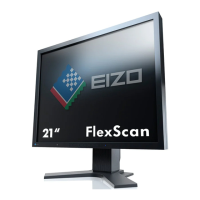
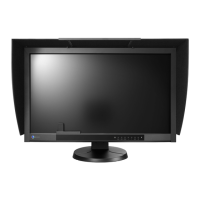
Eizo RadiForce GS320 - CL - User Manual

Eizo RadiForce GS320 - CL
38 pages
Print Icon
To Next Page IconTo Next Page
Loading...
User’s Manual
Monochrome LCD Monitor
It shall be assured that the final system is in compliance to
IEC60601-1-1 requirements.

Questions and Answers

  • R
    randydixonAug 15, 2025
    What to do if my Eizo RadiForce GS320 - CL turns off while in use?
    • N
      Nathan CookAug 16, 2025
      If your Eizo monitor turns off during use, it might be overheating. This can happen when the internal temperature becomes excessive. Try moving the monitor to a new location or changing the environment where it's installed, and then turn it on again after a few minutes. Also, ensure that the air vents are not blocked and that high-temperature equipment is not nearby. If the monitor still fails to restart, even after moving it, contact an EIZO dealer.
  • T
    Taylor FloresAug 18, 2025
    Why is the ScreenManager main menu not working on my Eizo Monitor?
    • S
      Stacey Silva DVMAug 19, 2025
      If the ScreenManager main menu on your Eizo monitor isn't working, ensure that the adjustment lock is off. Also, if the control panel switches are wet or soiled, lightly wipe the surface of the control panel and try touching the switches again with dry hands. Make sure you are not wearing gloves; remove any gloves and try again.
  • D
    Deborah RiveraAug 21, 2025
    How to fix a too bright or too dark Eizo RadiForce GS320 - CL Monitor screen?
    • P
      Patricia White DVMAug 21, 2025
      If your Eizo monitor screen is too bright or too dark, adjust the . Note that the backlight of the LCD monitor has a fixed life span. When the screen becomes dark or begins to flicker, please contact your dealer.
  • S
    Sierra BradleyAug 25, 2025
    Why is my Eizo Monitor showing 'no signal' error message?
    • J
      Jill StephensAug 26, 2025
      The 'no signal' error message on your Eizo monitor may appear because the PC isn't sending a video signal immediately after being powered on. First, ensure that the PC is turned on. Next, check that the signal cable is properly connected to both the PC and the graphics board. If the issue persists, use the graphics board’s utility software to adjust the frequency setting; refer to the graphics board manual for instructions.
  • W
    William GallagherAug 27, 2025
    How to troubleshoot no picture on Eizo RadiForce GS320 - CL?
    • C
      Christopher RamirezAug 27, 2025
      If your Eizo monitor isn't displaying a picture, first check that the power cord is correctly connected. If the problem continues, turn off the monitor for a few minutes, then turn it back on. You can also try pressing a key on the keyboard or clicking the mouse. Make sure the PC is turned on. Try touching the power switch to turn it on again. If the power switch turns off again (indicator status: flashing orange quickly) within one minute of turning on, refer to Problem No. 9 on p. 29.
  • C
    Christopher GarciaAug 30, 2025
    Why is the control panel not working on my Eizo RadiForce GS320 - CL?
    • J
      Joel BernardAug 30, 2025
      If the control panel on your Eizo monitor isn't working, it might be due to wet or soiled control panel switches. Lightly wipe the surface of the control panel and try touching the switches again with dry hands. Also, ensure you are not wearing gloves; remove any gloves before trying again.
  • B
    Breanna TaylorSep 2, 2025
    Why is the USB function not working on my Eizo RadiForce GS320 - CL?
    • R
      reneegreenSep 2, 2025
      If the USB function on your Eizo monitor is not operating, check that the USB cable is connected correctly. Also, verify that your PC and operating system are USB compliant. (For verification of USB support, consult the manufacturer of each system.) Check the USB setting in the PC's BIOS. (For details, refer to the manual of the PC.)
  • T
    Tonya VaughanSep 5, 2025
    What to do if my Eizo RadiForce GS320 - CL PC freezes when using USB?
    • J
      jamesmclaughlinSep 6, 2025
      If your PC freezes or peripherals connected to the USB downstream ports do not operate when using your Eizo monitor, check that the USB cable is connected correctly. Try connecting the peripheral to another USB downstream port. If the problem is solved by doing this, contact an EIZO dealer. Try restarting the PC or connecting the PC and peripherals directly. If the problem is solved by doing this, contact an EIZO dealer. Note that the power switch on an Apple keyboard will not operate when connected to a USB downstream port on the monitor; connect the keyboard directly to the Apple PC.
  • C
    colemancatherineSep 8, 2025
    What causes afterimages on Eizo Monitor?
    • H
      Heather BrownSep 9, 2025
      Afterimages on your Eizo monitor can occur if you are displaying the same image for extended periods of time. Consider using the screen saver or off timer when displaying the same image for extended periods of time. Avoid displaying the same image for extended periods of time.
  • M
    mitchellbriannaSep 12, 2025
    What are defective pixels on Eizo RadiForce GS320 - CL?
    • K
      Kari ClarkSep 12, 2025
      Defective pixels (appearing slightly light or dark) on the Eizo monitor screen are due to the characteristics of the panel itself and not a defect of the LCD product.

Summary

Safety Symbols

Warning and Caution Statements

Details the meaning of WARNING and CAUTION symbols to prevent injury.

Prohibited Actions and Grounding

Describes symbols indicating prohibited actions and grounding for safety.

Precautions

General Safety Warnings

Details critical safety warnings regarding electrical shock, fire, and equipment damage.

LCD Panel Precautions

Advises on handling the LCD panel, preventing damage, and dealing with potential issues.

Installation

Before Connecting

Provides instructions on preparing the PC and monitor settings before connection.

Cable Connection

Step-by-step guide for connecting the signal and power cables to the monitor and PC.

Connecting to Power and PC

Details connecting the power cord to an outlet and turning on the monitor and PC.

Adjustments and Settings

How to use the ScreenManager

Introduces using the ScreenManager OSD and monitor switches for adjustments.

Brightness and Image Adjustments

Using USB Connectivity

Troubleshooting

No Picture Problems

Guides users through common issues related to the monitor not displaying an image.

Signal Input Errors

Addresses error messages related to incorrect or out-of-range video signals.

Monitor Auto-Off and USB Issues

Covers troubleshooting for unexpected monitor turn-off and USB function failures.

Specifications

Eizo RadiForce GS320 - CL Specifications

General IconGeneral
BrandEizo
ModelRadiForce GS320 - CL
CategoryMonitor
LanguageEnglish

Related product manuals