To amend an existing tariff, overtype the description field as required and enter
the desired cost rates also. Note that costs are entered as p/kWh. Select the
desired start/finish times from the drop-down menu.
Amended values will change from black to red. Click the ‘recalculate’ button to
apply the revised rates to the survey data.
To create a new tariff, proceed as above, adding additional bands if required.
The option to save changes appears when exiting from the costs page. Click ‘Yes’
to save changes. Enter a new tariff name in the ‘Save Tariff As’ box to create a
new tariff, or save as the existing name to amend a tariff.
ALARMS TAB
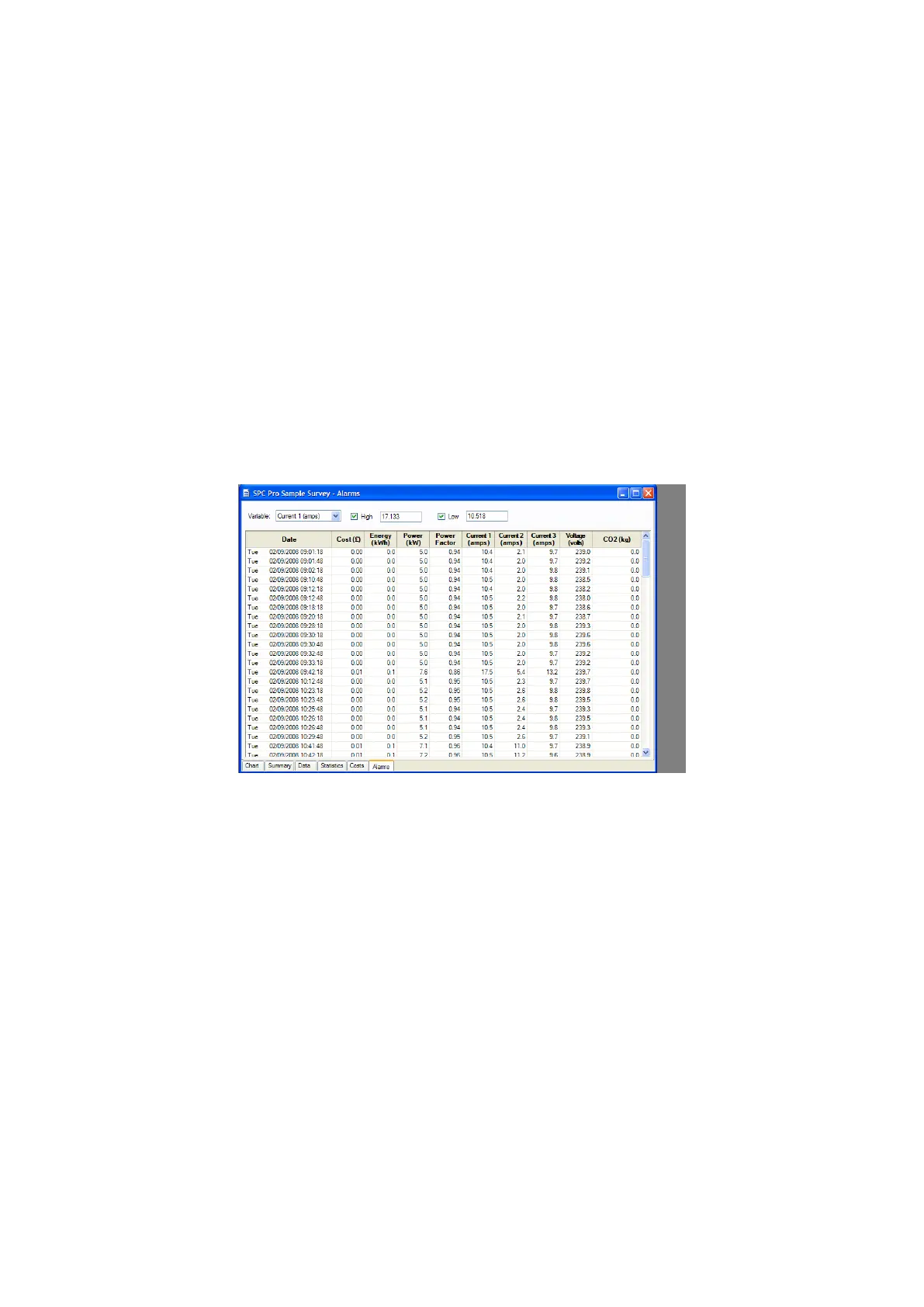
Click the ‘Alarms tab to display the alarm screen.
Select the desired parameter from the drop-down menu at top left. Enable high
and low alarms via the checkboxes provided. Enter your desired alarm
thresholds as required and press the ‘enter’ key to activate. The alarm events
will be listed in the main window.
NOTE: Alarm thresholds may also be viewed on the chart, with
the alarm zones appearing in pink


 To Next Page