SoilTest PRO Auto Soils Consolidator (ASC)
25-0500
Original Instructions 27 9901X0275 Issue 2
Appendix 2: USB Port for Firmware Update
The USB port is used for firmware updates to the system’s software (see below), to take
copies of configuration data and to export data to a PC.
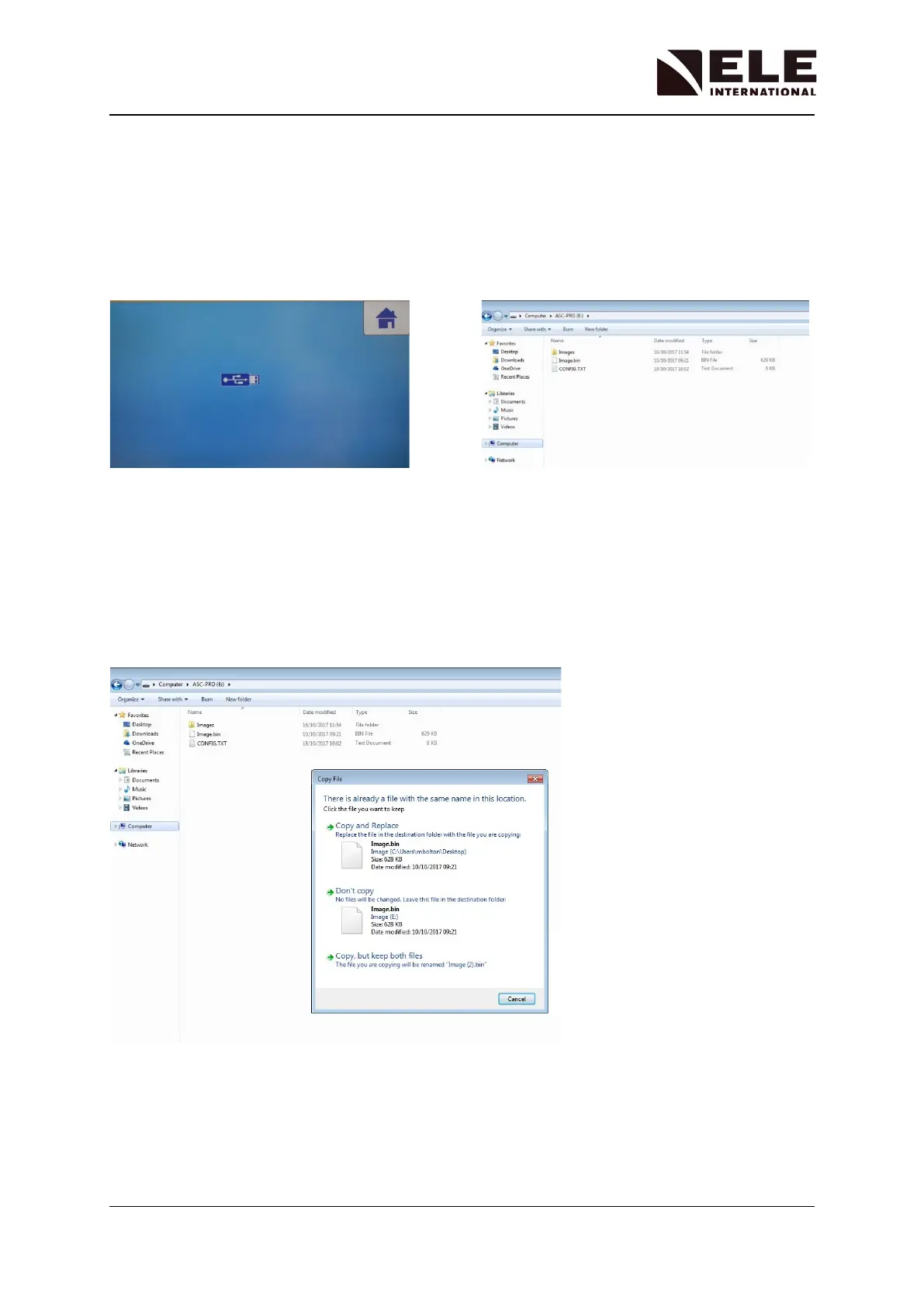
Connect the ASC to a Windows PC or laptop via the USB port and select the USB icon in the
Saved Data menu.
The ASC will now be visible to the external PC as a removable memory device. The root
directory of the ASC will contain a file called Image.BIN - this is the firmware file.
In order to update the firmware file, take a copy of the existing file and save it to another
location. Copy and paste the updated firmware file into the root directory of the ASC,
selecting “Copy and Replace” when prompted.
After updating the firmware, safely remove the device from the PC using the ‘Eject’
function and remove the USB cable. Switch the ASC OFF and back ON. Confirm the new
update is programmed when the unit powers up, “Programming new image……” is
displayed, followed by “success”. To check the version of firmware loaded, look in the
Display Version Menu section.



 To Next Page